TARGPatrol Update November 2026
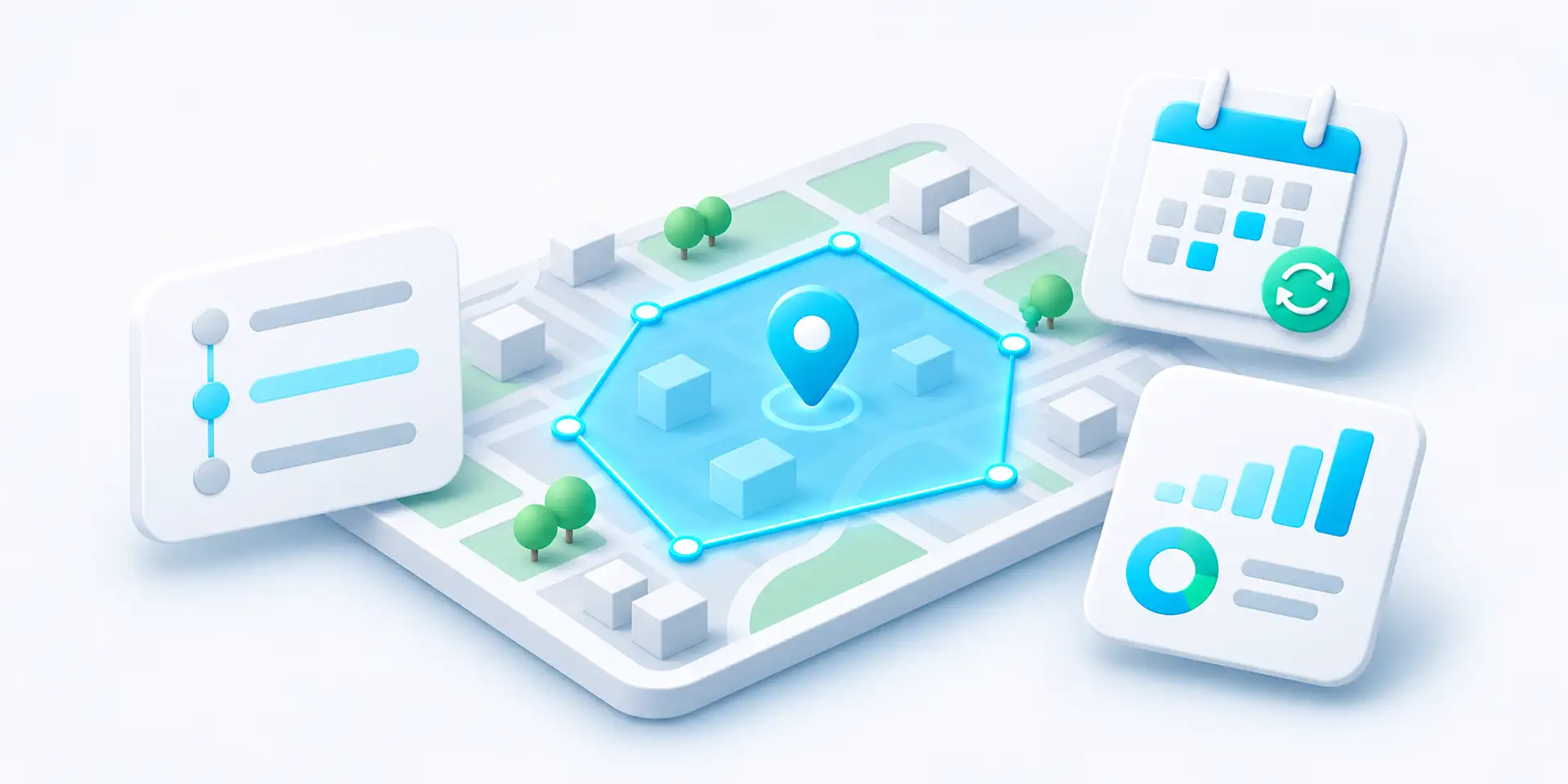
Keep site activity, changes, and follow-up in view. November’s update brings Location geofencing, clearer operational maps, and recurring tasks that follow the right local time. It also adds audit trails, more useful Point ordering, targeted Incident notifications, and more dependable reporting for distributed teams.
This roundup covers the October 15 and October 25 releases, plus improvements delivered through November 4, 2026.
Review site exits and returns with Location geofencing
A completed check-in confirms a visit, but it does not tell the whole story about activity between checkpoints. Location geofencing adds another layer of visibility: it records when selected mobile users are confidently detected outside a Location boundary and when they return.
Open a Location and choose Configure on map. Set its position, then switch to Geofence boundary to draw the work area. The position pin and boundary are independent: adjusting one does not move the other. Enable GPS tracking and Geofence tracking separately for the users whose activity you need to review.
Click to add boundary corners, drag corners or edge midpoints to refine the shape, and use Undo last point when drawing.
Choose Apply to copy the draft into the Location form, then Save to store it.
Choose Cancel to discard the editor draft without changing the saved Location.

GPS tracking and Geofence tracking are enabled separately for each user. English interface; example controls shown without personal details.
Review an observed exit, a detection outside the boundary, or a confirmed return. These labels distinguish an observed crossing from simply finding someone outside.
Open the Geofence tab in a User or Location record to review the event history.
Select an event to see its GPS position, reported accuracy, and the boundary used for that evaluation. The saved evidence remains tied to that event after later boundary edits.
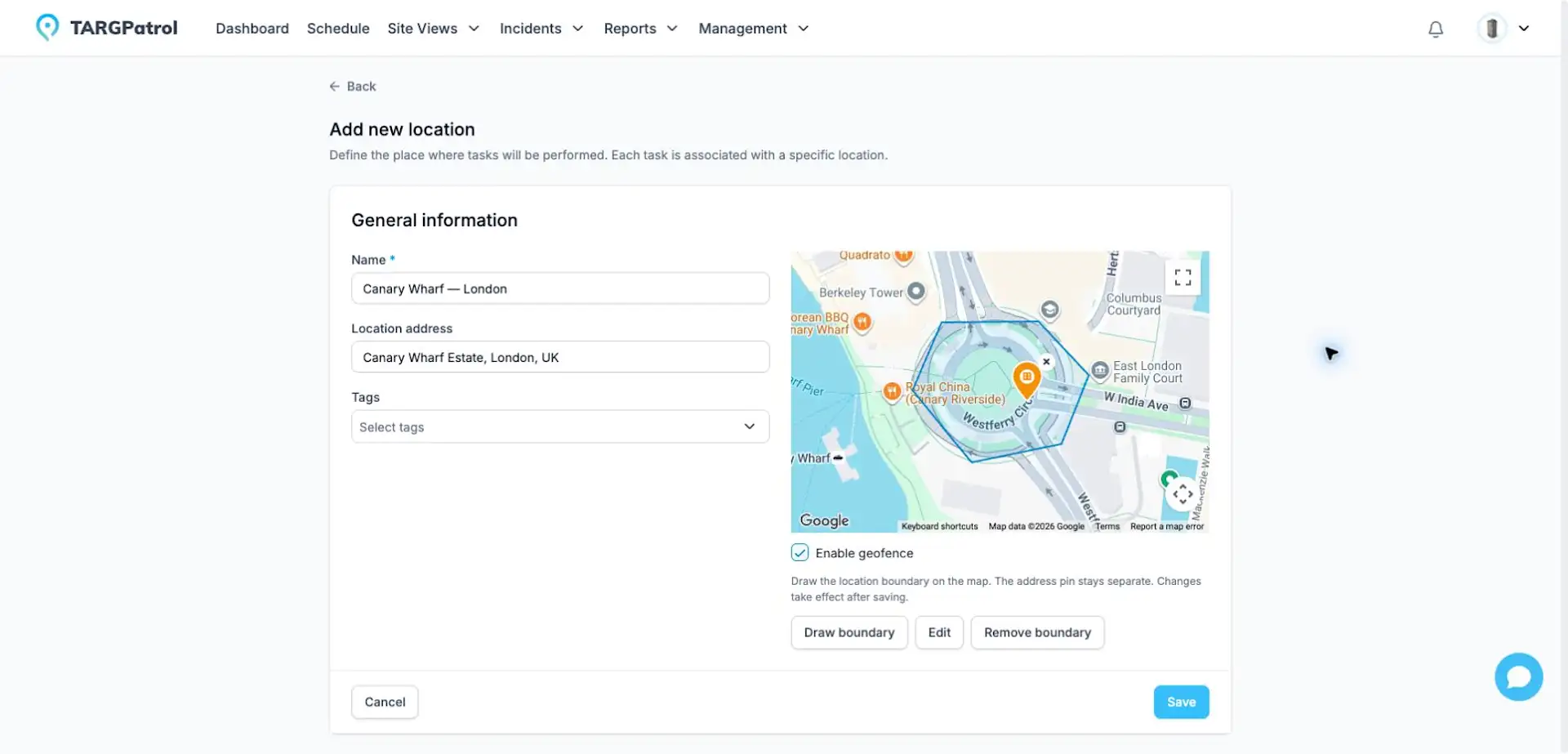
Illustrative boundary in Canary Wharf, London, UK—not a customer deployment. This screenshot shows the earlier editor; the current Configure on map dialog separates Location position from Geofence boundary editing.
New geofence events are recorded on Base and Enterprise. Owners can review events across the organization; Admins see events only in their currently assigned Locations. Existing events remain viewable on Free when the viewer’s permissions allow access.
Geofencing uses GPS samples collected while the mobile app is open and in use. Offline samples can appear after synchronization, so this is not continuous background tracking or a guarantee of someone’s current position. Automatic geofence notifications are not included in this rollout.
GPS Point proximity checks still work as before: they validate a check-in near a checkpoint. Location geofencing monitors a site boundary separately; it does not automatically block tasks or complete check-ins.
Learn how to set up Location geofencing
See sites and findings on clearer maps
Enabled Location boundaries now appear on the maps used for daily work: Locations & Points, Site Views, the Dashboard, and Incident creation or editing. A separate Location marker identifies the site independently of its checkpoints.
Distinguish Locations, Points, Incidents, and legacy Issues by their marker shapes, and recognize Incident priority from its color.
Open a Location marker in Site Views or the Dashboard to review its details, History, and Geofence events without leaving the map.
See names when you zoom in, hover, focus, or select a marker, keeping wider map views less crowded.
Boundaries provide context when reporting an Incident; they do not restrict where its pin can be placed. Geofence event maps still show the boundary saved with that event, even after the Location is edited.
Find out who changed what with Audit logs
An assignment looks different. A recurring schedule has changed. Someone updated access to a Location. Instead of asking around, open Audit logs to trace supported changes across your organization.
Search for the person who made a change or the affected record.
Filter by date, action, record type, Location, or person.
Open an event to review its details and supported before-and-after values.
Review recurring-series actions as a summary rather than a separate event for every generated task.
Audit logs cover supported changes to planned tasks and recurring series, Incidents, legacy Issues, comments, Users, Locations, and Points. They are a read-only view of administrative and configuration changes—not a log of every click, check-in, or completed task.
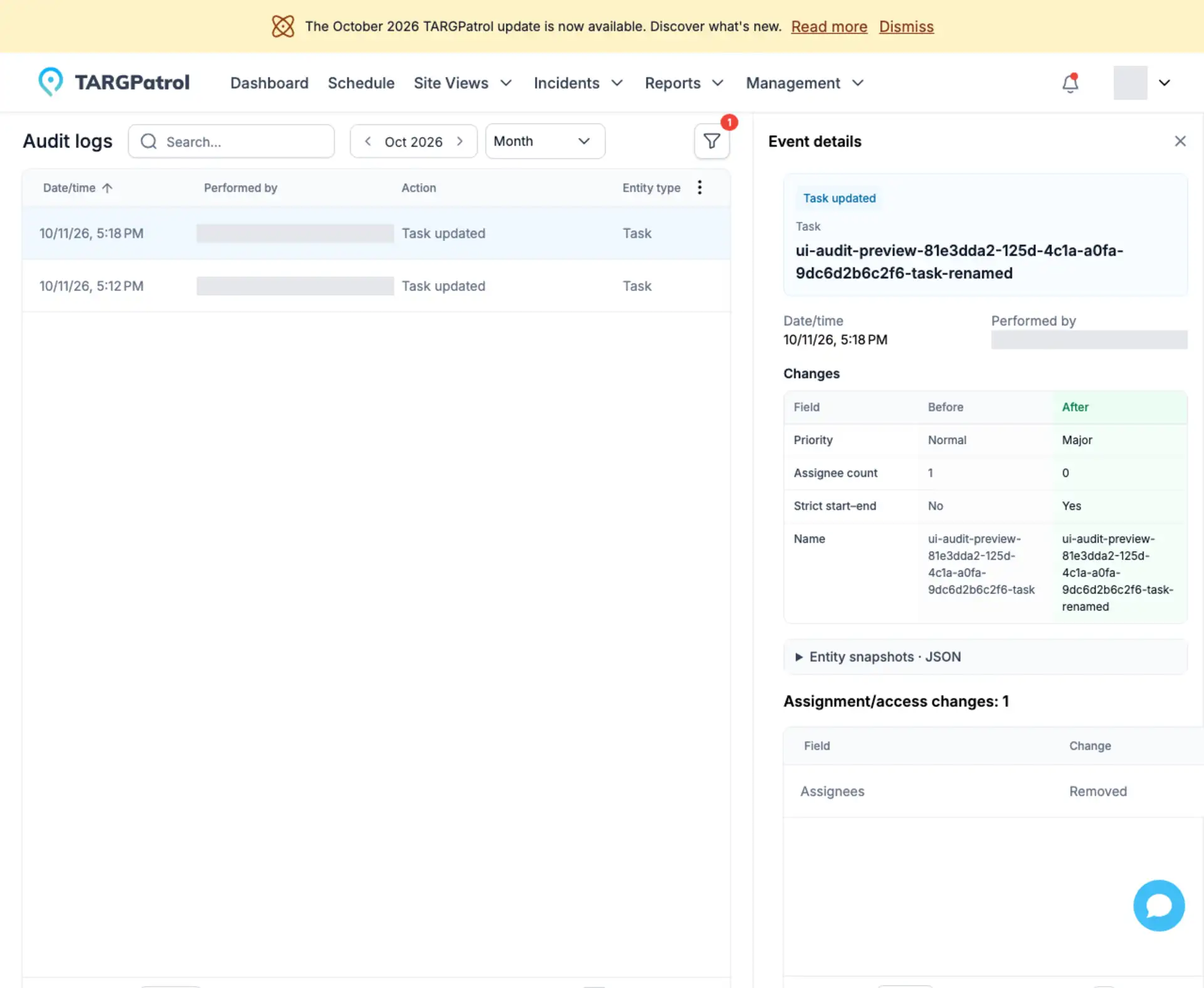
Audit-log event details show supported before-and-after changes. English interface with test data; personal names are masked.
Audit logs are available on Base and Enterprise, not Free. Owners can review the organization’s audit log; Admins see only events within their permitted Location scope. Recording starts while the organization is on a paid plan, so earlier actions are not added retroactively.
Review changes to individual records
Need to understand one particular record rather than search across the organization? Open its History to review retained changes to:
Scheduled tasks
Incidents and legacy Issues
Users
Locations
Points
For example, check when a task’s assignment changed, how an Incident’s priority was updated, or what changed in a Point’s configuration. Entries show the date, the person responsible when available, and the supported changes. Expand an entry to compare previous and new values where they are retained.
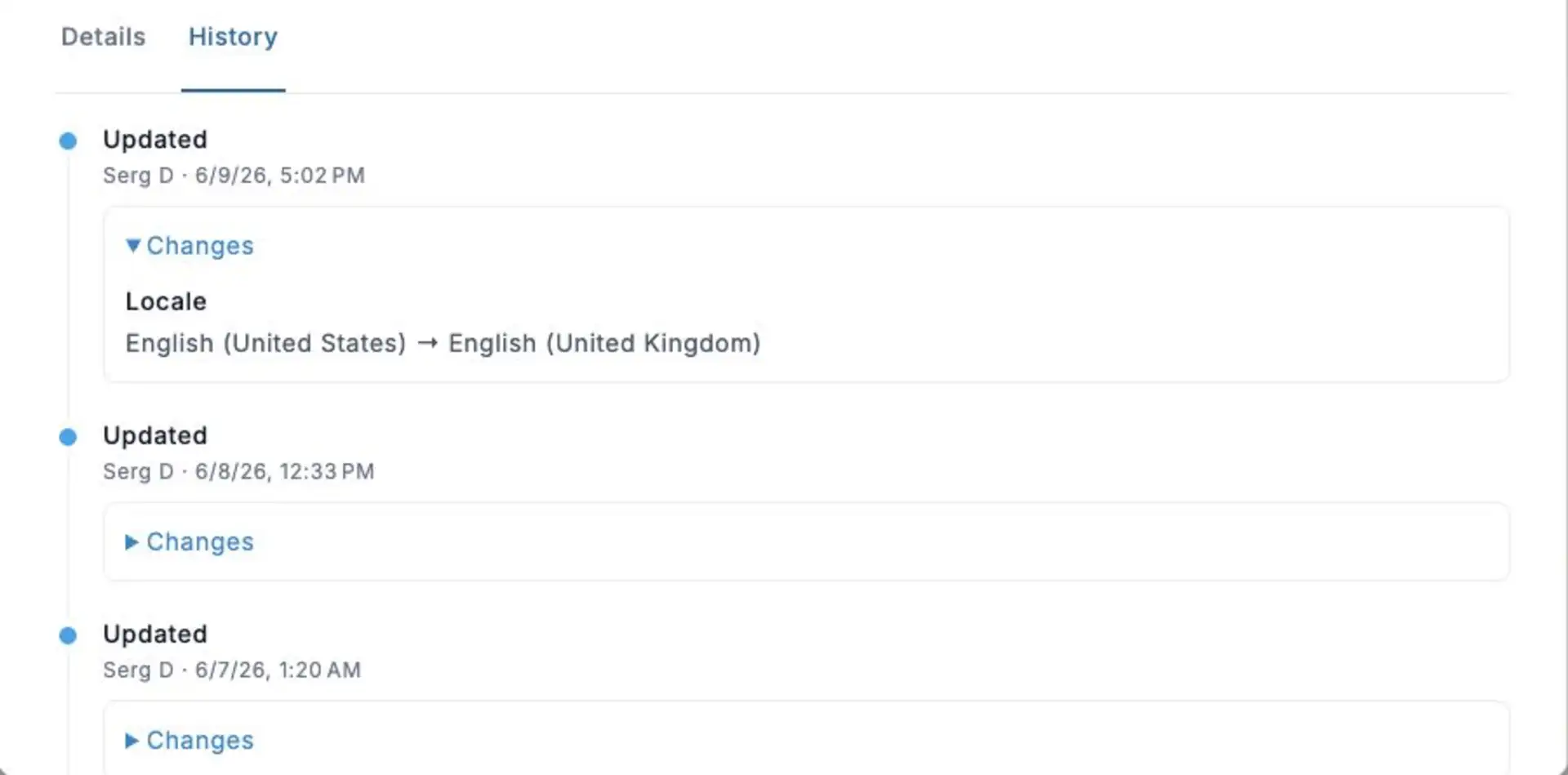
A User’s History shows retained changes to that record—in this example, a locale update. English interface with sample data.
Some protected or complex fields show only that a change occurred, and older entries may not have a previous value to compare. History is read-only: it helps explain changes but does not restore an earlier version.
Individual record History is available on Free, Base, and Enterprise, subject to your permissions and Location access. It is separate from the paid organization-wide Audit logs feature.
Put Points in an order that makes sense
A useful Point list should reflect how your site is organized, not just the alphabet. In Management → Locations & Points, expand a Location and drag its Point rows into the order you want.
Group checkpoints by floor, put frequently used Points near the top, or arrange them to make a large site easier to navigate. The saved order is used in the updated web Point lists and selectors, and new Points are added at the end.
This changes display order only. It does not move a Point to another Location or rearrange steps in existing tasks. Set the required execution order separately in the task plan. Mobile use of the saved order depends on the installed app version.
For integrations, the External API also exposes Point display order and dedicated reorder and move operations. Use the current API reference for the supported requests.
Explore Points and their settings
Connect geofence records and tags to your own tools
External API 1.7 exposes Geofence event records and per-user Geofence tracking settings. Your integration can review the recorded event evidence alongside the Location and User information it already uses.
Integrations can also rename tags across supported records or remove a tag from those records. This helps keep labels consistent across your organization without updating every record manually. Existing paid-plan API availability and access rules still apply.
Explore the current External API reference
Review the dates you need in Schedule
Not every rota, inspection period, or client contract fits neatly into one week or month. Schedule now includes Range: choose your own start and end dates and review that period together.
Use it for a two-week cleaning rota, a maintenance window spanning two months, or another custom planning interval. The selected period works with your Schedule view and filters and is reflected in supported Schedule exports.
You can select up to 123 calendar days, including the start and end dates. Existing export limits and plan requirements still apply; a longer date range does not increase the number of tasks allowed in a PDF export.
Keep recurring work at the right local time
New recurring series use the time zone shown in the web editor and keep their local schedule through daylight-saving changes. For example, a daily 9:00 site check stays at 9:00 in the series’ time zone instead of shifting when the UTC offset changes.
A saved series retains its own time zone when someone edits it from another region. Older fixed-UTC series remain identified as such: opening a task or changing ordinary details does not silently convert the schedule.
The recurring-task editor now makes the scope of your changes easier to follow. Choose Only this task, This and following, or Entire series, then review how many tasks can change and how many will stay unchanged.
Clearer messages explain when no editable tasks remain, when the selected task is no longer part of a series, or when the series changed while you were editing. If a check cannot be completed, retry or reopen the task from Schedule rather than guessing whether your changes were saved.
Series changes apply only to tasks that have not started and whose scheduled end time has not passed. Started and past tasks stay unchanged, preserving the record of work already underway or completed.
You can change the recurrence pattern for eligible tasks, not just shift their time—for example, replace a daily round with a weekly schedule. Review the selected scope before saving; started and past tasks remain unchanged.
Read the recurring-task editing guide
Share reports with more confidence
The Performer column’s totals in task reports are now consistent between the web report and its PDF and Excel exports, including custom total settings. This makes the downloaded report easier to compare with the view your team reviewed on screen.
Excel exports use less memory when preparing larger reports. Interrupted jobs can now show a clear failure instead of remaining In progress. This does not automatically retry the export. If a report is too large, choose a shorter period or fewer records and try again. Existing plan and export limits still apply.
Send more relevant Incident notifications
Incident notification rules can now be narrowed by Type, Category, and Location, alongside their existing event, state, and priority conditions. This helps each team hear about the Incidents that matter to its work.
For example, configure a rule for selected maintenance categories at particular sites, or route security alerts based on their Type and Location. Select several values within a filter to match any of them; when you combine different filters, all those conditions must match. Leaving a filter empty keeps that filter unrestricted.
The editor also highlights potential recipient problems, such as inactive users, roles without eligible members, or missing Location access. These warnings help you review the setup; selecting a recipient does not grant access to a Location or guarantee delivery.
Notifications remain available on paid plans. Each recipient’s enabled delivery channels are managed separately in their notification settings.
Set up Incident notification rules
Get new Locations ready with less back-and-forth
Admins can now create Locations and are automatically assigned to the Locations they create. This makes it easier to prepare a new site without asking the Owner to carry out every setup step.
Creating a Location does not grant access to every other site. Non-Owner users, including Admins, remain limited to their assigned Locations.
Users without assigned Locations also get clearer guidance instead of an unclear empty workspace. Location selectors remain visible even when only one Location is available, making the current working context easier to recognize.
Learn about Locations and access
Small fixes that make daily work smoother
Alongside the new features, these releases improve a few everyday workflows:
More reliable dashboard loading when the application starts.
Corrections to restoring an organization and checking access when creating an Incident from a task.
Restored configured notifications for invalid and out-of-range action values.
Mobile teams should use TARGPatrol Mobile 1.9.0 or later, which is now the minimum supported version. If your app is older, update it before using the current service.
See what is new in TARGPatrol Mobile 1.9.0
A clearer record of your operation
Whether you manage patrols, cleaning rounds, maintenance visits, or store checks, this update helps you understand site activity, follow changes, and plan the next step. Start with the map, scheduling, or reporting improvements that solve the biggest day-to-day problem for your team.
Compare plans or contact the TARGPatrol team to find the right fit for your operation.