

Points
In this guide, we will explain how to create points in TARGPatrol, outline their purpose, and describe the different types available. Points represent specific physical or virtual locations where employees need to perform check-ins or complete tasks. You can choose from multiple point types, including QR codes, NFC / RFID tags, GPS coordinates, and virtual points, depending on your operational needs. Each point can be linked to a specific location for better organization and tracking. Once created, these points can be used in tasks and issues to ensure accountability and accurate reporting.
TARGPatrol supports multiple types of points for check-ins, giving you flexibility based on your operational needs.
QR Points: These use printed QR codes placed at specific locations. Employees scan the code using the mobile app to check in.
NFC/RFID Points: These use NFC or RFID tags that employees can tap with their mobile devices to confirm their presence.
GPS Points: These are location-based points that use the device’s GPS to verify check-ins when the employee is within the designated area.
Virtual Points: These points do not require any physical tag or location. Employees check in directly from the mobile app when they reach the designated place.
Creating a Point
There are two ways to add Points in TARGPatrol: via the web application or directly through the mobile app.
To create a new Point using the TARGPatrol Web application, follow these steps:
Go to the web application (or the mobile app) and log in with your account. For more details on registration and authorization, refer to the previous lesson.
Navigate to the menu Management -> "Locations & Points".
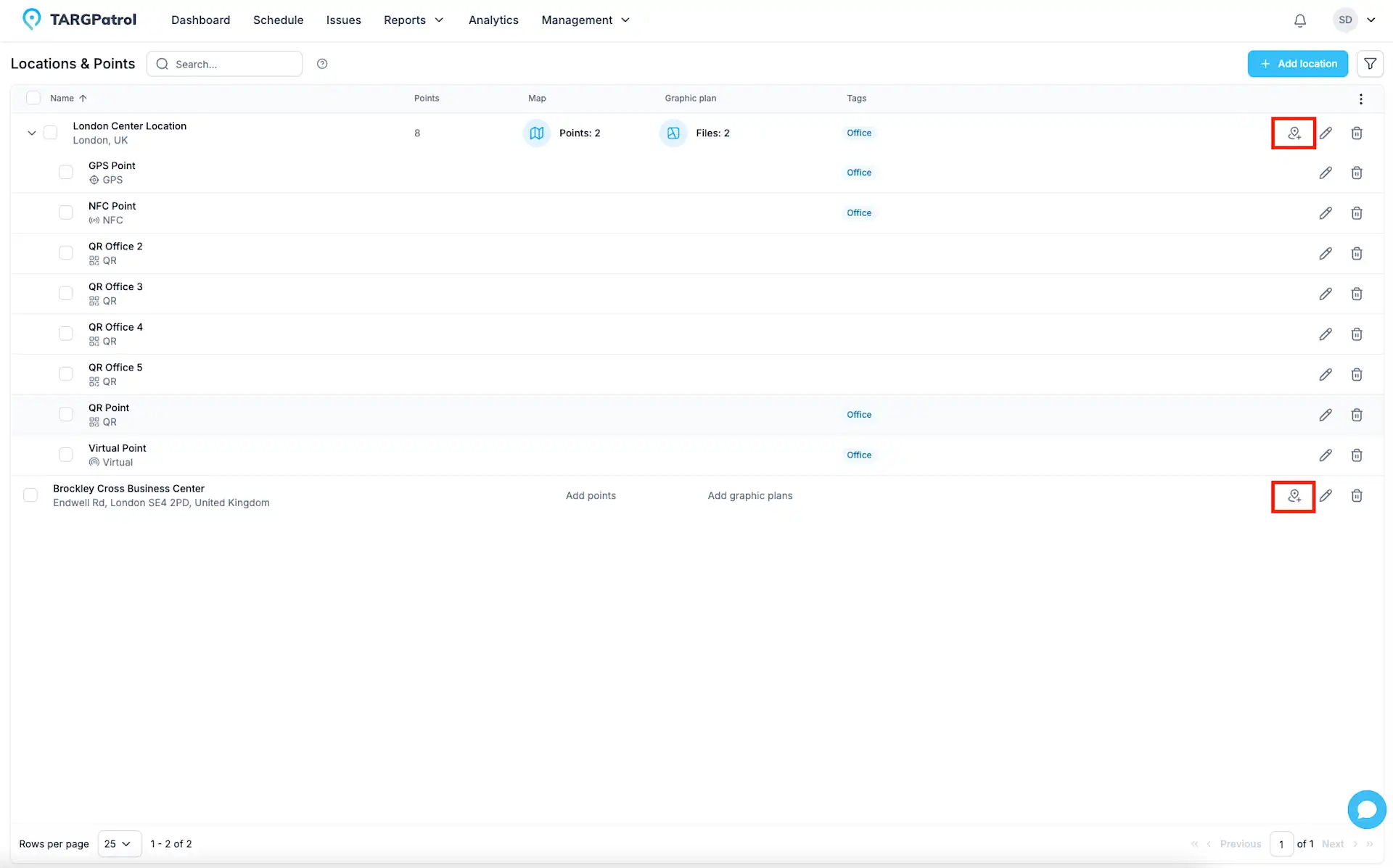
Click the "Add Points" button in the location where you want to add a point.
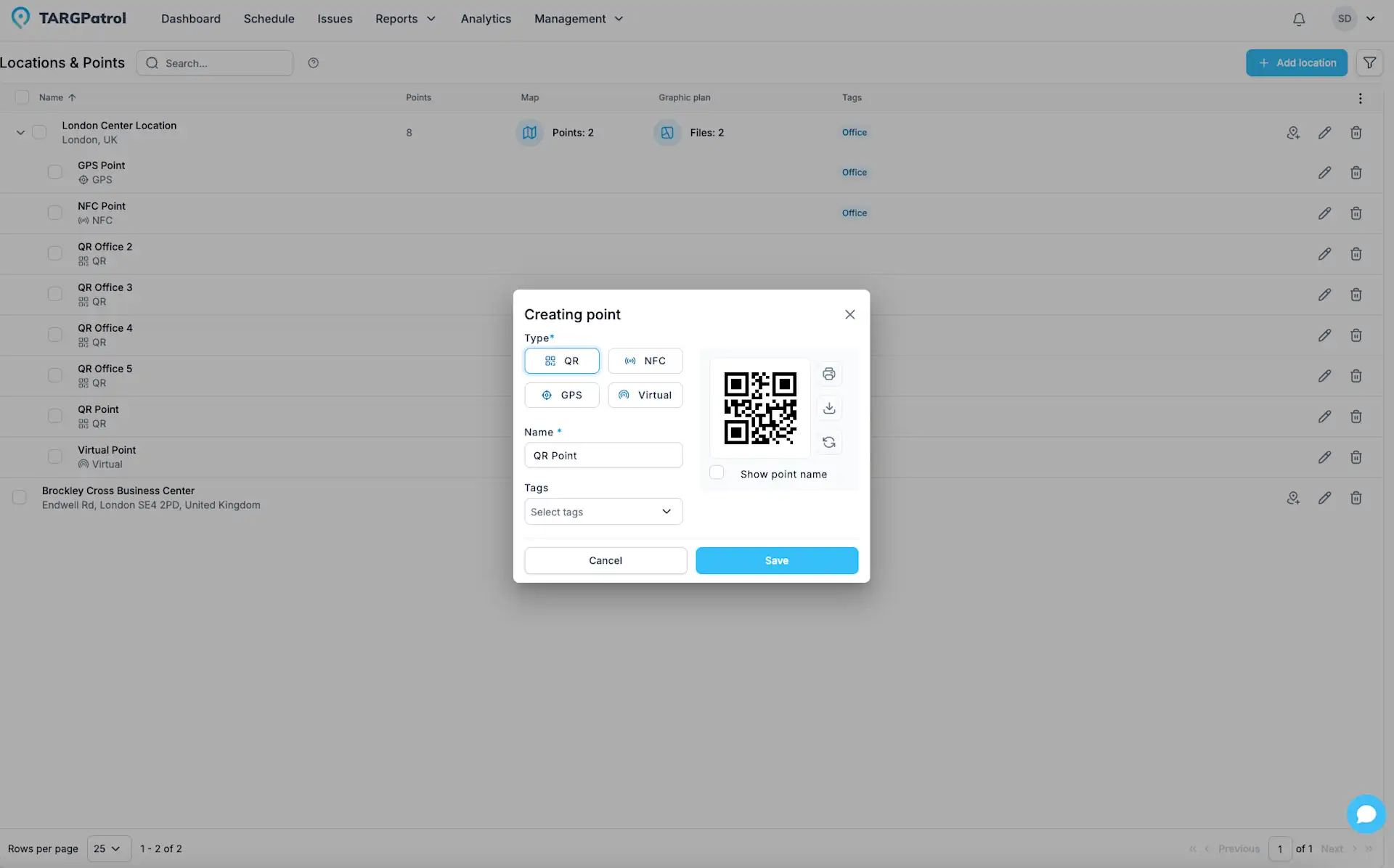
To create a point, click on the “Create Point” button to open the popup window. In the popup, fill in the required fields: Point name and Type.
If you want to edit or delete a Point, simply click on the corresponding icons located next to the Point’s name. The pencil icon allows you to edit the Point’s details, while the trash icon lets you delete it from the location.
Point Check-In Settings
Within each Point, you can enable direct check-ins and define what actions must be completed during the check-in process.
When Allow check-in on the point is enabled, users can perform actions at this point directly from the Check-in tab in the mobile app, even without being inside a scheduled task.
You can configure Actions for all users, which defines the default list of actions (e.g., checkboxes, text inputs, comments, photos, etc.) that must be completed by anyone checking in at this point.
Additionally, User action overrides allow you to assign a different set of required actions to specific users or groups of users. For example, supervisors may have a more detailed checklist, while regular staff complete a simplified version.
If no follow-up actions are required, you can leave the action list empty. In this case, the check-in will simply record the visit (time, user, point, etc.) without requiring additional input — which is often suitable for guard patrol scenarios.
You can also combine Scheduled Tasks and Check-ins together. A point can be used inside a Scheduled Task with its assigned workflow, while still allowing direct check-ins when needed. This provides full flexibility for both structured task execution and on-demand activity.
For sure, it’s hard to manage many Points if you must update them one by one. You can apply the same On-demand Check-in settings to multiple Points in just a few clicks. Simply select the Points you want to update, then click On-demand Check-in at the bottom of the page. Choose your settings, click Save, and all selected Points update instantly right away.
How to Generate a QR Code and Assign It to a Point
To assign a QR code to a Point in TARGPatrol, open the Point creation or edit popup and choose QR as the Point type. The system will automatically generate a unique QR code for that Point. You can download or print this code directly from the popup and place it at the physical location for easy check-ins during task execution.
Additionally, you can export multiple QR codes at once from the main Locations & Points table. Simply select the Points you want, then use the export option to download or print QR codes for all selected Points in one action — perfect for setting up multiple locations efficiently.
How to Scan an NFC Code and Assign It to a Point
You can assign an NFC code to a Point in two ways:
Manual Entry – Enter the NFC code directly in the Point form. You will need to know the code beforehand (usually a 7-byte HEX value).
Using the Mobile App – Use the TARGPatrol mobile app on iOS or Android to scan the NFC tag and create or update the Point automatically.
Placing a Point on the Map and Assigning GPS Coordinates
To place a Point on the Map plan, click on the Point in the sidebar list and then click on the desired location on the Map. The Point will automatically receive GPS coordinates based on the selected position. You can also drag and drop the Point marker directly on the Map to adjust its placement precisely.
Assigning GPS coordinates to a Point is required if you plan to use GPS check-ins for tasks and steps.
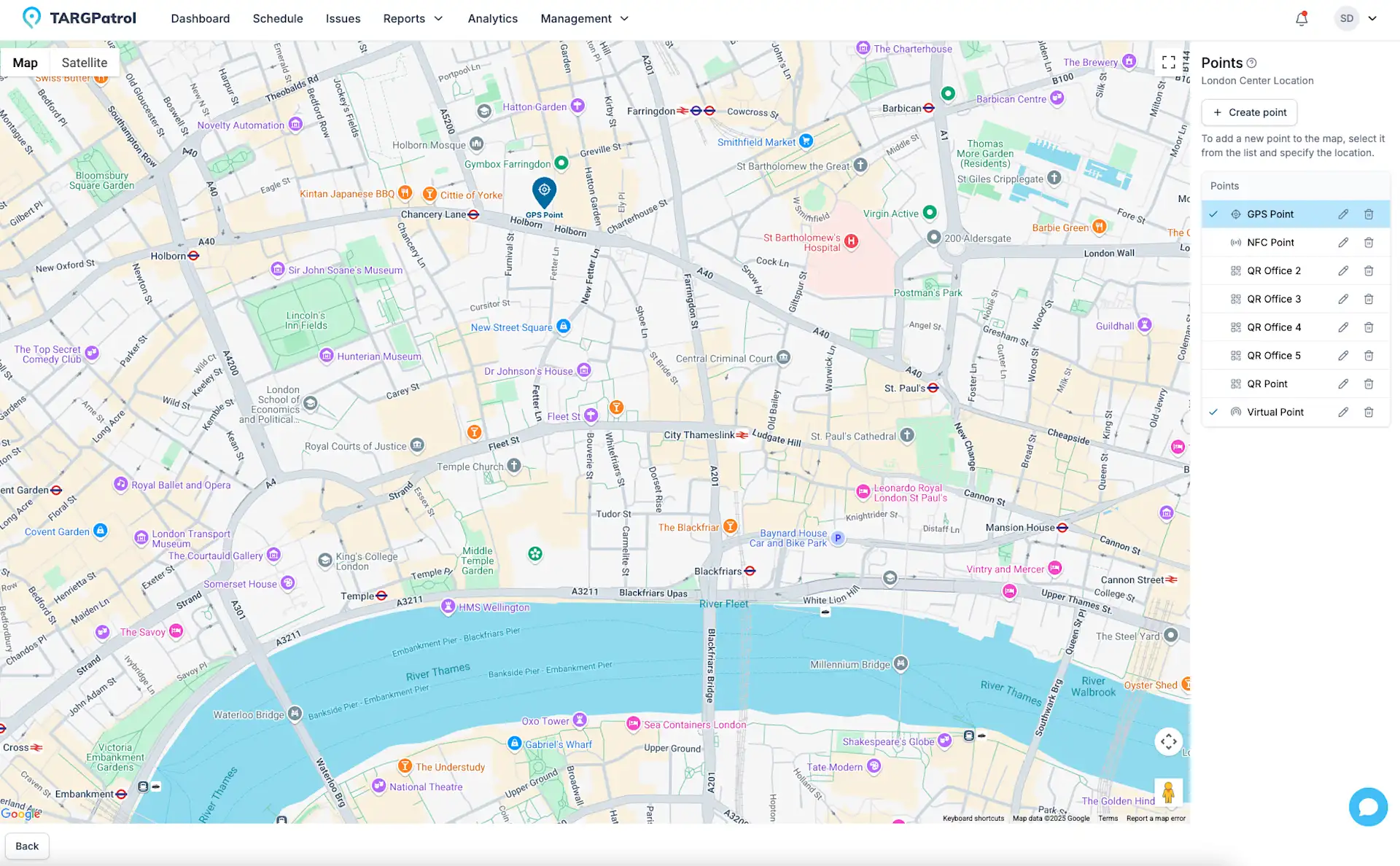
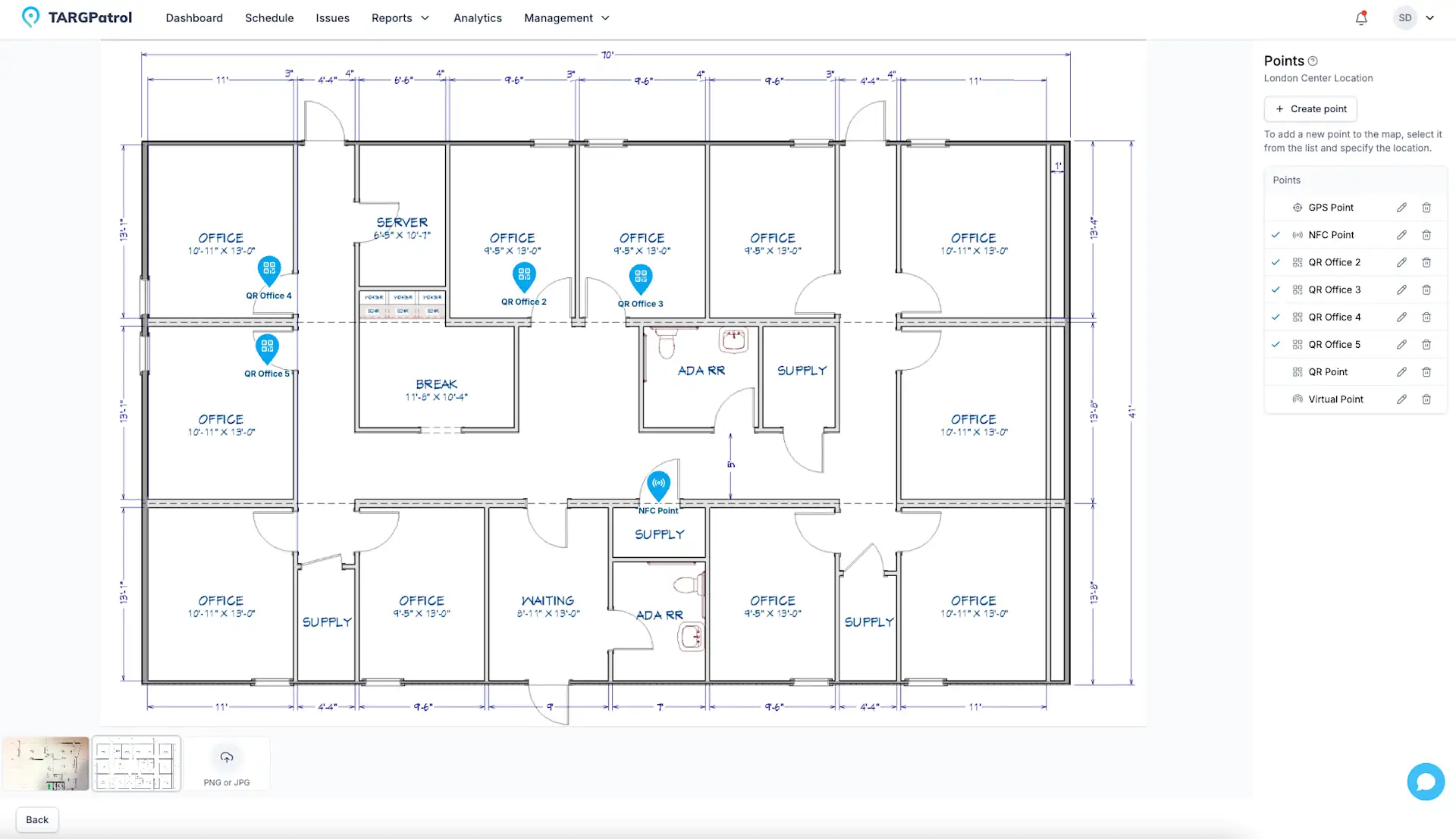
The same approach works for Graphic Plans, but in this case, the marker is placed only for visual positioning, and no GPS coordinates will be assigned.
Using Graphic Plans to Visually Place Points
Graphic Plans in TARGPatrol allow you to visually represent physical spaces like building layouts, floor maps, or outdoor areas. This feature makes it easier to place and manage Points within a clear visual context. To use a Graphic Plan, simply upload an image (e.g., a blueprint or map) for a specific Location. Once uploaded, you can assign Points by clicking on them in the sidebar and placing them directly on the plan. This helps teams understand the exact position of checkpoints or tasks within the area. Note that unlike Map placement, Points added to a Graphic Plan are positioned visually and do not carry GPS coordinates.
Editing and Deleting Points
To edit or delete a point, follow these steps:
Go to the web application and log in with your account.
Navigate to the menu Management -> "Points".
Find the desired point and click on the pencil icon to edit or the trash can icon to delete.
For bulk actions, use the bulk operations feature by selecting the necessary points using checkboxes.
Review Point configuration changes
In the web app, open Management → Locations & Points, expand a Location and select a Point’s name. In its details, choose History.
The timeline covers supported changes to the name, type, Location, address, coordinates, tags, graphic-plan placement and check-in availability. It also covers default On-Demand Check-in actions and user overrides. QR/NFC identifier changes are indicated without exposing the code values. Older action configurations may show only that a value changed when a reliable previous configuration is unavailable. This is configuration history, not a list of visits or completed check-ins.
Each entry shows when the record was created or updated and who made the change when that information is available. Expand Changes to compare previous and new values. Added and removed tags are shown separately. Select Load more to see older entries.
For some older entries, the previous version is unavailable; the timeline then shows the retained values. Some complex or protected changes are indicated without revealing every underlying value. History is read-only: it does not restore an earlier version.
Record History is available on Free, Base and Enterprise, subject to your role and Location access. Access checks also protect historical values from other Locations. This is separate from the organization Audit logs feature, which requires Base or Enterprise.
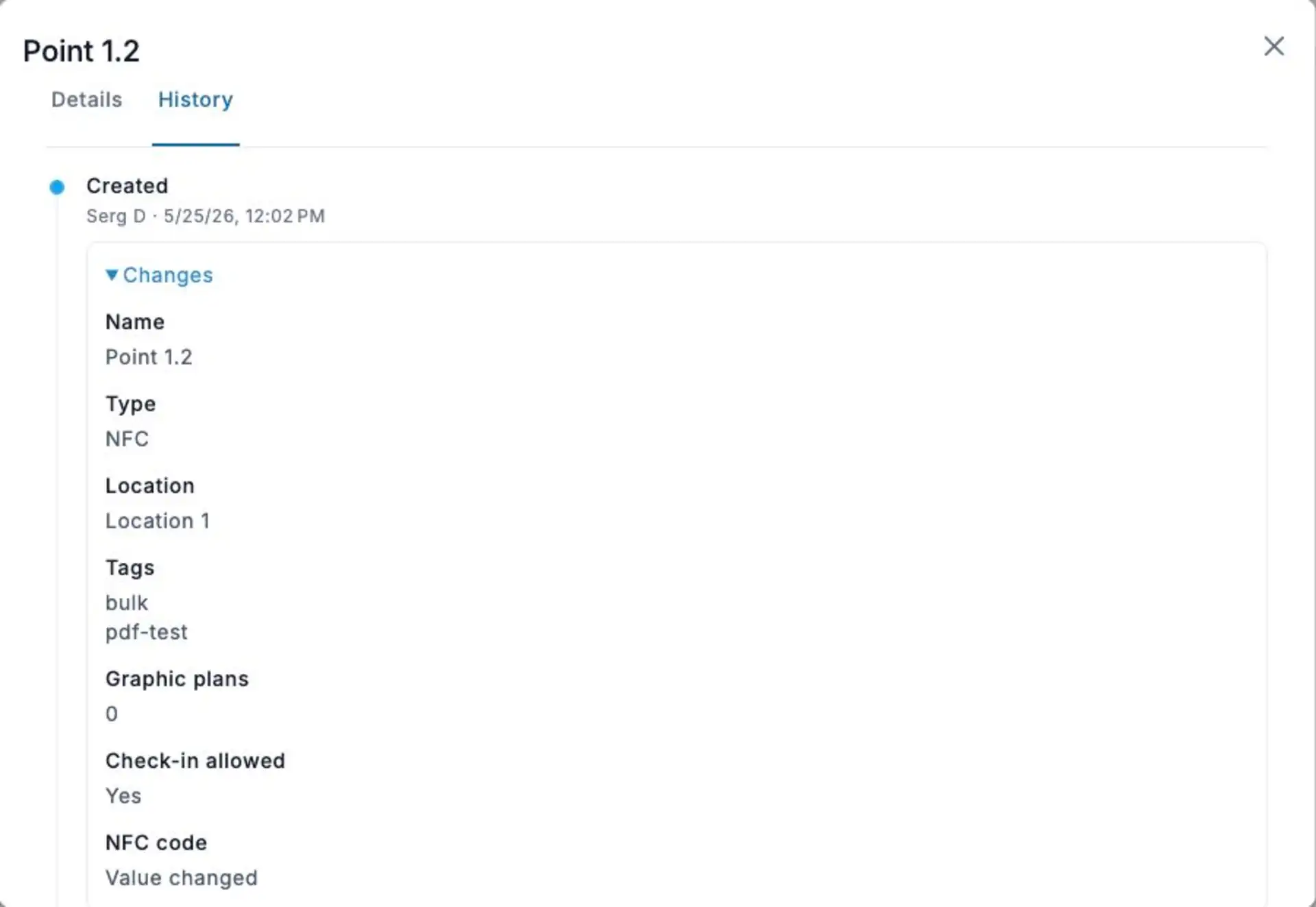
Real TARGPatrol web interface in English, using sample data. The History view shown is read-only.
Reorder Points within a Location
In the web app, open Management → Locations & Points and expand a Location. With Point write permission, drag a Point row to the desired position within that Location. The saved order is used in the updated Point lists and selectors; a temporary name sort is not the same as changing the saved order.
New Points are appended. Reordering does not move a Point to another Location. It does not generate or rearrange task steps and does not modify existing tasks, recurring series, templates or execution records. Set the route order separately in the task plan.
Point History and paid Audit logs can show saved display-order changes. The API exposes the read-only displayOrder value and dedicated reorder/move operations; do not change it through an ordinary Point edit. Mobile support depends on the installed app version; do not assume an older app uses this order.
Read more
For more detailed guidance on setting up and managing your environment in TARGPatrol, explore our Knowledge Base articles:
Want to understand how to structure your workspaces and add checkpoints? Visit our Locations guide to learn how to create, organize, and map Points across your areas of operation.
Looking to streamline task execution? Check out our Checklists guide to learn how to build step-by-step action lists, attach them to tasks, and collect structured data in the field.
GPS Point proximity validation (geofence)
When an employee attempts a GPS Point check-in, TARGPatrol compares the device’s current location with the Point coordinates. The Point can be completed only when the user is close enough.
The current acceptance rule uses a 50-meter base limit plus the location accuracy reported by the device. There is no individual radius setting for each Point.
Detailed setup and troubleshooting: How GPS Point Proximity Validation Works.
Related reporting
Use By Points to review coverage, or Check-in Logs for chronological activity.