

Task Management
Task Management
This guide will show you how to create and manage tasks in TARGPatrol, including how to save favorite tasks for quick access, copy existing tasks to save time, set deadline-based tasks, create repeating tasks, and manage entire task series efficiently.
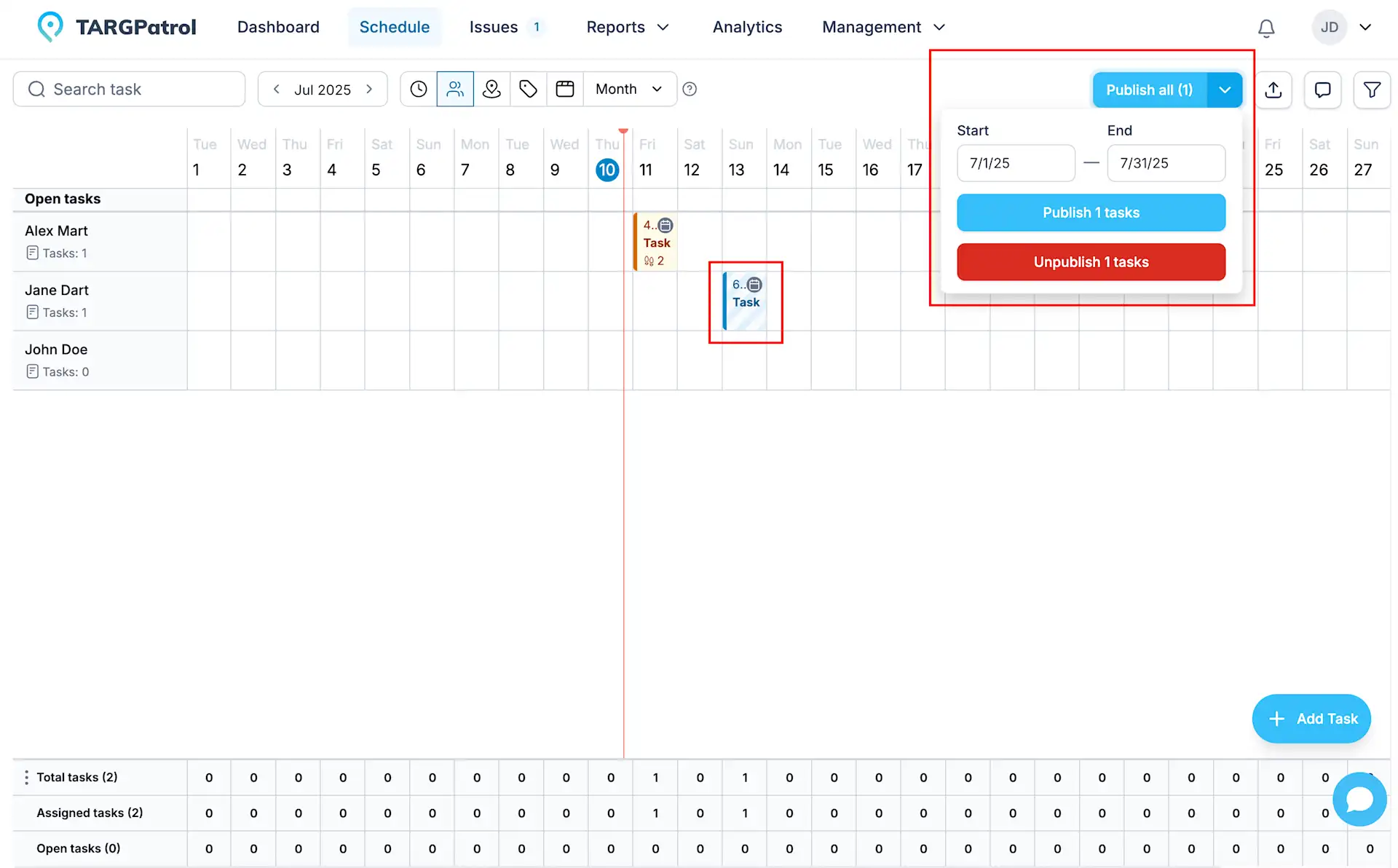
Publishing tasks
When you create a task in TARGPatrol, it remains unpublished unless you choose to “Save and Publish” simultaneously. Unpublished tasks appear differently on the Schedule page, with a pale background and hatching to distinguish them visually. Until tasks are published, they remain hidden from users — they won’t receive notifications, nor will they be able to see or start working on these tasks. You can think of unpublished tasks as drafts, allowing you to finalize details before making them visible to your team.
You can publish or unpublish tasks individually or manage them in bulk by selecting a range of dates, making it easy to control which tasks are active and visible at any given time.
Open tasks
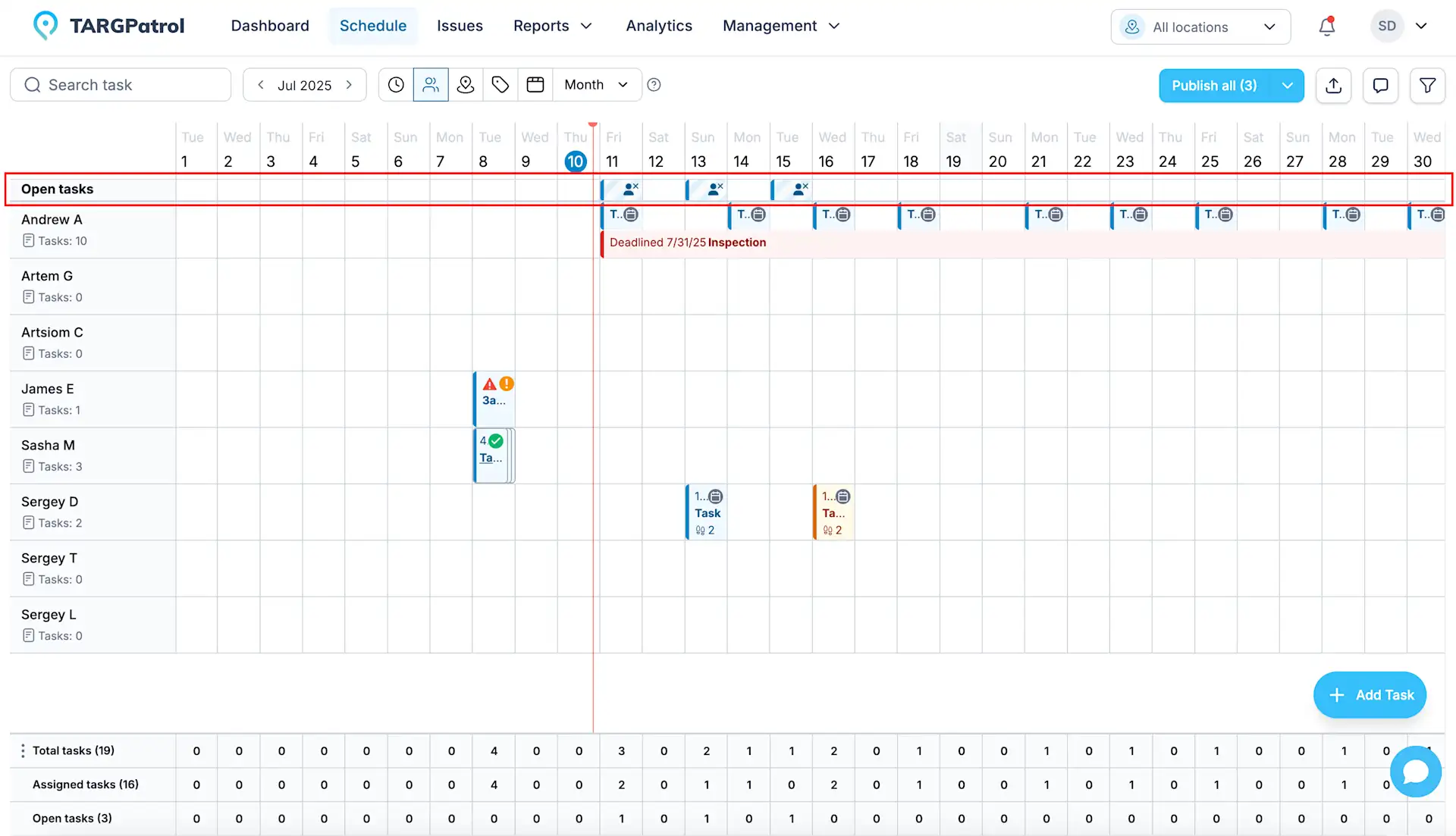
Open tasks in TARGPatrol are tasks that haven’t been assigned to any specific user yet. You can think of them as open shifts or planned activities waiting for someone to claim or be assigned. They’re an essential element of Workforce Management (WFM), giving flexibility in managing workload and staff allocation. Despite not having a designated performer, you can perform all the same operations with open tasks as with regular tasks, including editing, publishing, copying, and applying filters. Open tasks help ensure that no critical work is overlooked, even when staffing is still being finalized.
Multiple Assignees
The Multiple Assignees feature allows you to assign a task to a group of users when you are not sure in advance who will complete it.
All selected users will see the task in their list. However, the task can be started by only one user. The first user who starts the task will take ownership of it, and it will no longer be available for the others to start.
If you do not need shared responsibility, you can still assign the task to a single user, just like before.
On the Schedule page, when using the View by User mode, a task with multiple assignees will appear under each assigned user. This helps managers clearly see availability and task distribution across the team.
Tracking tasks
With TARGPatrol, you can conveniently track task progress directly on the Schedule page, where all your scheduled tasks are displayed. As soon as a user starts working on a task or completes it, you’ll see updates in real time. The Schedule page provides a comprehensive view, allowing you to monitor not only task statuses but also any warnings or errors that arise during execution. You can dive deeper into each task to review detailed progress, including step completion, action results like entered values, and media attachments such as photos and videos. Comments associated with tasks are also visible, ensuring you stay informed and in control of ongoing operations.

Filtering tasks
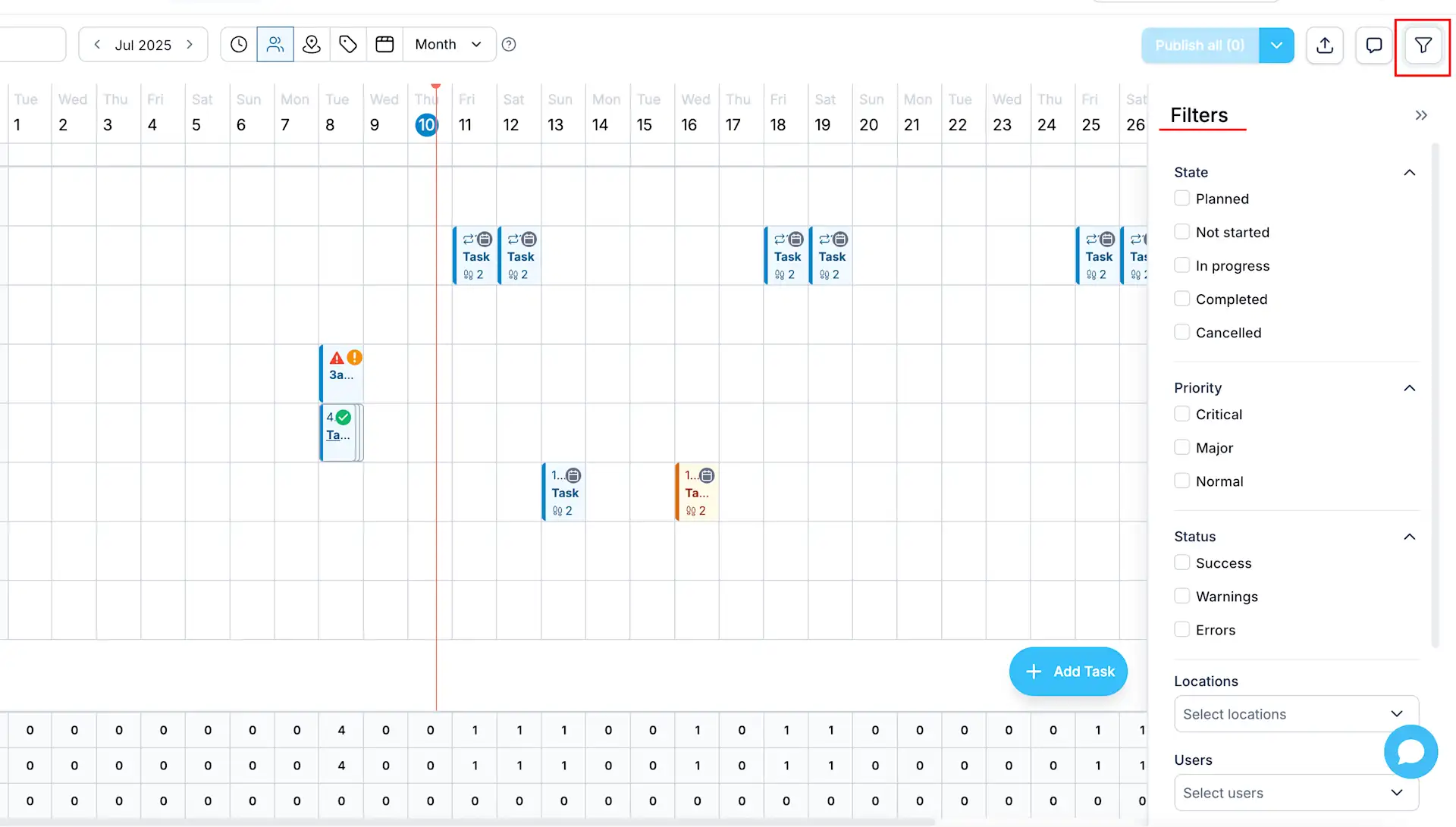
TARGPatrol makes it easy to find specific tasks using the Filters side-panel. You can filter tasks by various criteria such as State, Priority, Status, Locations, Points, Users, and Tags, and you’re free to combine multiple filters for more precise results. Your selected filters remain active even when you navigate to other pages, ensuring a consistent view. Additionally, the filter state updates the page URL, making it simple to share filtered views with colleagues by copying and sending the link.
Copying tasks
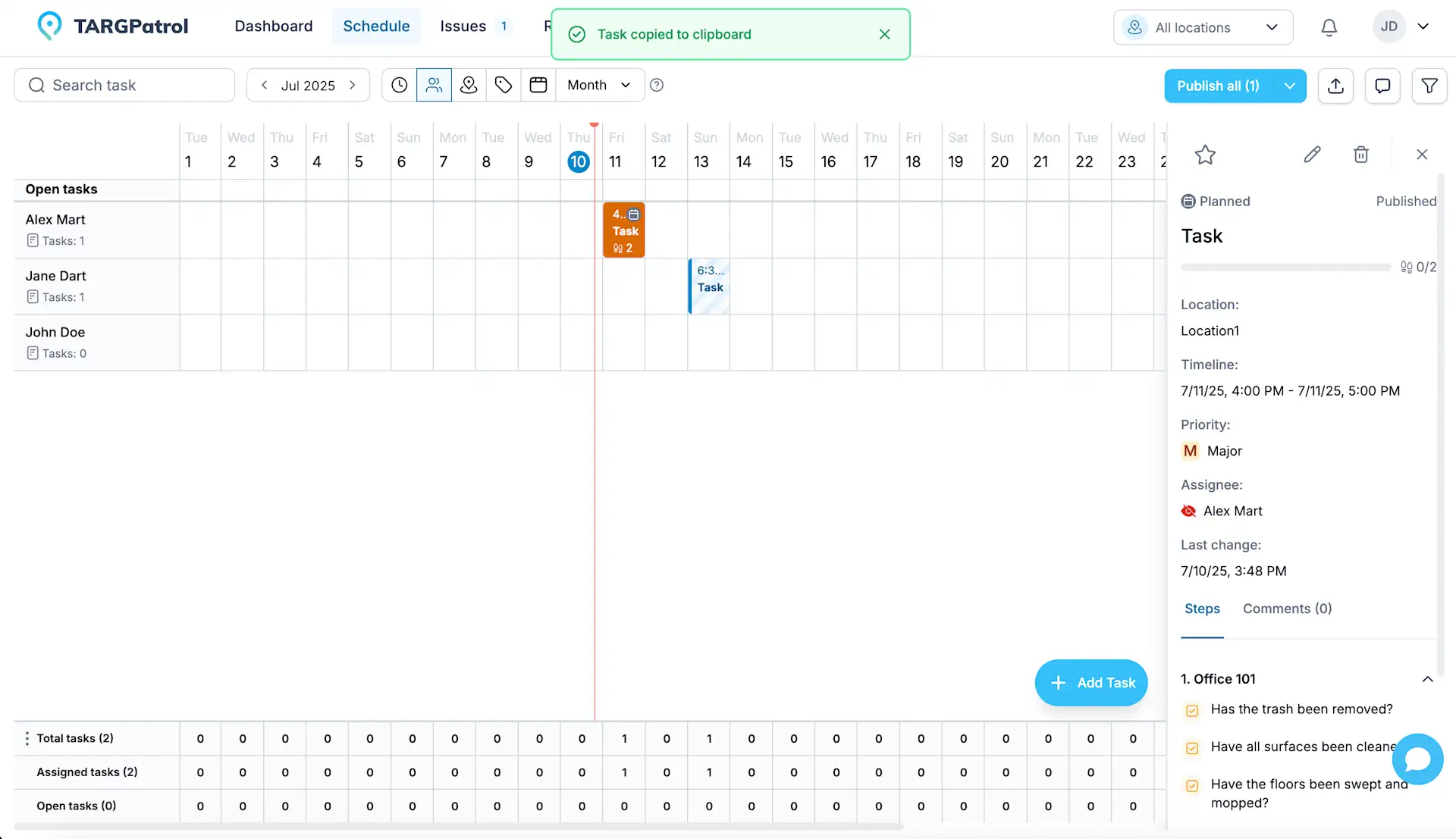
TARGPatrol makes copying tasks quick and flexible. You can duplicate tasks in a couple of ways. First, simply select the task, press Ctrl + C (or Command + C on macOS), navigate to the cell where you want to place the copy, and press Ctrl + V (or Command + V). Alternatively, you can use the action icon to copy a task to the buffer and then paste it wherever you need. This streamlines task setup, saving time and ensuring consistency across your schedules.
Exporting tasks
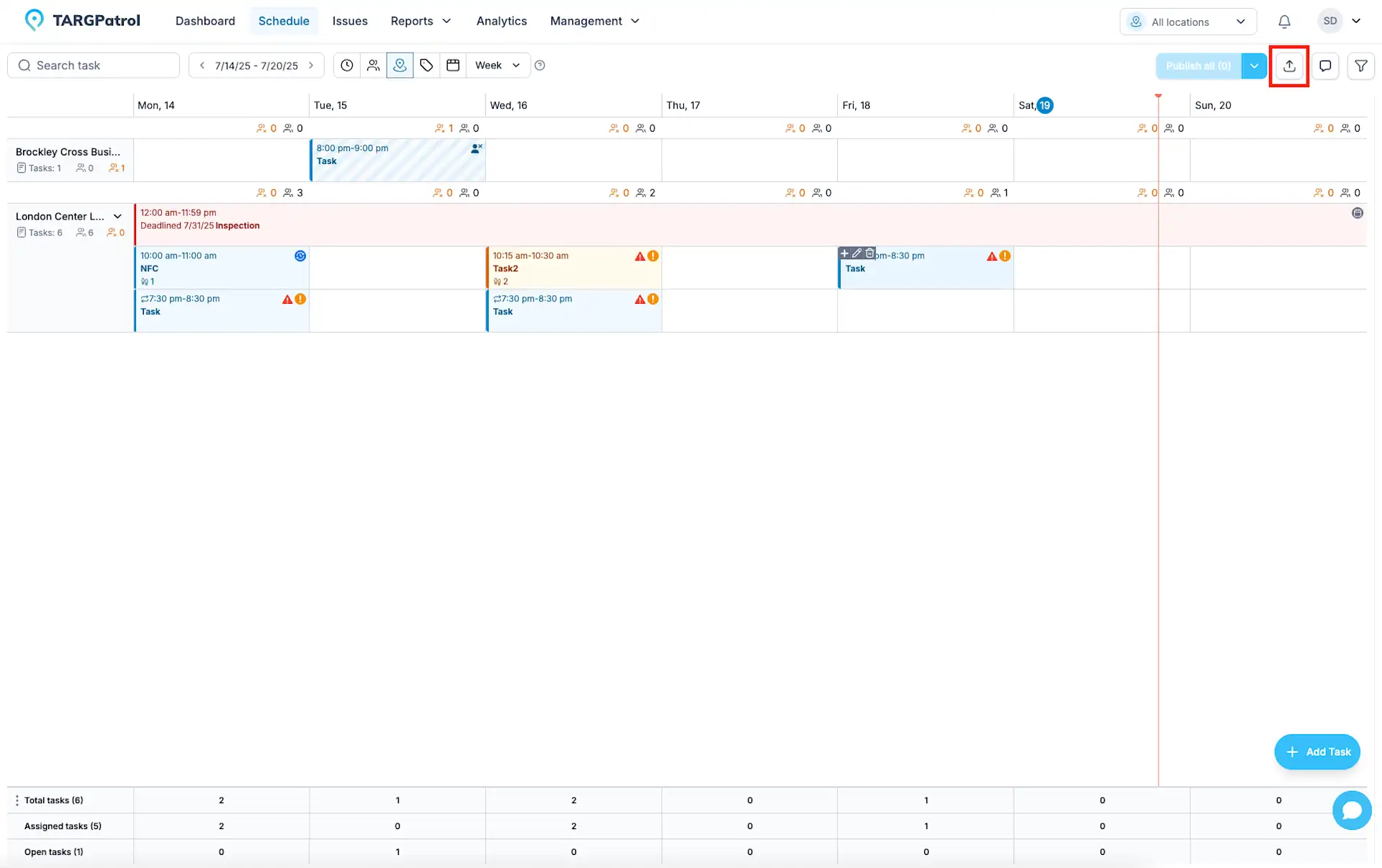
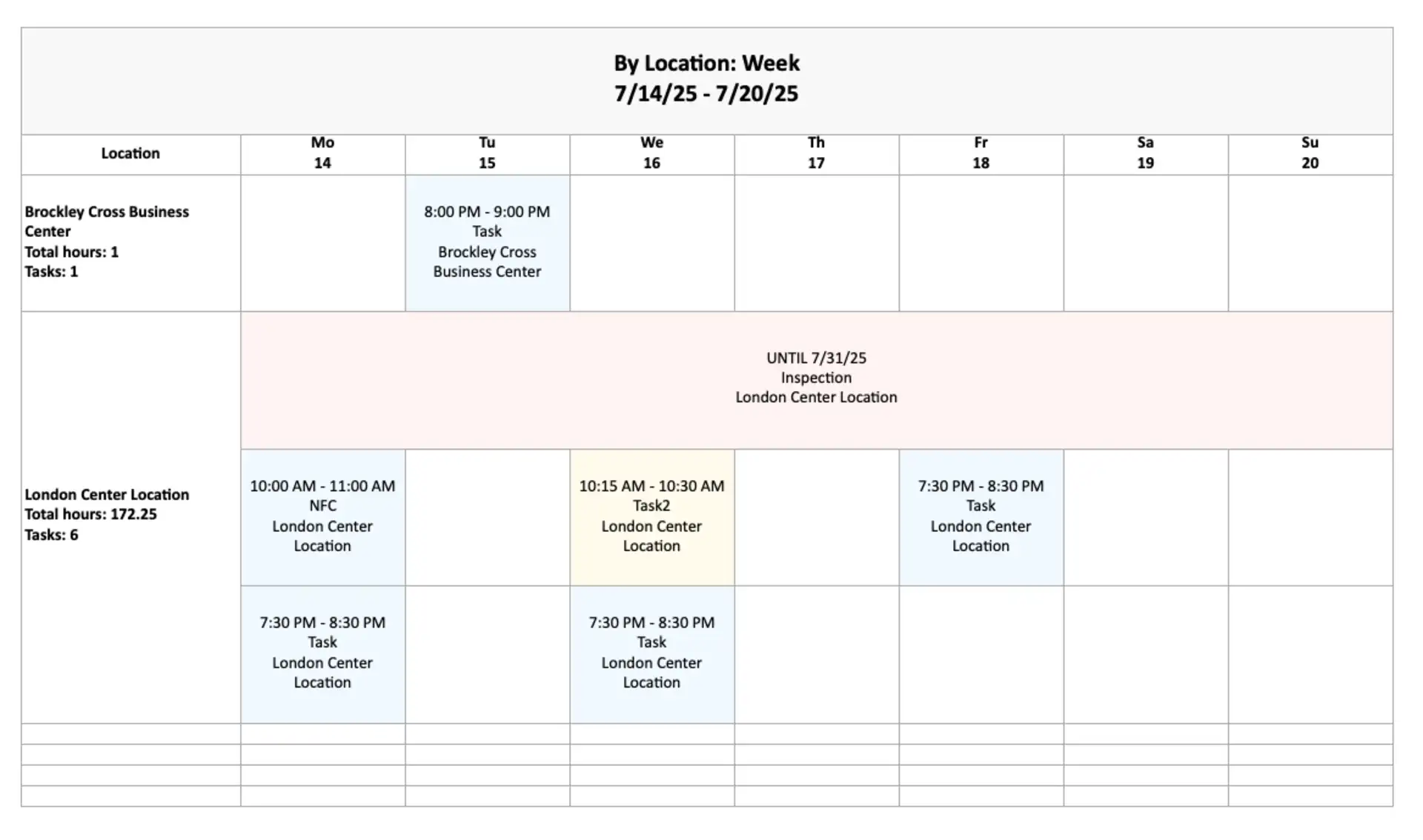
TARGPatrol makes task data export simple and customizable. You can export your schedule to Excel in multiple views—By Time, By Users, By Locations, By Tags, or Kanban—depending on how you want to analyze or present the data. Choose the time period that fits your needs: Day, Week, or Month. All active filters (such as status, users, locations, or tags) will be applied to the exported file, ensuring the output matches exactly what you see on your screen. This feature is perfect for reporting, sharing with stakeholders, or keeping offline records of task activity.
Choose the time interval independently from the schedule layout:
Day: one day.
Week: a calendar week.
Month: a calendar month.
Range: a custom start and end date, up to 123 calendar days inclusive.
Export a single task as PDF
In the web app, open Schedule, select a scheduled task, and open its execution details. Select Export PDF to create a document for that task. The PDF includes task details, available execution history, step and checklist responses, comments, and previews or references for attached media. If generation takes longer, download the completed file later from Notifications.
PDF export is available on Base and Enterprise to users with the Report Export permission; it is not available on Free. To download original photos and other attachments, use Download all attachments for a separate ZIP file. Exporting one task to PDF is different from exporting the schedule to Excel.
Export multiple tasks as PDF
Schedule offers two PDF export scopes. The toolbar’s Export tasks to PDF exports all distinct tasks visible in the current date range and filters. To export only selected tasks, select several events and choose Export tasks to PDF from the bulk actions menu. Each task is included once, even when shown under several assignees or tags. The limit is 25 tasks per request; narrow the filters or selection if needed.
Choose one combined PDF or a ZIP containing a separate PDF for each task. This is available on Base and Enterprise to users with Report Export permission, not on Free. If generation continues in the background, download the result from Notifications. This is different from exporting the schedule to Excel or building a By Tasks report.
Favorite tasks
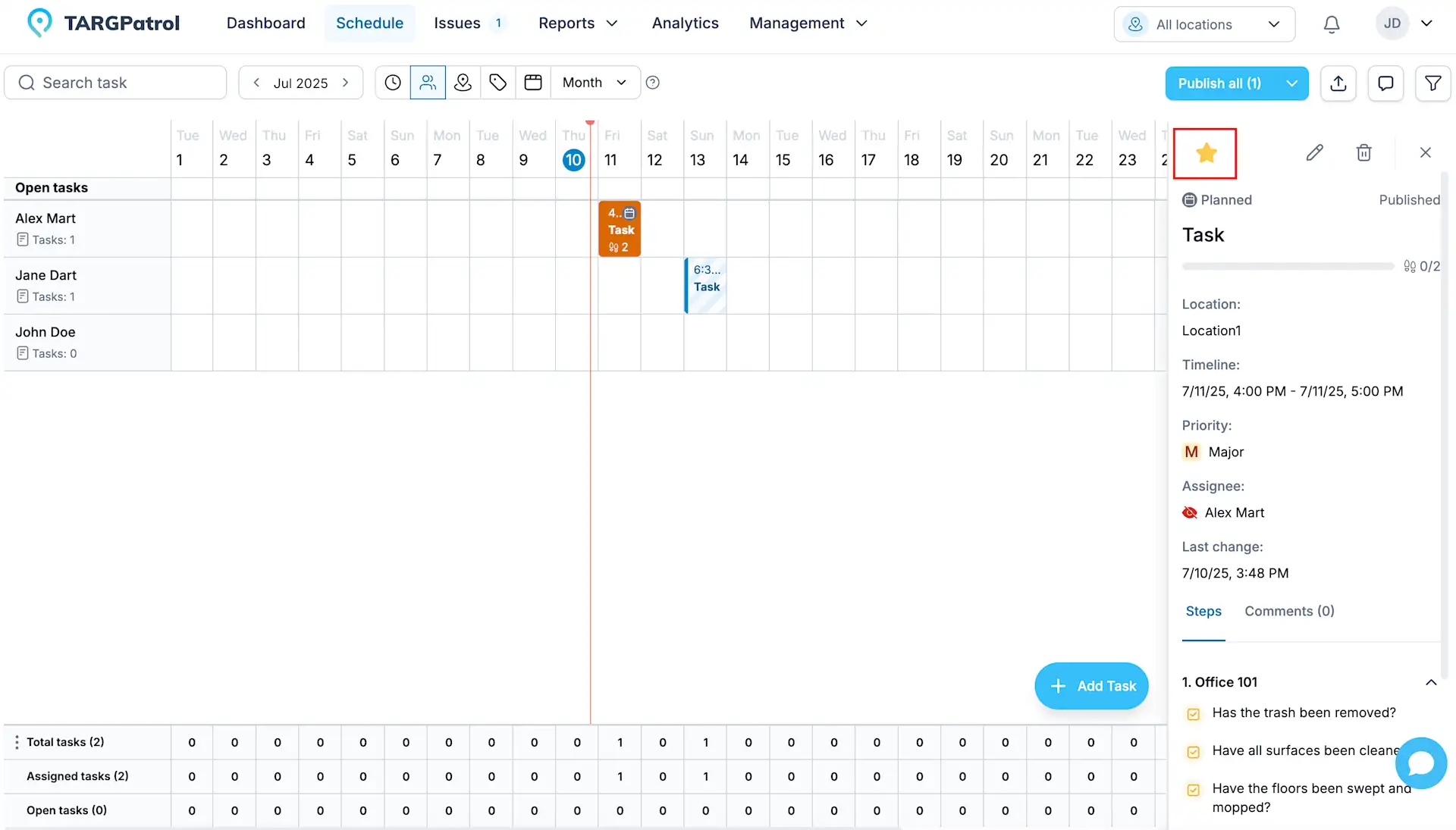
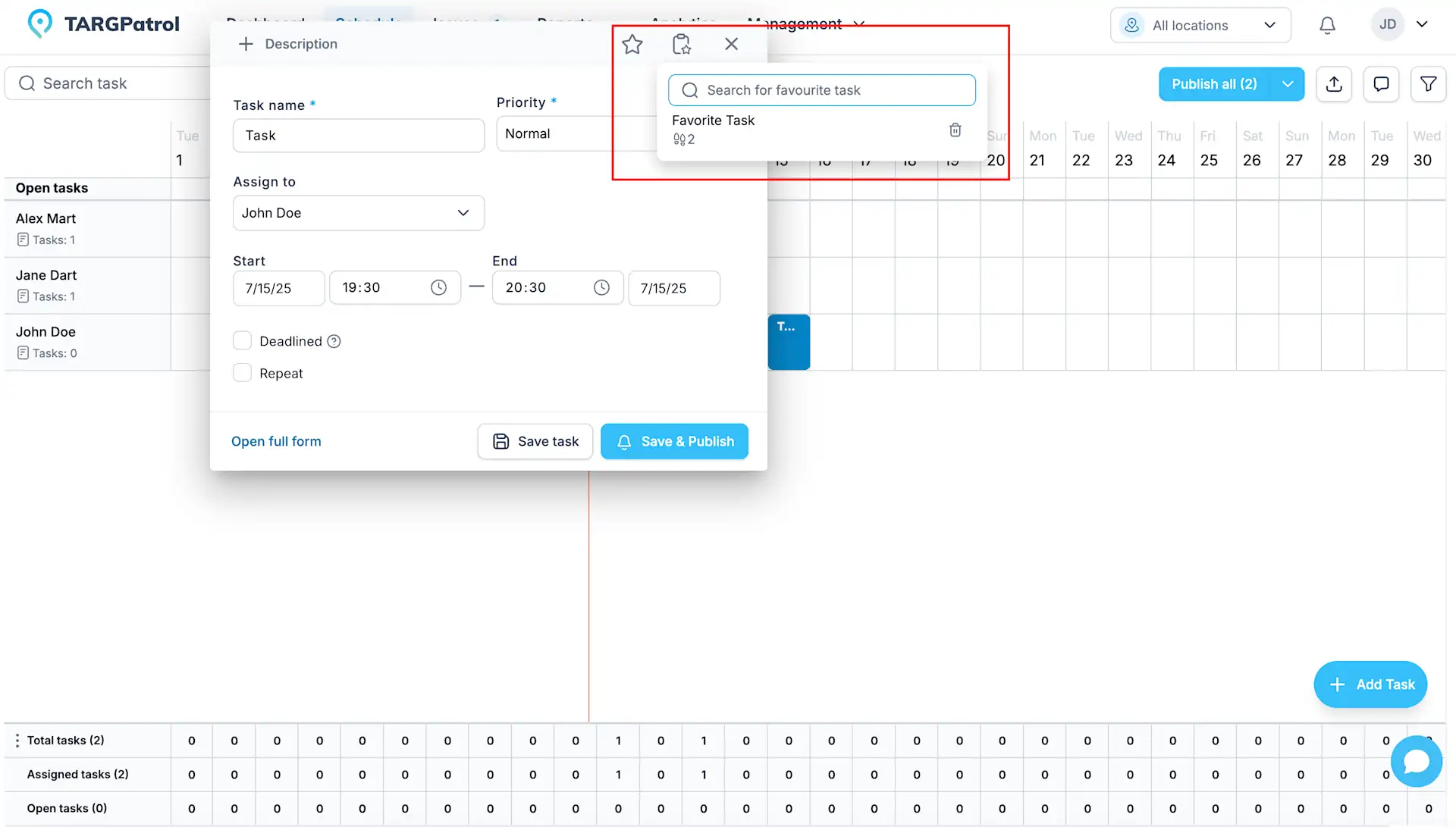
TARGPatrol lets you save time by using Favorite Tasks. You can mark any task as a favorite, which adds it to a dedicated list for quick access. When creating new tasks, selecting a favorite automatically copies over all details—like location, time slot, description, tags, priority, steps, and actions—saving you from starting from scratch. It’s a great idea to create task templates and mark them as favorites so you can easily reuse well-defined tasks for future operations, ensuring consistency and efficiency in your workflow.
Repeat Tasks and Series
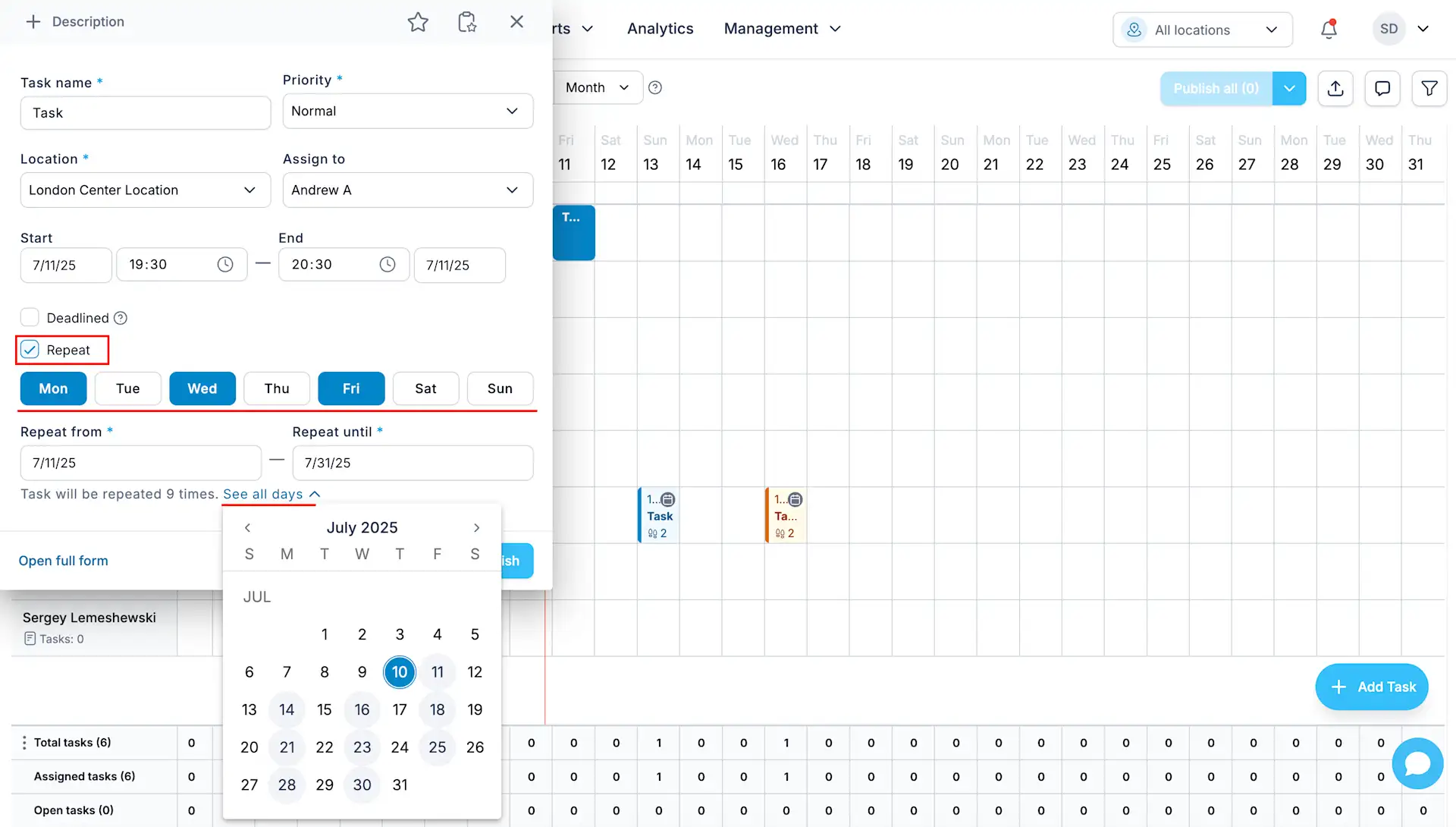
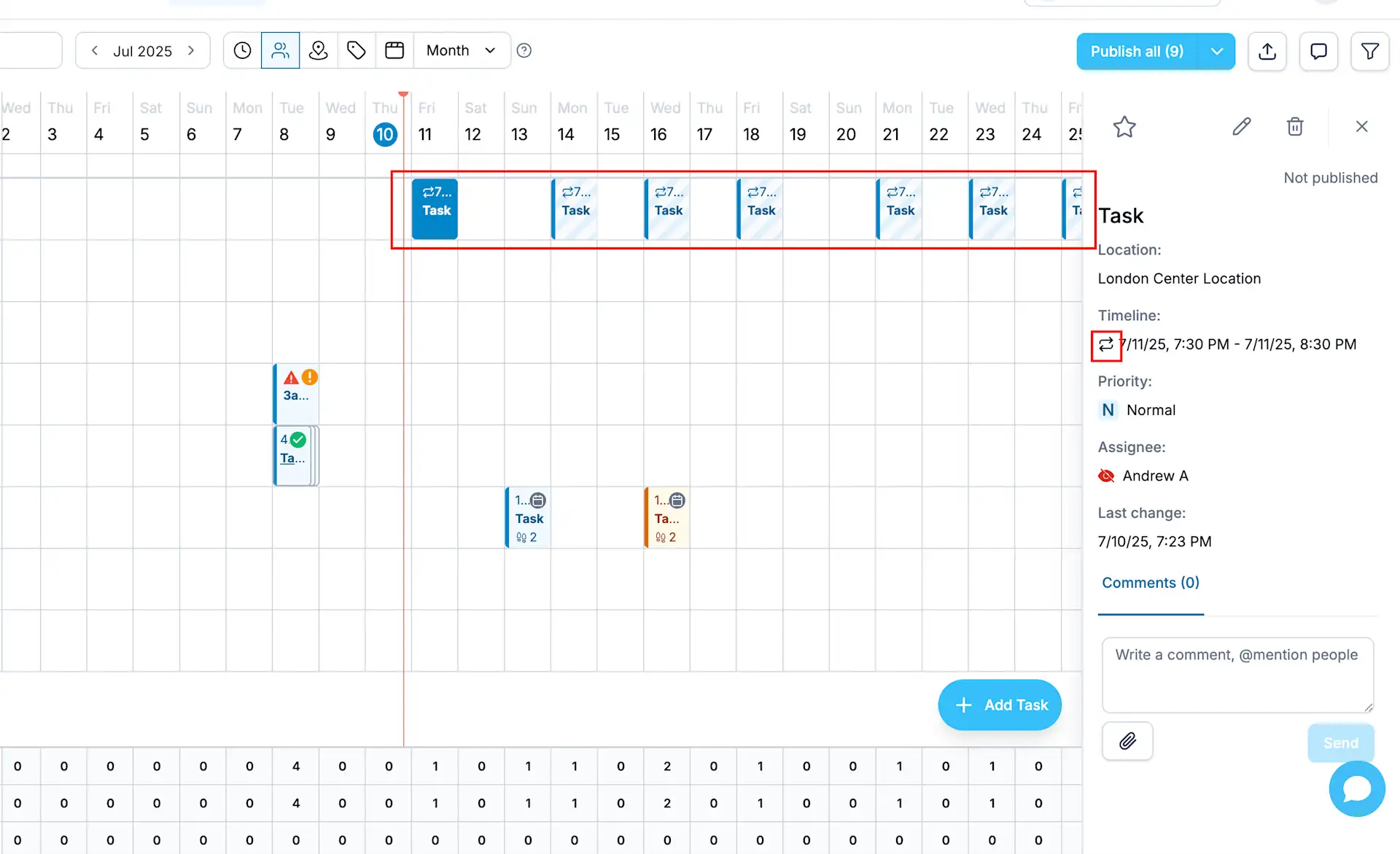
Use Repeat to create daily, weekly, or monthly tasks. Set the start and end of the repeat period and check the calendar preview. You can now change the repeat pattern of an existing series—for example, from daily to weekly—without creating every task again.
Edit scope, availability and safe saving
Choose Only this task, This and following, or Entire series. Series changes affect only tasks whose execution has not started and whose scheduled end time has not passed. Started, completed and past tasks stay unchanged.
The scope dialog checks availability and shows how many tasks can change and how many stay unchanged. A scope with no editable tasks is unavailable. This and following may be unavailable even when Entire series still has editable tasks.
Before changing values, check the date of the occurrence used to fill the form. That reference occurrence can differ from the event you clicked. The form labels whether you are editing the entire series or this and following tasks.
If availability cannot be checked, retry instead of assuming the series is editable. If the task was removed, no longer belongs to the series, or the series changed before saving, return to Schedule and reopen an appropriate task. A failed or stale-series save is not a successful update.
When turning Repeat off, review the confirmation: the reference occurrence becomes standalone, other editable occurrences in the chosen scope are deleted, and started/past tasks remain unchanged.
Deadlined tasks
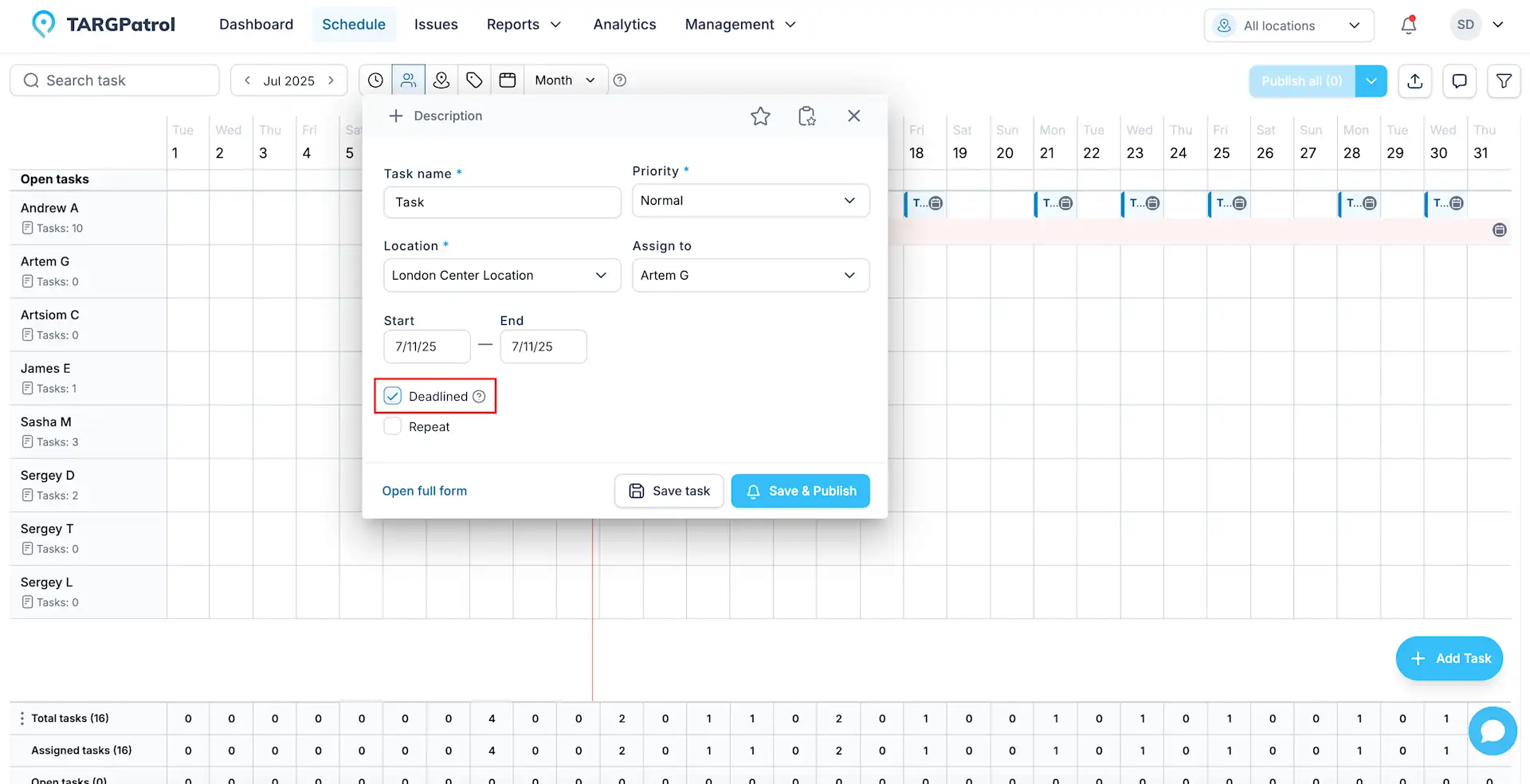
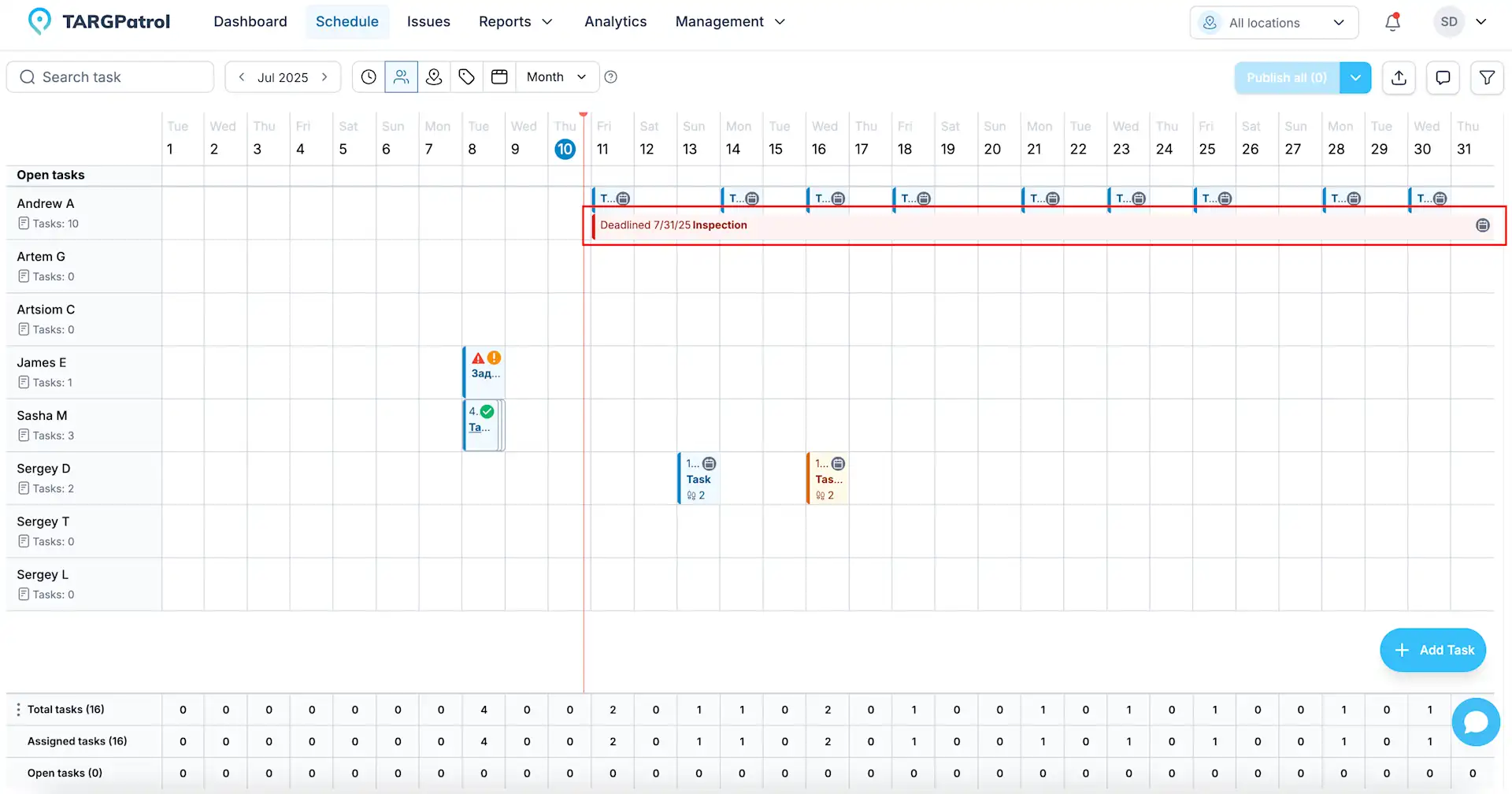
A deadlined task in TARGPatrol is a special type of task designed for activities that must be completed by a specific date. Unlike standard scheduled tasks, deadlined tasks allow users to start working on them at any time before the set deadline, offering flexibility in execution. On the Schedule page, these tasks are visually distinguished by being displayed in a separate row, making them easy to identify. Deadlined tasks are an excellent choice for actions like inspections, routine checks, or any task that needs to be completed before a certain date without a fixed time slot.
Notes
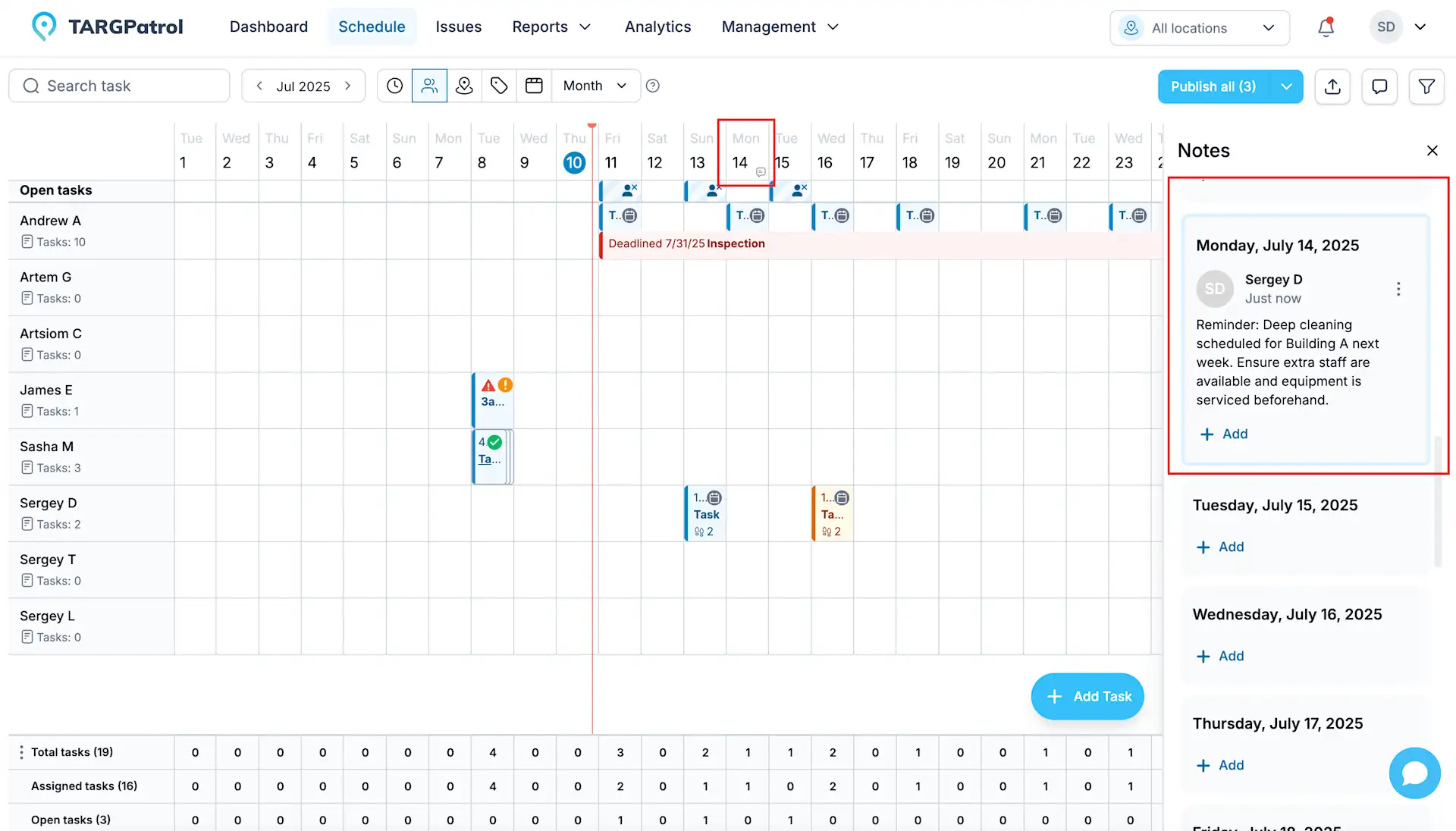
Notes in TARGPatrol are a helpful feature for sharing text-based information among Managers and Admins directly on the Schedule page. They allow you to leave important remarks, reminders, or context related to scheduling and task planning without assigning them to specific tasks or users. Whether it’s a quick comment about upcoming changes, coordination tips, or planning considerations, Notes keep everyone on the same page and enhance communication and collaboration during the scheduling process.
Review a task’s change history
In the web app, open Schedule, select a scheduled task and open its details. Select History to review changes to that task’s definition.
Supported changes include the name, description, assigned users, Location, start and end times, priority, publication, recurrence, tags, execution settings, steps and step groups. Nested step and action settings may be summarized rather than displayed in full. This is planning history, not the employee’s answers, check-ins, progress or completion record. On-Demand Check-ins do not have this scheduled-task History tab.
Each entry shows when the record was created or updated and who made the change when that information is available. Expand Changes to compare previous and new values. Added and removed tags are shown separately. Select Load more to see older entries.
For some older entries, the previous version is unavailable; the timeline then shows the retained values. Some complex or protected changes are indicated without revealing every underlying value. History is read-only: it does not restore an earlier version.
Record History is available on Free, Base and Enterprise, subject to your role and Location access. Access checks also protect historical values from other Locations. This is separate from the organization Audit logs feature, which requires Base or Enterprise.
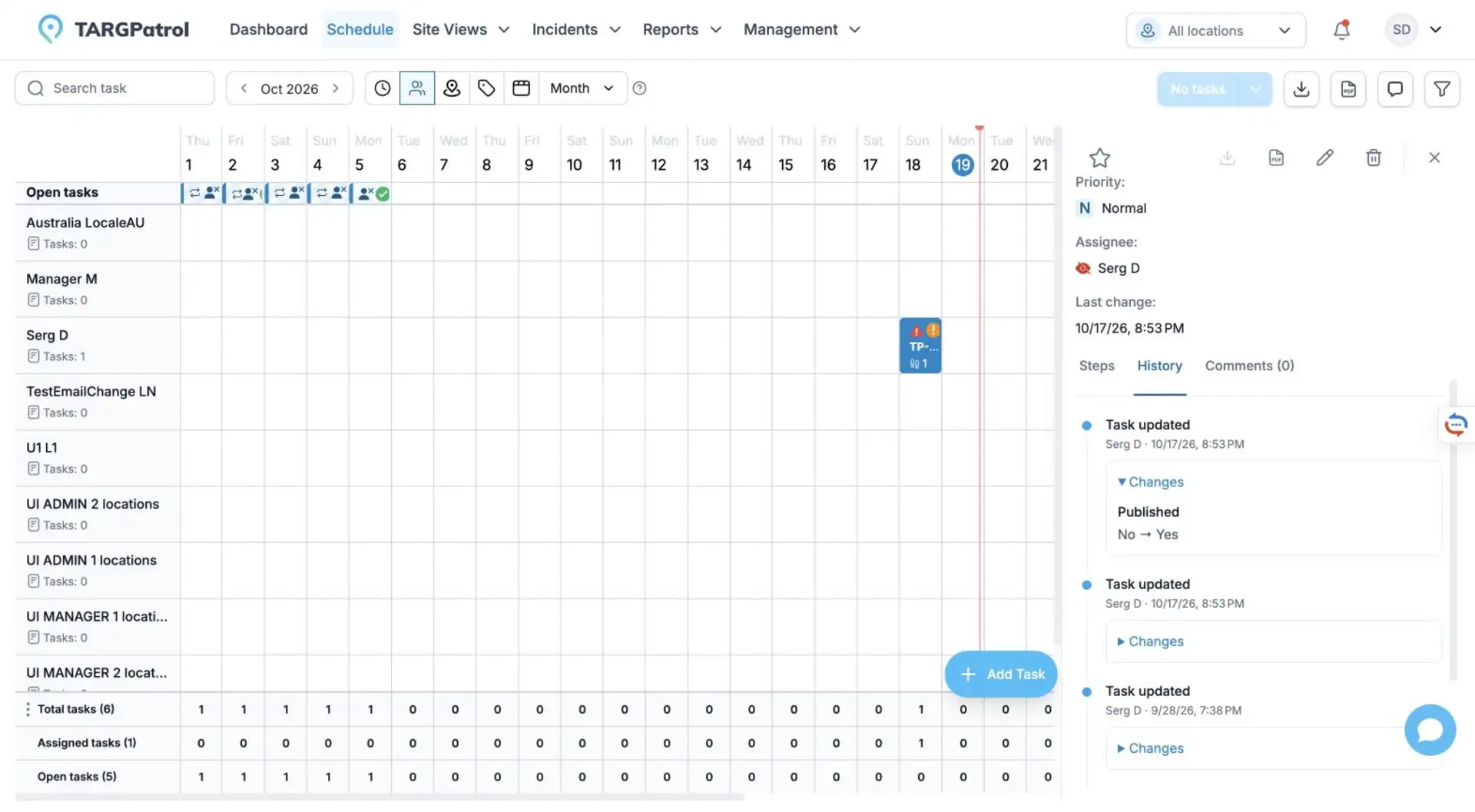
Real TARGPatrol web interface in English, using sample data. The History view shown is read-only.
Review task and series changes
Use Audit logs to investigate supported task creation, copying, assignment or scheduling edits, and deletion. Recurring-series changes are summarized with their edit scope and affected-task counts where available. This records planning changes, not task starts, answers, progress, or completion; use task execution records and reports for those.
Audit logs are available to organization Owners and Admins on Base and Enterprise, not Free.