

Audit Logs: Track Changes in Your Organization
Audit logs help you answer three practical questions: who changed something, when was the change recorded, and what changed? Use them to investigate an unexpected assignment, understand a schedule edit, or review changes to team access.
Availability and access
Audit logs are available on Base and Enterprise, not Free. Only active organization Owners and Admins can view them. Managers, Users, and Guards cannot open the organization audit log.
Audit logs are a read-only record of supported changes. They are separate from inspection audits, task execution records, and Incident transition history.
Record History compared with Audit logs
Use a record’s History to review retained changes to that scheduled task, Incident, legacy Issue, User, Location or Point. It is available on all plans when your permissions allow access. Incident History also has a separate Transitions view. Paid Audit logs combine supported actions across records, with filters and event details; they are not required to open an individual record’s History.
Owners can view the organization audit log. Admins can view only events whose complete Location scope they can access; User and organization events remain Owner-only. Record History has its own entity and historical Location access rules.
Open Audit logs
Sign in to the web app and select your organization.
Open Management → Settings → Audit logs.
Choose the period you want to review. The page initially shows the current month, with the newest records first.
Find the change you need
Adjust the date period before searching older activity.
Search by the name of the person who performed the action or the affected record. Comment searches use the parent record name, not the comment text.
Open Filters to select actions, entity types, Locations, or people. You can select more than one value.
Combine filters to narrow the results. For example, review task updates at one Location during a specific week.
Use pagination to move through the matching records.
An empty result does not always mean nothing changed. Check the selected period and filters, whether the action is supported, and whether the organization was on a paid plan at the time.
Read event details
Select a row to open Event details. Review the date/time, performed by, action, affected record, and Changes table. Before and After values explain supported changes such as priority, assignment, dates, or status.
Some fields show only that they changed; they do not reveal the original value. Historical information is shown only when it is available. If a record has been deleted or its name cannot be resolved, a reference or fallback label may appear instead.
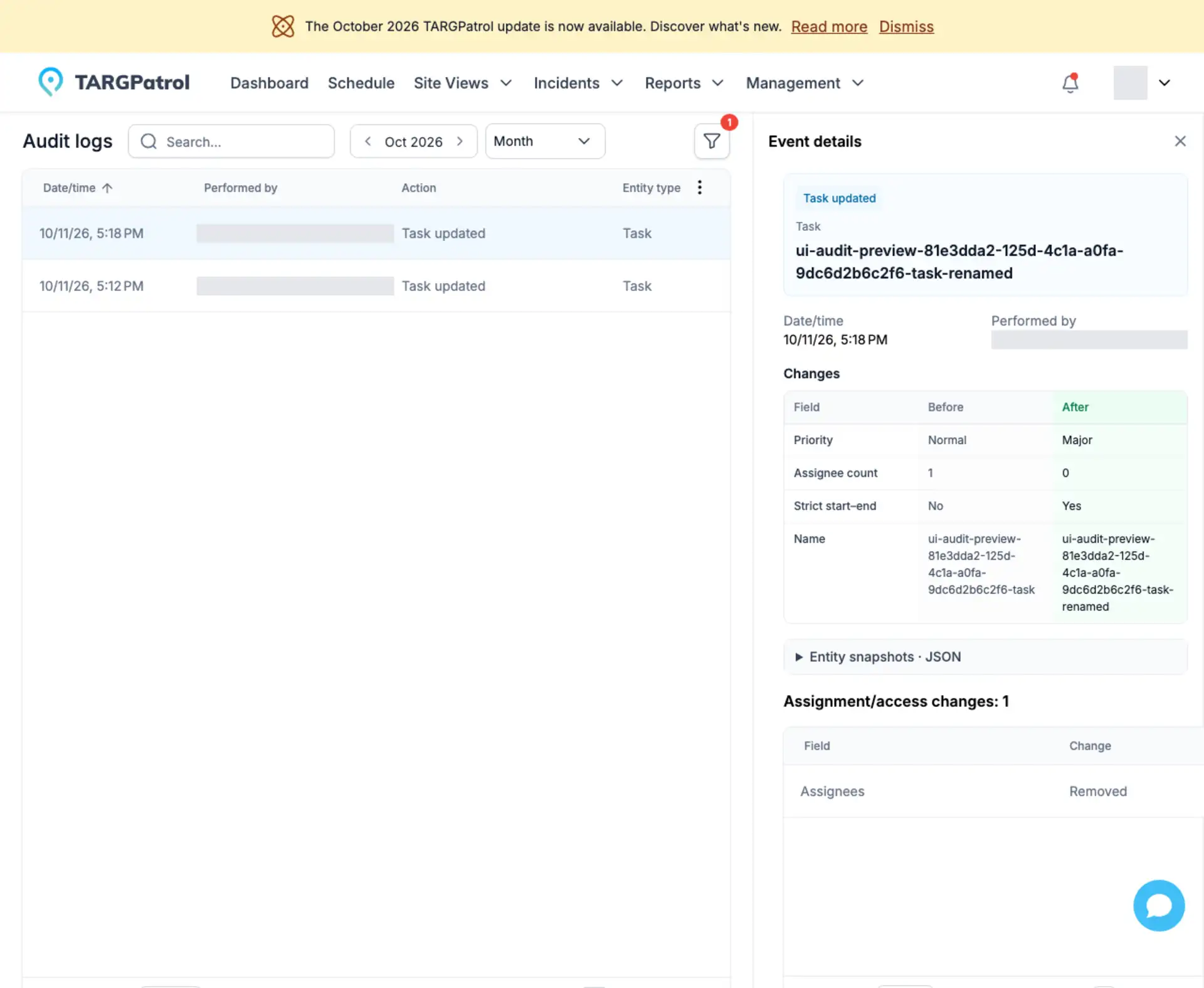
Example from the English interface using test data. Personal names are masked.
Recurring-series actions are summarized together, rather than producing an audit entry for every generated occurrence. The details can show the edit scope and counts of affected tasks. A representative task is not a snapshot of the entire series.
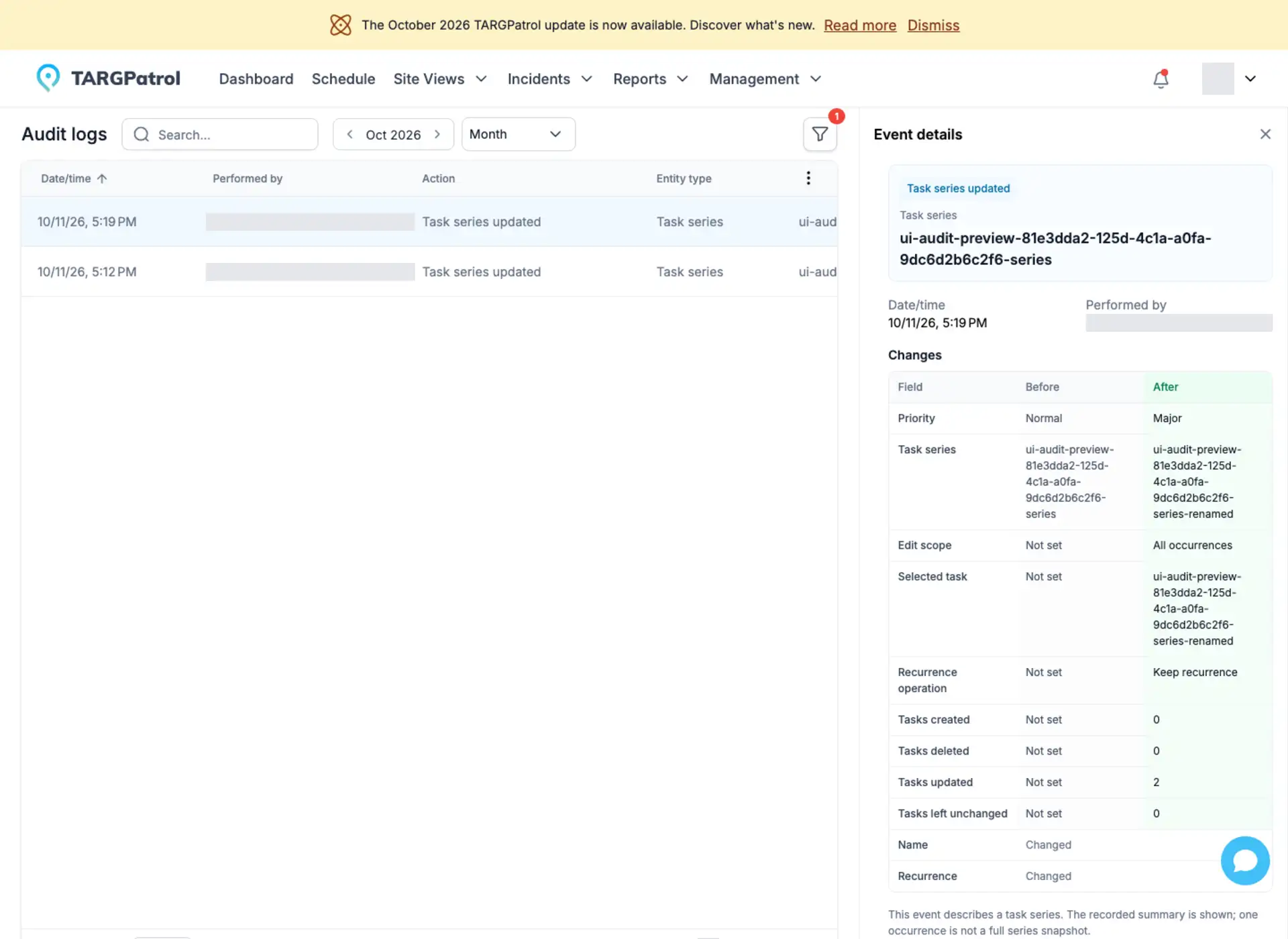
Example of a recurring-series change in the English interface using test data.
Approved historical display data may also be available in a collapsed Entity snapshots · JSON panel. This is a limited, read-only view, not a full backup or an undo function. Audit logs do not currently provide editing, restoration, or export controls.
Which actions are recorded?
Planned tasks and recurring series: creation, copying, supported edits, and deletion.
Incidents: creation, supported field changes, and workflow state changes. Supported creation and updates of legacy Issues are also recorded where that module is used.
Comments on tasks, Incidents, and Issues: creation, editing, and deletion. Audit records use change indicators rather than storing comment messages.
Users: creation and supported profile, role, Location access, and status changes; organization ownership transfers are also recorded.
Locations and Points: creation, supported configuration changes, and deletion.
What is not included?
This is not a complete log of every click or system action. The initial scope excludes logins and mobile sessions, task starts and completion, checklist answers, performed check-ins, GPS updates, and offline synchronization activity. It also excludes checklist-template administration, Incident workflow configuration, billing actions, invitations, exports, and background automation.
Use task execution records, check-in history, reports, or Incident transition history for those operational workflows. Their availability is separate from the paid Audit logs feature.
Upgrading and downgrading
Recording starts for supported actions while the organization is on Base or Enterprise. Earlier actions are not added retroactively. Moving to Free stops new collection and blocks access to Audit logs. A downgrade alone does not delete existing audit records; upgrading again restores access to records that are still retained. Do not assume a particular retention duration from media-storage limits.