
TARGPatrol

Reports that show the work—not just the numbers

See what was completed, check what your team recorded, and give clients a clear record of the work. Build useful reports for security patrols, cleaning rounds, maintenance visits, and multi-site operations.

  • Review tasks, check-ins, and Incidents
  • Reuse columns, filters, and totals
  • Share PDF and Excel files on paid plans
Start with Free
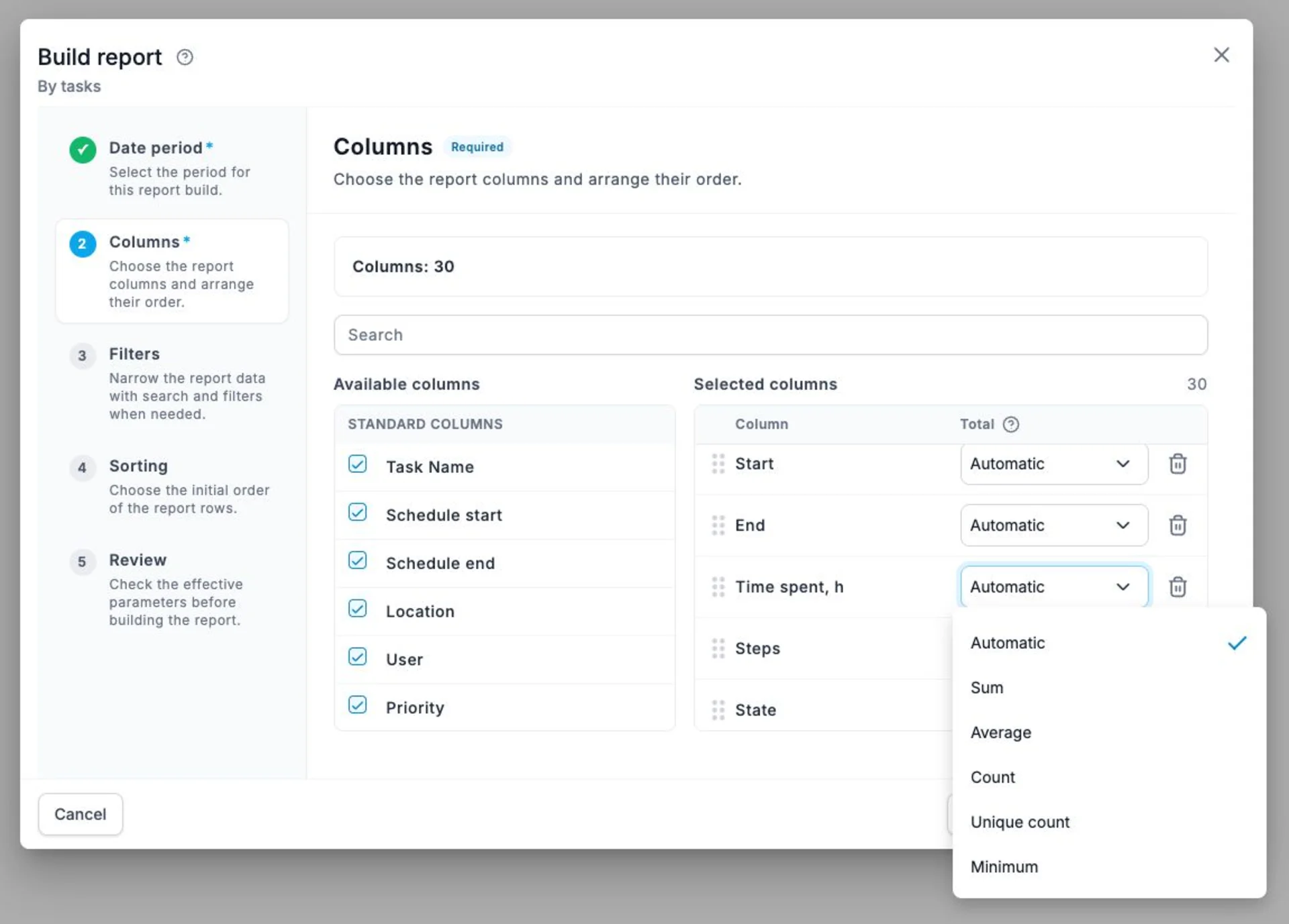
TARGPatrol report builder with selected columns and configurable totals
Demo data

See what your reports can look like

Explore three real TARGPatrol report views with fictional demo data. Choose a view to see the details.

By Tasks

An end-of-shift review your client can follow

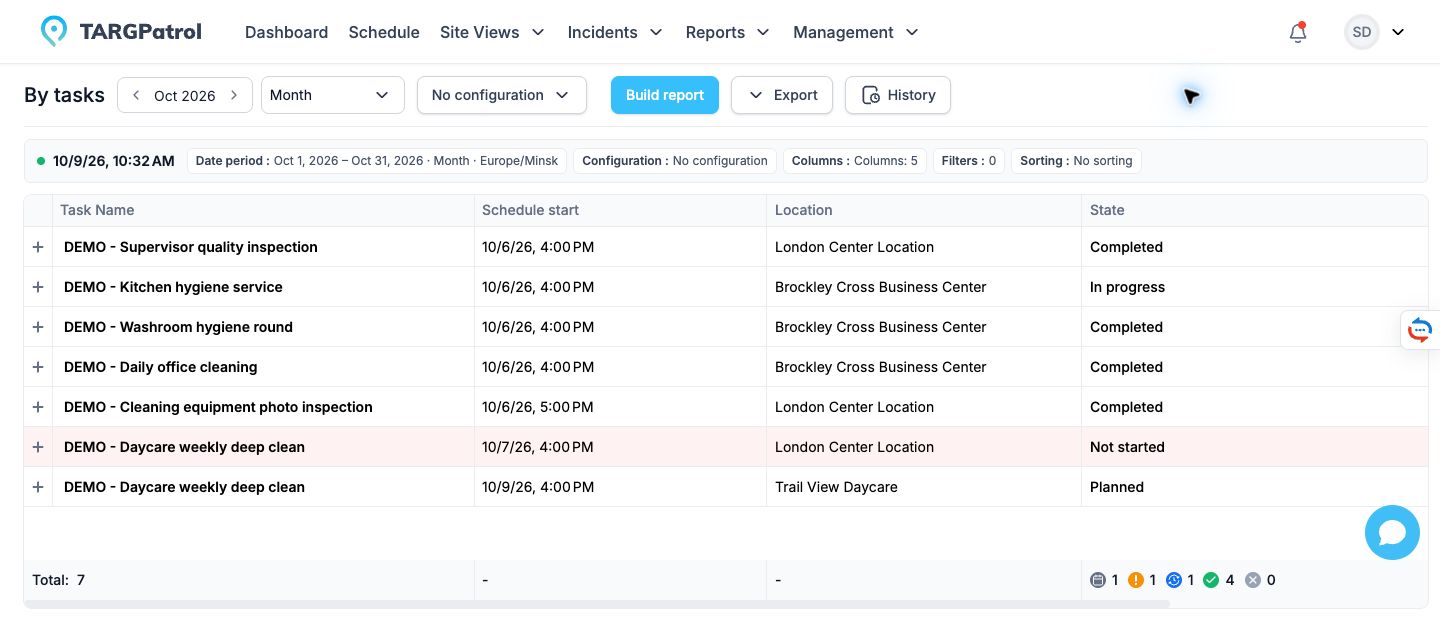
TARGPatrol task completion report with fictional cleaning tasks, locations, schedules, and status totalsView full-size screenshot

See planned work alongside its current status, so completed cleaning rounds and unfinished jobs do not get mixed together.

  • Match each task to its site and scheduled time
  • Spot completed, in-progress, and not-started work
  • Use the totals row for a quick status overview

Four ways to put your records to work

Finish the shift knowing what was done

Choose the report that answers your daily review question. Check the reporting period and narrow the results to the team or locations you need.

By Tasks: was the planned work completed?

Review task status, assignees, scheduled and actual times, warnings, and errors. Use the details to check a cleaning round, patrol, or maintenance visit.

Check-in Logs: who checked in, and where?

Follow time-stamped activity by employee, Location, and Point. Review recorded visits instead of asking the team to reconstruct the shift.

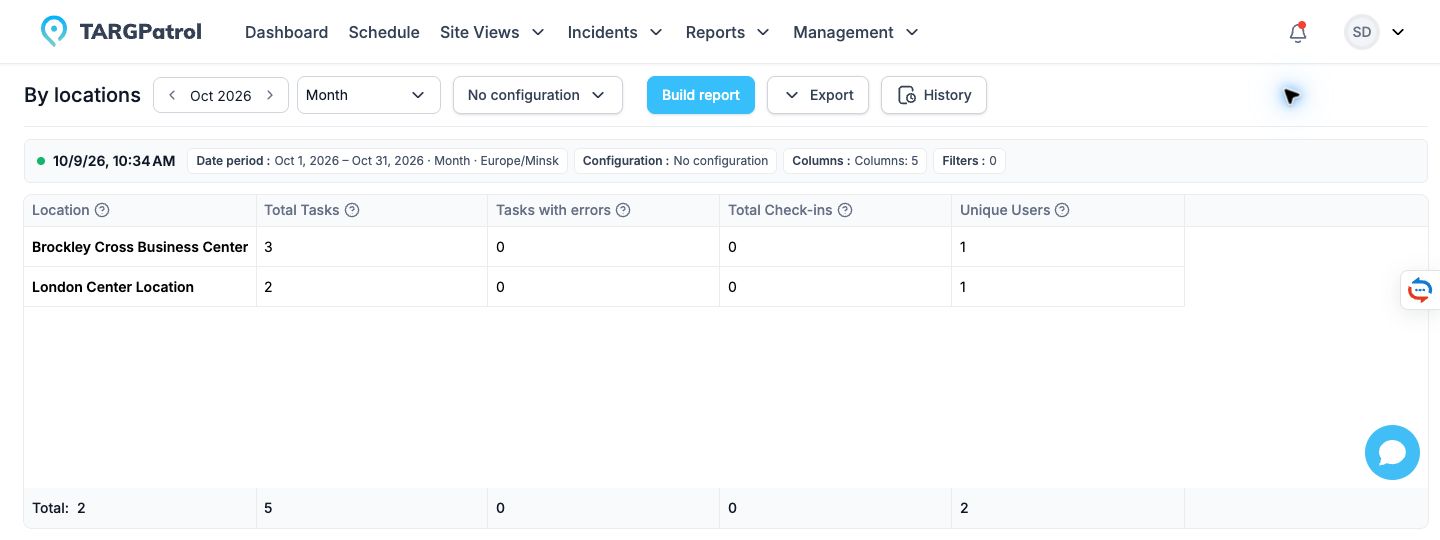
By Locations, Users, or Points: where should you look?

Compare recorded activity across sites, employees, or checkpoints, and focus your next review on the areas that need attention.
Explore the report types

Find the problem behind the exception

A completed task does not always mean everything was fine. Review checklist answers and Incident records to understand what needs follow-up.

Read the checklist answers

Use By Actions to compare selected checklist fields, such as inspection measurements or recorded conditions. Choose the action columns relevant to your review.

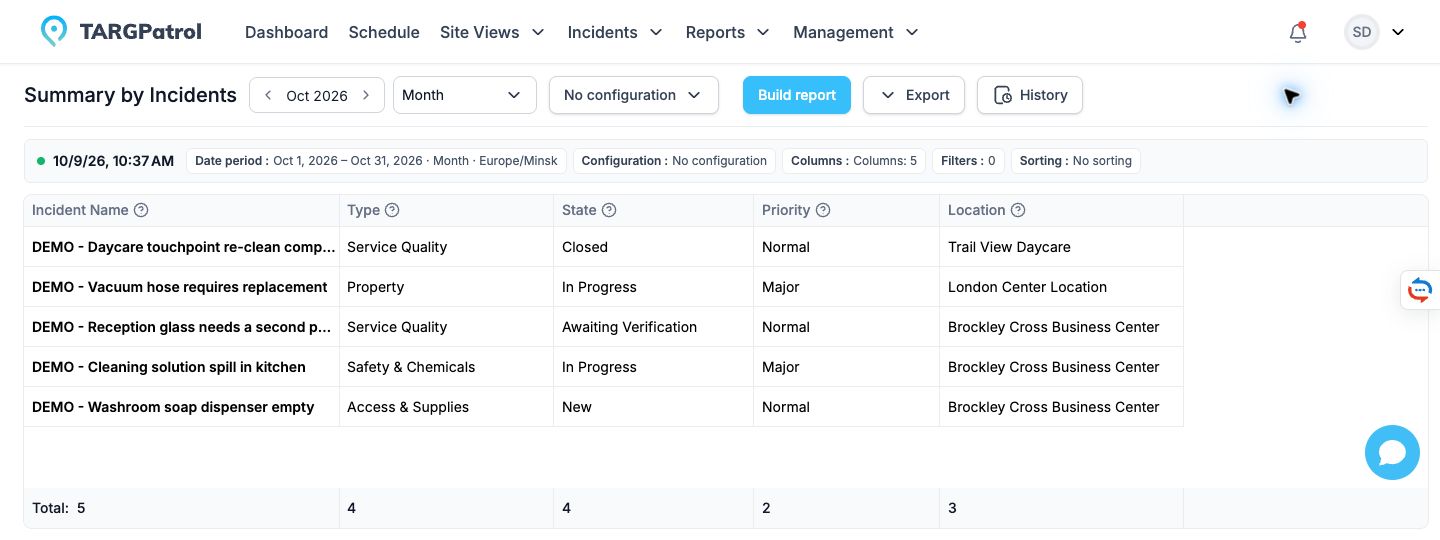
Follow Incidents through their workflow

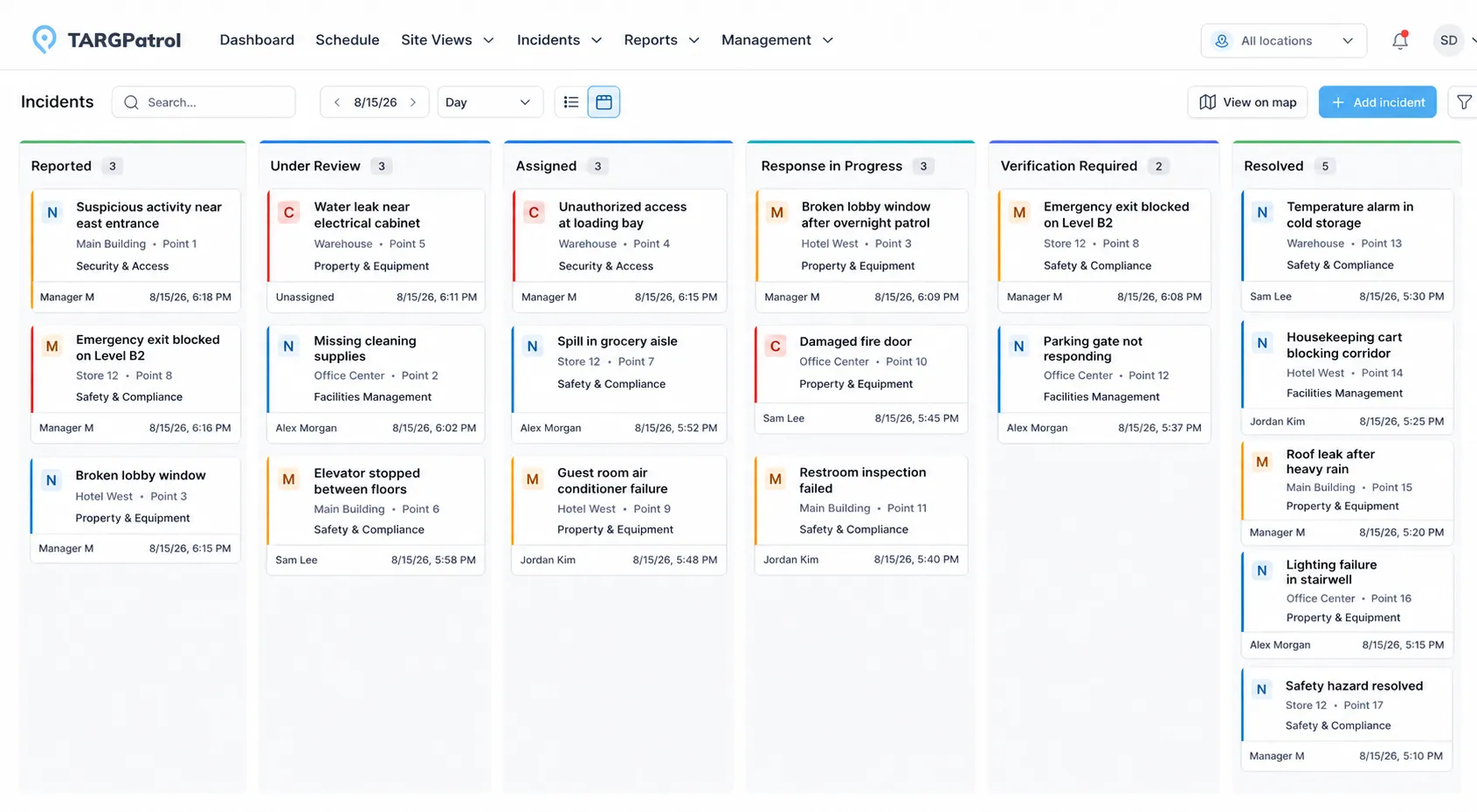
Use By Incidents to review status, priority, responsibility, and location. Filter the records to focus on the problems your team needs to investigate.

Keep the evidence close

Open the underlying task or Incident to review available attachments, comments, and history before deciding on the next step.

TARGPatrol Incident Kanban showing reports grouped by workflow status
Follow-up stays connected to the underlying Incident record.
Explore Incident Management

Build the report your team actually needs

Stop rebuilding the same setup every week. The guided report builder helps you choose the period, relevant options, columns, filters, and sorting before reviewing the setup.

Show the right details

Select and reorder columns. For supported report types, choose checklist action columns or how detail rows are grouped.

Choose useful totals

Sum working hours, average a measurement, or count values where supported. Keep automatic totals or turn them off; the options depend on the column type.

Save a repeatable setup

Save columns, filters, sorting, intervals, and totals as a Personal or Organization configuration. Choose the actual dates for each run; shared configurations follow permissions.

Learn about report configurations

Send clear evidence—not a pile of screenshots

Prepare a client handover, management review, or audit without copying records into another document. Choose the export or delivery workflow that fits the job.

Export a report

Download a built report in Excel or PDF, depending on the report type, for sharing, printing, or further analysis.

Package selected task or Incident records

Select tasks in Schedule or records in the Incidents table. Export one combined PDF or a ZIP of individual PDFs. Download supporting attachments separately when needed.

Schedule regular email delivery

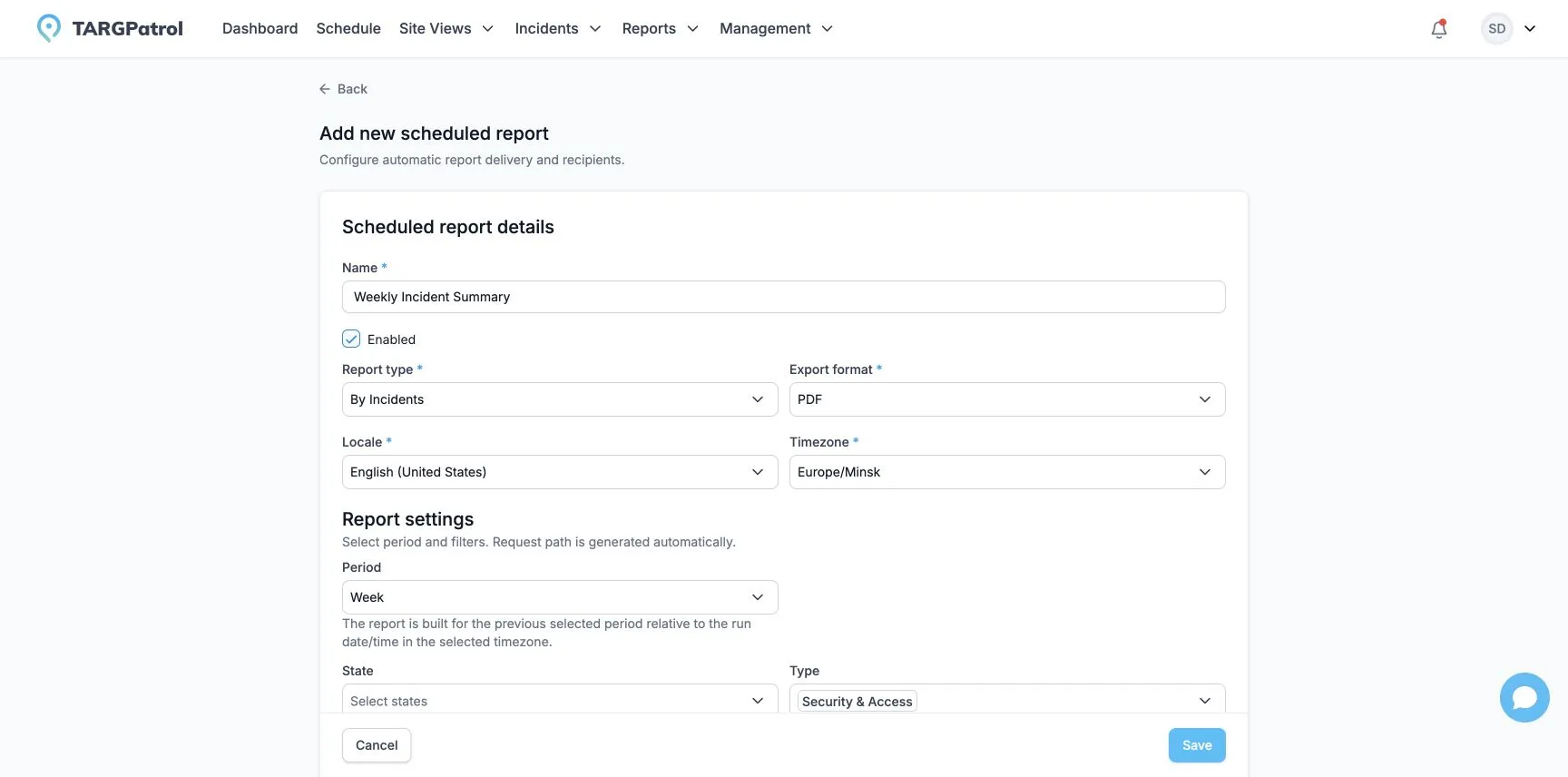
Set the reporting period, filters, format, timezone, recipients, and delivery schedule. Scheduled Reports keep their own settings, separate from interactive saved configurations.

TARGPatrol scheduled Incident report form with period, format, and filters
Configure delivery for the people who need the report.
Learn about scheduled reports

Make your next review easier to explain

Start with your team's task and check-in records. Build a clear view of the work, investigate exceptions, and choose a paid plan when you need exports or scheduled delivery.