

Configuring Incident Notification Rules
A notification is useful only when it reaches the right person for the right reason. Incident Notification Rules let you focus attention on important events instead of sending every update to everyone.
Rules combine an event, optional conditions, and recipient selectors such as a role, reporter, assignee, or individual user.
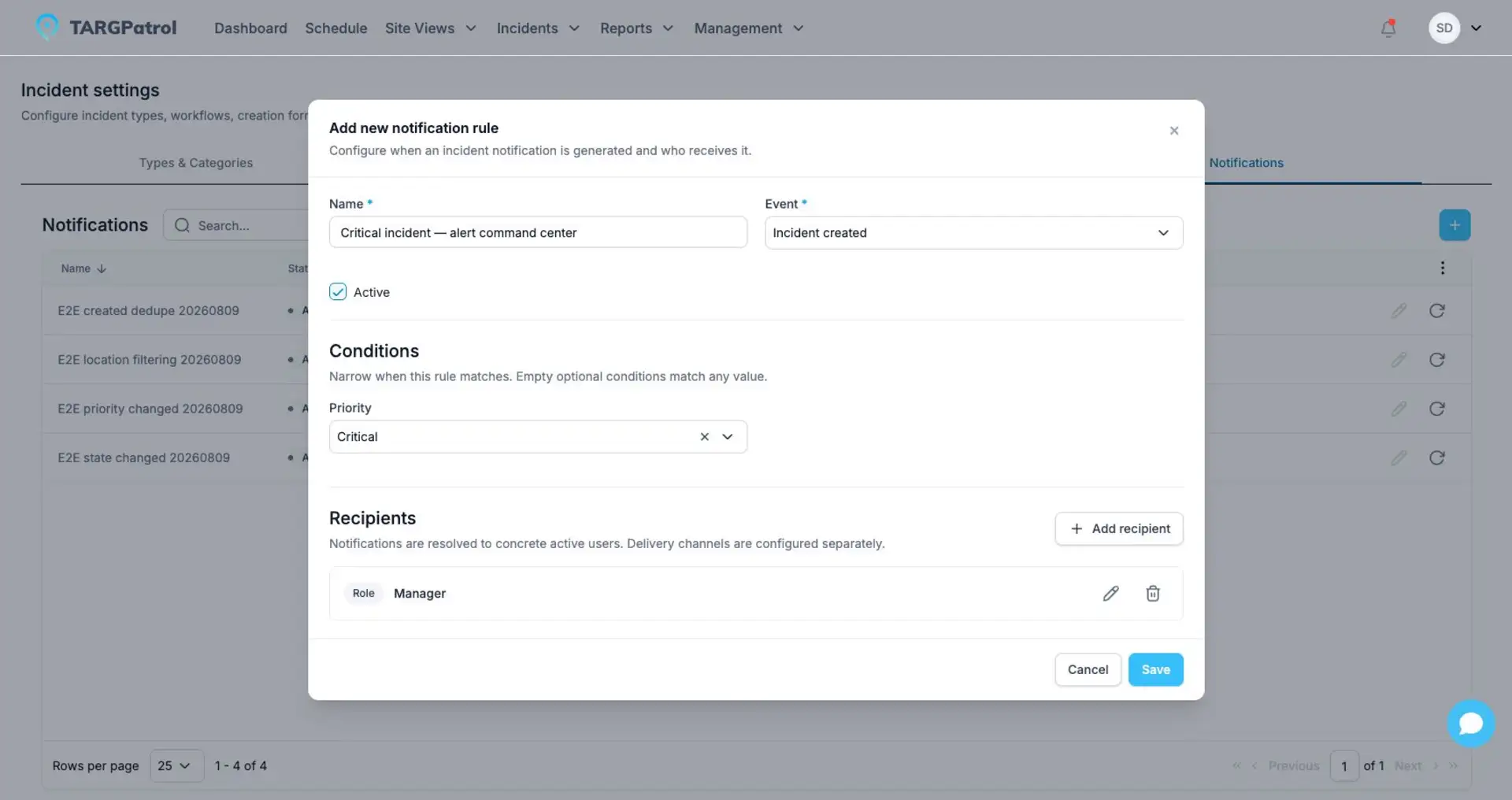
A notification rule combines the triggering event, optional conditions, and one or more recipient selectors.
See it in practice
When a Critical Incident is created, a rule can notify managers and the selected assignee. Another rule can notify the reporter when the Incident reaches Resolved.
If the same person matches more than one recipient selector, TARGPatrol resolves that person once for the event.
Good to know: Notification Rules decide when and to whom a notification is generated. Delivery channels and user delivery preferences are managed separately.
Open Notification Rules
Open Management.
Select Incident settings.
Open Notifications.
Supported events
Incident created.
State changed.
Priority changed.
Add a rule
Select Add rule.
Enter a clear rule name.
Choose an event.
Add optional conditions that narrow when the rule matches.
Add one or more recipient selectors.
Keep the rule active and save it.
Conditions
Conditions depend on the selected event. A state-change rule can match a source state, a target state, and a priority. A priority-change rule can match a priority. Empty optional conditions match any value.
Use conditions to keep rules focused. For example, notify managers when an Incident enters Escalated, or notify a specific user when the priority becomes Critical.
Recipient types
User: one selected active user.
Role: active users with the selected organization role.
Assignee: the user currently assigned to the Incident.
Reporter: the user who created the Incident.
TARGPatrol resolves selectors to individual users, removes duplicates, and excludes users who cannot access the Incident Location. Organization owners retain organization-wide visibility.
Delivery and duplicate protection
A rule determines the event and recipients, not the delivery channel. The notification platform applies its delivery configuration and short-term duplicate protection to avoid sending the same notification repeatedly.
Recommended setup
Start with a small set of high-value rules.
Prefer role, assignee, or reporter selectors over long lists of users.
Use priority conditions for urgent operational events.
Review Location access before expecting a user to receive a notification.
Archive unused rules instead of recreating similar rules with overlapping conditions.
Troubleshooting
No notification was generated: verify that the rule is active and its event and conditions match.
A recipient did not receive it: verify that the user is active and can access the Incident Location.
The same user matches several selectors: the user receives one resolved notification for that event.
With the basics in place, your team can spend less time deciding how to record an event and more time resolving it.
Related guides
Configuring the Incident Workflow
Incident State Changes and History
Notification rules and personal preferences
Incident notification rules define which incident conditions trigger a notification and which users are selected as recipients. Personal notification preferences then determine which optional channels and event types each recipient allows for the active organization. Read Managing Notification Preferences for channel controls, plan restrictions, and mandatory notification behavior.