

Schedule Guide
In this guide, we will discuss schedules in TARGPatrol, their types, and common functionalities.
Common Functions
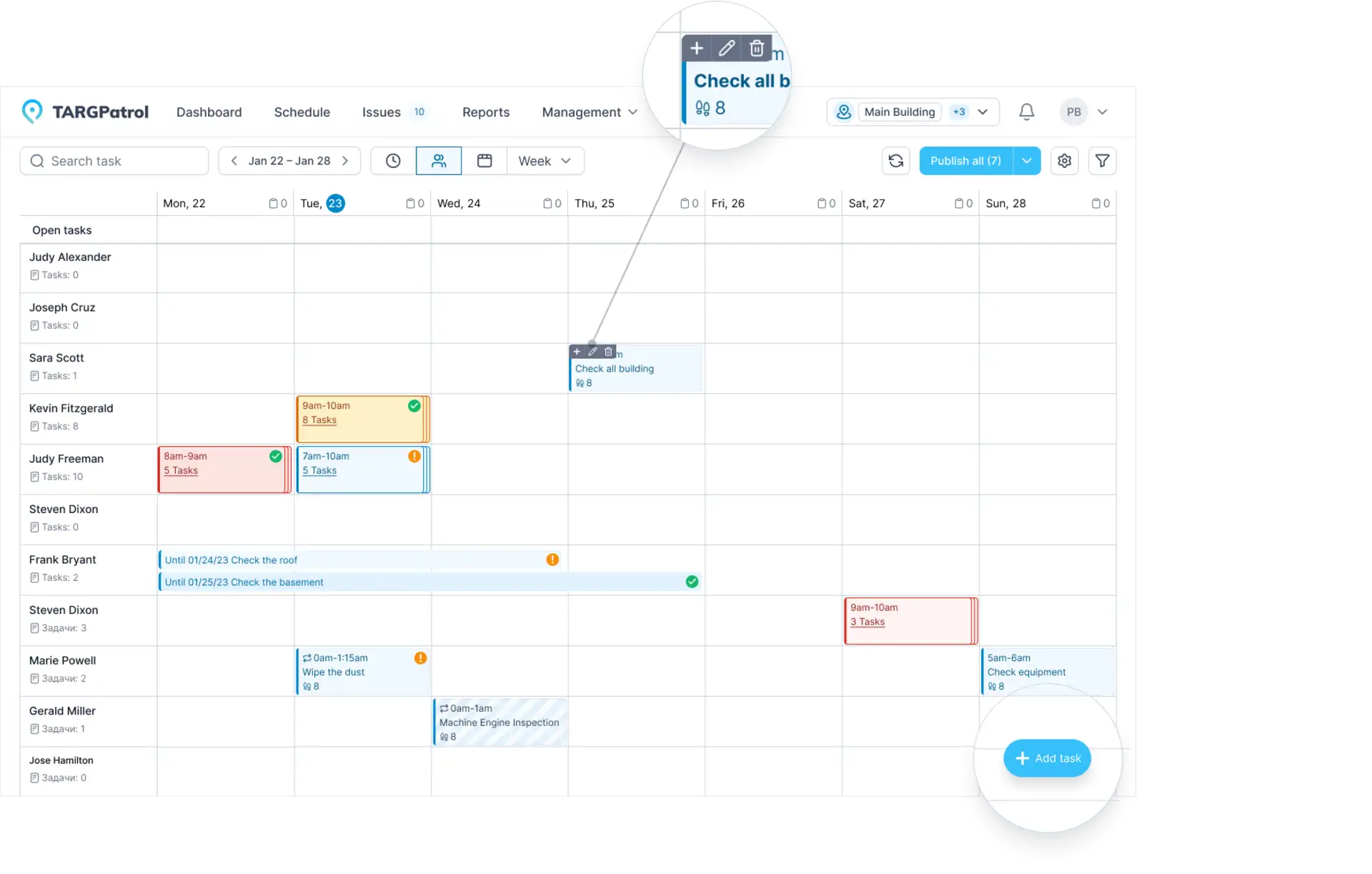
The "Schedule" page is designed for displaying existing tasks, creating and editing new tasks, assigning tasks to employees, publishing schedules, and other actions.
Adding a Task: To add a task, click on a cell in the schedule grid or click the "Add Task" button.
Editing a Task: To edit an existing task, select it and use the necessary buttons in the sidebar menu or when you hover over a task.
Publishing Schedule: To publish tasks, click the button in the top right corner of the page.
Task Filtering: Use the "Task Filters" functionality to filter tasks based on specific criteria.
To save a record of one task, open its execution details from Schedule and select Export PDF. This requires a paid plan and the Report Export permission. See Task Management for what the PDF contains and how to download original attachments.
Schedule offers two PDF export scopes. The toolbar’s Export tasks to PDF exports all distinct tasks visible in the current date range and filters. To export only selected tasks, select several events and choose Export tasks to PDF from the bulk actions menu. Each task is included once, even when shown under several assignees or tags. The limit is 25 tasks per request; narrow the filters or selection if needed. Task Management.
Choose one combined PDF or a ZIP with a separate PDF for each task. Export requires Base or Enterprise and the Report Export permission; it is not available on Free. If processing continues in the background, download the result from Notifications.
Edit a recurring series
When editing a recurring task in the web app, choose Only this task, This and following, or Entire series. Review the editable-task counts and the reference occurrence. Started tasks and tasks whose scheduled end has passed are protected. If a scope is unavailable or the series has changed, retry or reopen the task from Schedule. See Task Management for the complete explanation.
Types of Schedules
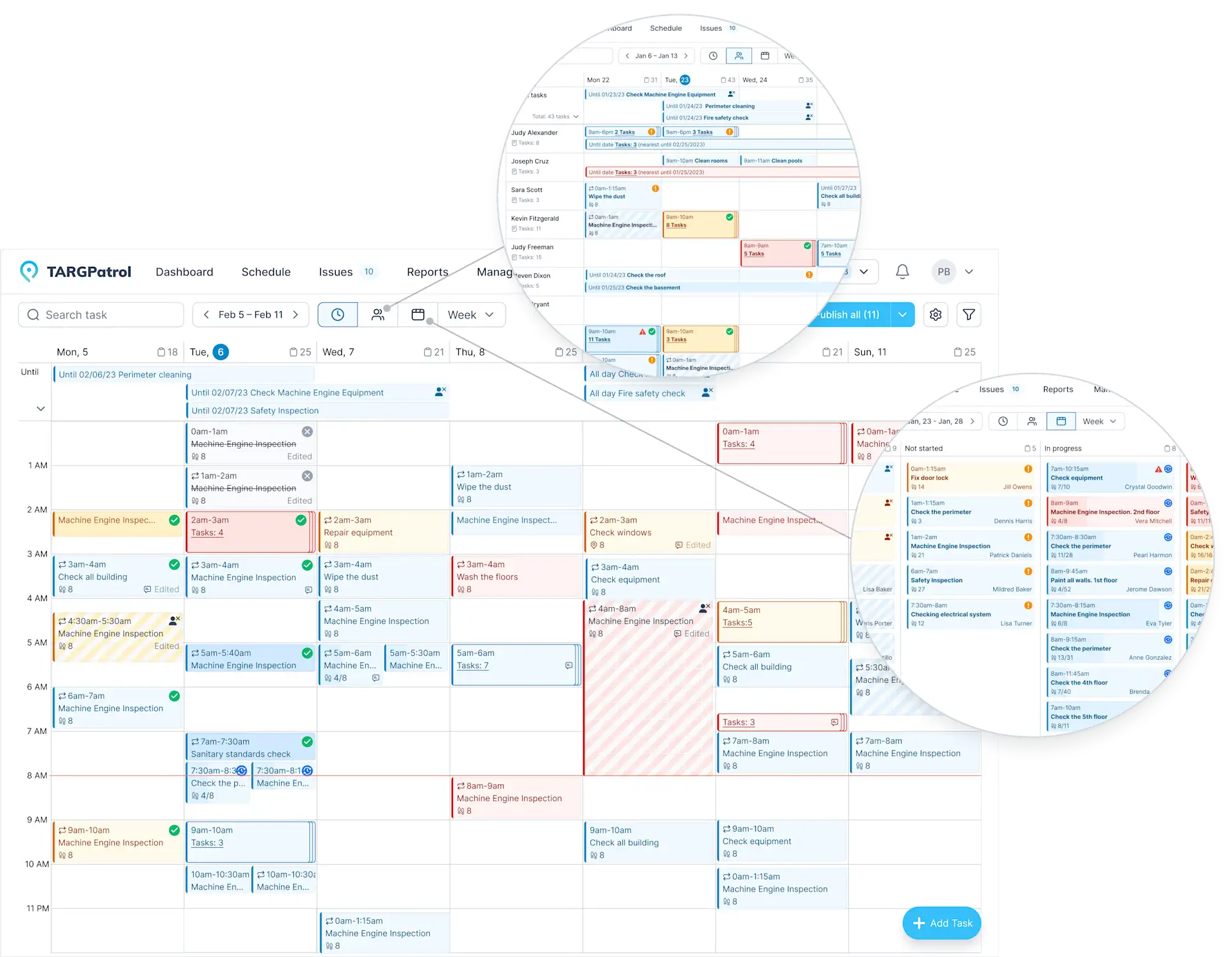
In TARGPatrol, there are three types of schedules:
Time-based: Presents a classic calendar view with breakdowns by hours (vertically) and days (horizontally).
Employee-based: Displays schedules for employees, their tasks, and open tasks.
State-based: Helps track task states within a selected time interval.
Choose the time interval independently from the schedule layout:
Day: one day.
Week: a calendar week.
Month: a calendar month.
Range: a custom start and end date, up to 123 calendar days inclusive.
Use a custom date range
In Schedule, choose Range and select the start and end dates. Use it for a multi-week rota, a client contract period or another interval that does not fit one calendar week or month. The selected interval works with your view and filters and is reflected in supported Schedule exports.
Review the dates and filters before exporting. PDF task export still has its separate 25-distinct-task limit and paid-plan requirements; choosing a longer range does not remove those limits. The custom Schedule range is separate from the six-month maximum for creating a recurring series.
Tips for Using Scheduling in TARGPatrol
Assign Tasks Appropriately: Ensure tasks are assigned to the right employees based on their skills and availability.
Utilize Filters for Convenience: Use task filtering to quickly find specific tasks and monitor their status.
Plan Tasks in Advance: Create tasks ahead of time to avoid rush and last-minute executions, reducing the likelihood of errors.
Choose the Right Schedule View: Depending on your needs, select the appropriate schedule view — by time, by employee, or by state — to efficiently organize your workflow.
Publish Schedule Timely: Ensure the schedule is published on time so employees can promptly review assigned tasks and prepare for execution.
Regularly Check and Update Schedule: Conduct regular schedule checks to ensure it remains current and make necessary adjustments.
Train Employees on Using the Schedule: Provide training sessions for employees on using different schedule views and functionalities in TARGPatrol.
Review an individual task’s History
Select a scheduled task and open History in its details. Use the timeline to understand edits to dates, assignments, publication, recurrence and other supported task settings. This view concerns the selected task; use the separate Audit logs for recorded aggregate series actions. Read the Task Management guide for the full explanation.
Review schedule changes
Audit logs help Owners and Admins trace supported changes to planned tasks, assignments, dates, and recurring series. Series actions are grouped rather than logged once per generated occurrence. Audit logs do not replace Schedule or task execution history.
Audit logs are available to organization Owners and Admins on Base and Enterprise, not Free.