

About Incidents
A guard notices a broken window. A cleaner finds damaged equipment. A manager receives a safety complaint. These events need more than a message or a photo — they need a clear owner, a visible status, and a reliable path to resolution.
Incidents give your team one place to record what happened, assign responsibility, share updates, and follow the event from the first report to the final outcome.
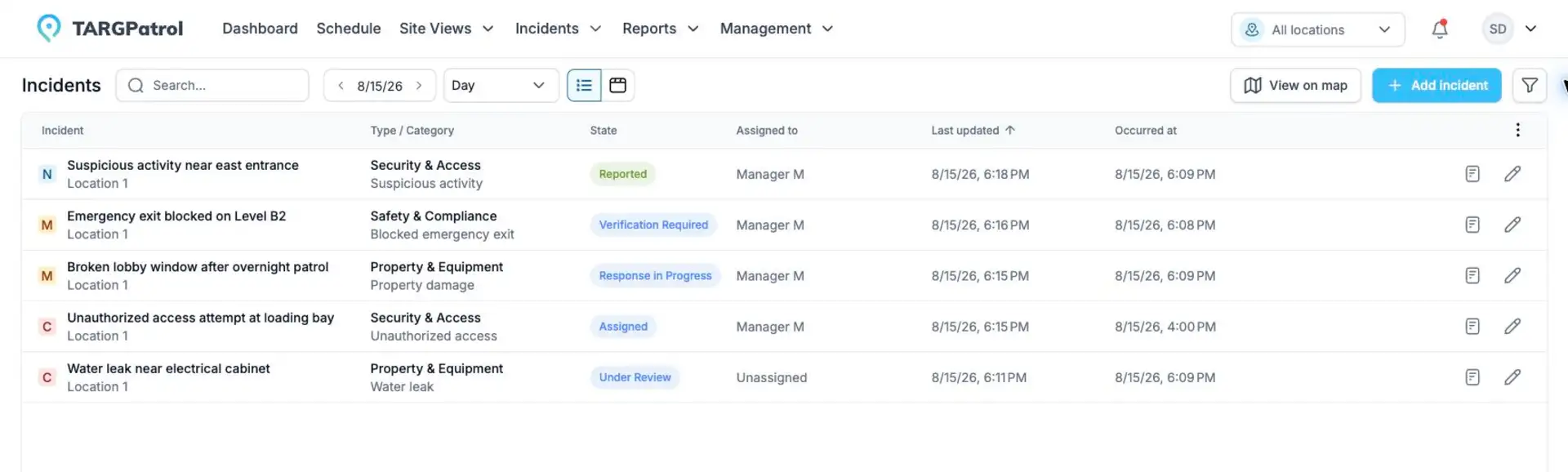
The Incident list brings priority, classification, workflow state, assignment, and reporting dates into one operational view.
Watch: Incident Management in TARGPatrol
What can you manage with Incidents?
Every organization can configure its own Types and Categories, so Incidents can reflect the situations your team actually handles. Common examples include:
Property damage, such as a broken window or damaged door.
Safety hazards, spills, blocked exits, or unsafe equipment.
Security events, suspicious activity, or unauthorized access.
Equipment failures and maintenance problems.
Cleaning or quality issues found during daily work.
Customer complaints and service problems.
Policy violations or other events that require investigation.
A simple example: from report to resolution
A guard discovers a broken window during a patrol. They create an Incident, select Property damage → Window damage, add a photo, and set the priority. TARGPatrol records the Location, time, and reporter, then places the Incident in the configured initial state.
A facility manager is assigned to the Incident. The manager reviews the photo, adds a comment, and moves the Incident from New to In progress. After the window is repaired, the manager adds a resolution note and moves it to Resolved.
Everyone with access to that Location can see what happened, who handled it, and how it was resolved. The complete history remains available for review and reporting.
How an Incident moves through TARGPatrol
Report the event. A user records what happened, where it happened, and how urgent it is.
Assign responsibility. The Incident can be assigned immediately or left unassigned until the right person is known.
Collaborate. Authorized users add comments, attachments, tags, and other useful details.
Update the state. The Incident moves through the workflow using transitions allowed for the user’s role.
Record the outcome. A transition note can capture the decision, handover, rejection reason, or resolution.
Review and report. Completed Incidents remain available in history, reports, scheduled reports, and exports.
You can export an individual Incident as a PDF or download all Incident and comment attachments separately as a ZIP. Both actions are available on Base and Enterprise and unavailable on Free. See Incident Reports and Exports.
What information can be recorded?
An Incident can bring together the operational context your team needs:
A clear title and description of what happened.
Type, Category, and Priority.
Location, optional Point, and occurrence date and time.
Reporter and optional assignee.
Tags for filtering and reporting.
Comments for collaboration and user mentions.
Images and supported document attachments.
Current state, transition notes, and complete state history.
Incidents and Issues
Incidents are a new, configurable workflow and do not automatically replace or modify your existing Issues. Both modules can be used while your organization introduces the new process.
Issues continue to support the existing reporting workflow.
Incidents add organization-specific Types and Categories, configurable states and transitions, role rules, creation forms, notification rules, and dedicated reports.
This separation lets you prepare the Incident configuration, train the team, and adopt the new workflow without disrupting the current Issue process.
Report Incidents from the mobile app
Field teams can report Incidents in the mobile app, either separately or while performing tasks. With the Location’s creation configuration already cached, new reports and their media can be saved offline and synchronized later. The mobile map helps users find accessible Incidents by location. See the detailed guide for preparation, queue status, and retry steps.
Creating and Managing Incidents
Make Incidents available to your team
Administrators and Owners can open Organization Settings → Operations and set Available modules to Incidents or Issues + Incidents. Use both during a staged migration, or choose Incidents for an Incident-only process. This setting does not grant Incident permissions and does not delete existing Issues; roles and Location access still control what each person can do.
See Organization Management for all operational settings and Issues: deprecated functionality for migration guidance.
Built around your organization
Owners and administrators can adapt Incidents to the way the organization works:
Types and Categories describe the events your team records.
Workflow states and transitions define how Incidents move from report to resolution.
Creation Forms simplify data entry for particular roles or Locations.
Notification Rules determine which events notify which users or roles.
Reports and exports help teams review trends and share results.
New organizations receive a localized starter classification based on their industry. Administrators can then adjust it without affecting any other organization.
Who can see and update Incidents?
Good to know: users only see Incidents for Locations available to them. Editing and state-change actions also depend on their permissions and the roles allowed by the configured workflow transition.
This keeps operational information with the people who need it while preventing Incident details from being exposed outside the relevant Location.
Ready to continue?
Start with Creating and Managing Incidents if you want to report and follow an Incident. If you are setting up the module for your organization, continue with Incident Types and Categories and then Configuring the Incident Workflow.
Related reporting
Analyze trends and recurring risks with By Incidents reports.