

Configuring Incident Creation Forms
If every reporter must choose every field, creating an Incident can take longer than the event itself. Creation Forms let you remove unnecessary decisions and present the right defaults for a role or Location.
The result is a faster form for frontline users without losing the information managers need.
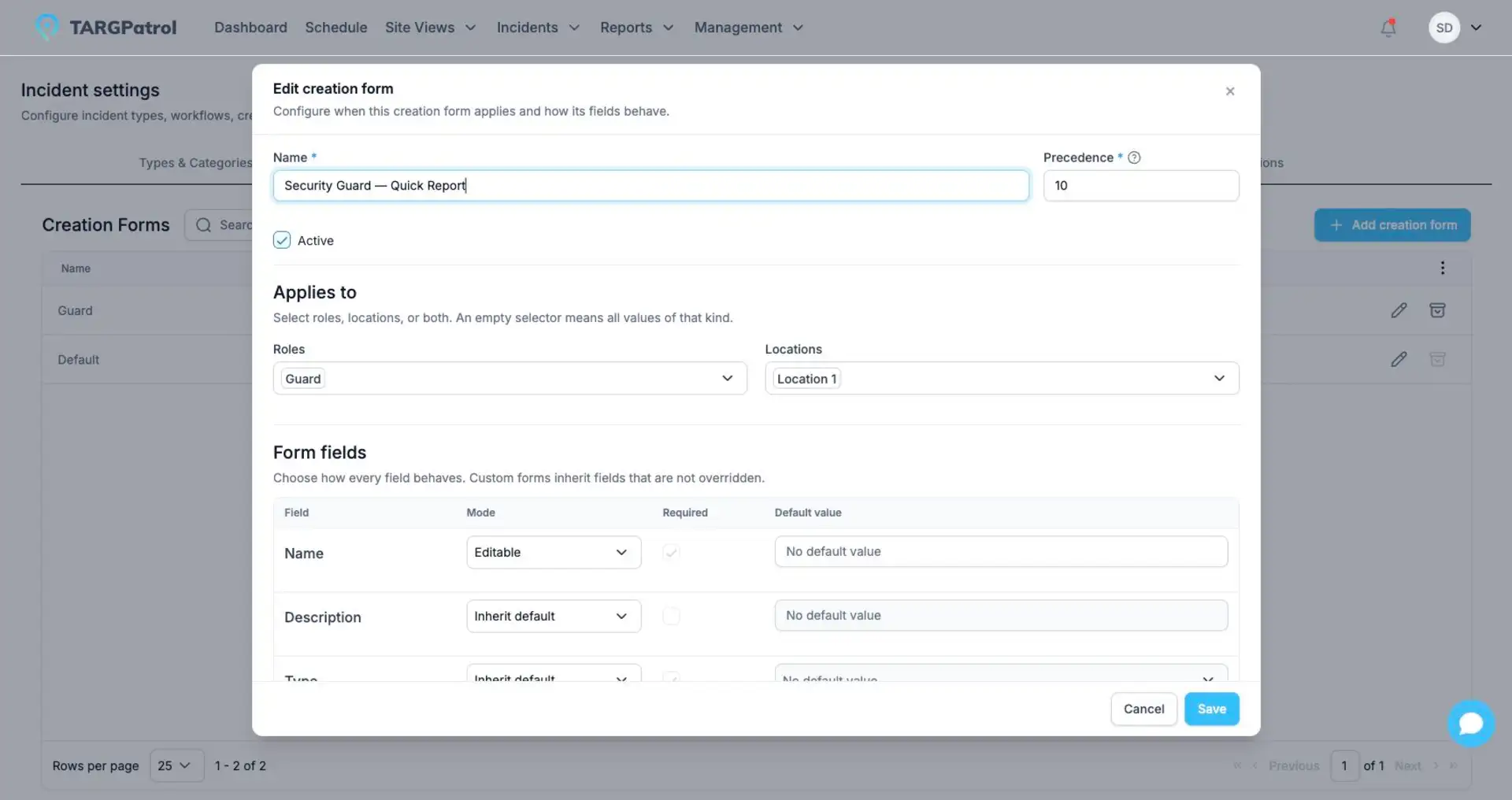
Creation Forms control which fields are inherited, editable, required, or prefilled for a reporting context.
See it in practice
For guards at Warehouse A, a custom profile can preselect the Location, provide Security as the Type, and leave only Category, title, priority, and description editable.
A manager can use the default profile with the full set of choices. Both users create the same Incident entity, but each sees a form suited to their work.
Good to know: Creation Form rules apply only when an Incident is created. They do not prevent authorized users from editing the Incident later.
How profiles work
Every organization has one default profile.
Optional custom profiles can target one or more roles, Locations, or both.
Precedence determines which matching custom profile wins.
A custom profile without a role or Location selector never matches users.
Removing the last Location from a Location-scoped profile does not turn it into a global profile.
Open Creation Forms
Open Management.
Select Incident settings.
Open Creation Forms.
Configure the default profile
The default profile defines the baseline behavior for every creation field. Configure all required core fields so an Incident can always be created. Custom profiles can inherit field behavior that they do not override.
Add a custom profile
Select Add profile.
Enter a name and precedence.
Select at least one role or Location.
Keep the profile active.
Configure the fields that should differ from the default profile.
Save the profile.
Field modes
Editable: the user can enter or change the value during creation.
Read-only: the value is shown but cannot be changed.
Hidden: the field is not shown.
Inherit default: a custom profile uses the default profile rule for this field.
A field can also be required and can have a default value. If a required field is hidden or read-only, provide a valid default or make sure the server can determine the value from context.
Supported fields
Title and description.
Type and Category.
Priority.
Location and Point.
Assignee.
Occurred at.
Tags.
Attachments are not controlled by creation field rules. They are added after the Incident record exists.
Dependent defaults
A default Category must belong to the default Type.
A default Point must belong to the default Location.
A default assignee must be active and have access to the applicable Location.
Archived Types, Categories, states, Locations, Points, or users cannot be selected as new defaults.
Example
For guards at a specific Location, create a custom profile that fixes the Location, provides a default Type and Category, requires a title and priority, and leaves description and tags optional. The guard then records the event with fewer decisions on the mobile device.
With the basics in place, your team can spend less time deciding how to record an event and more time resolving it.