

Incident State Changes and History
When several people work on the same Incident, the latest state is not enough. The team also needs to know who changed it, when it changed, and why.
Transitions and their notes create that shared record automatically.
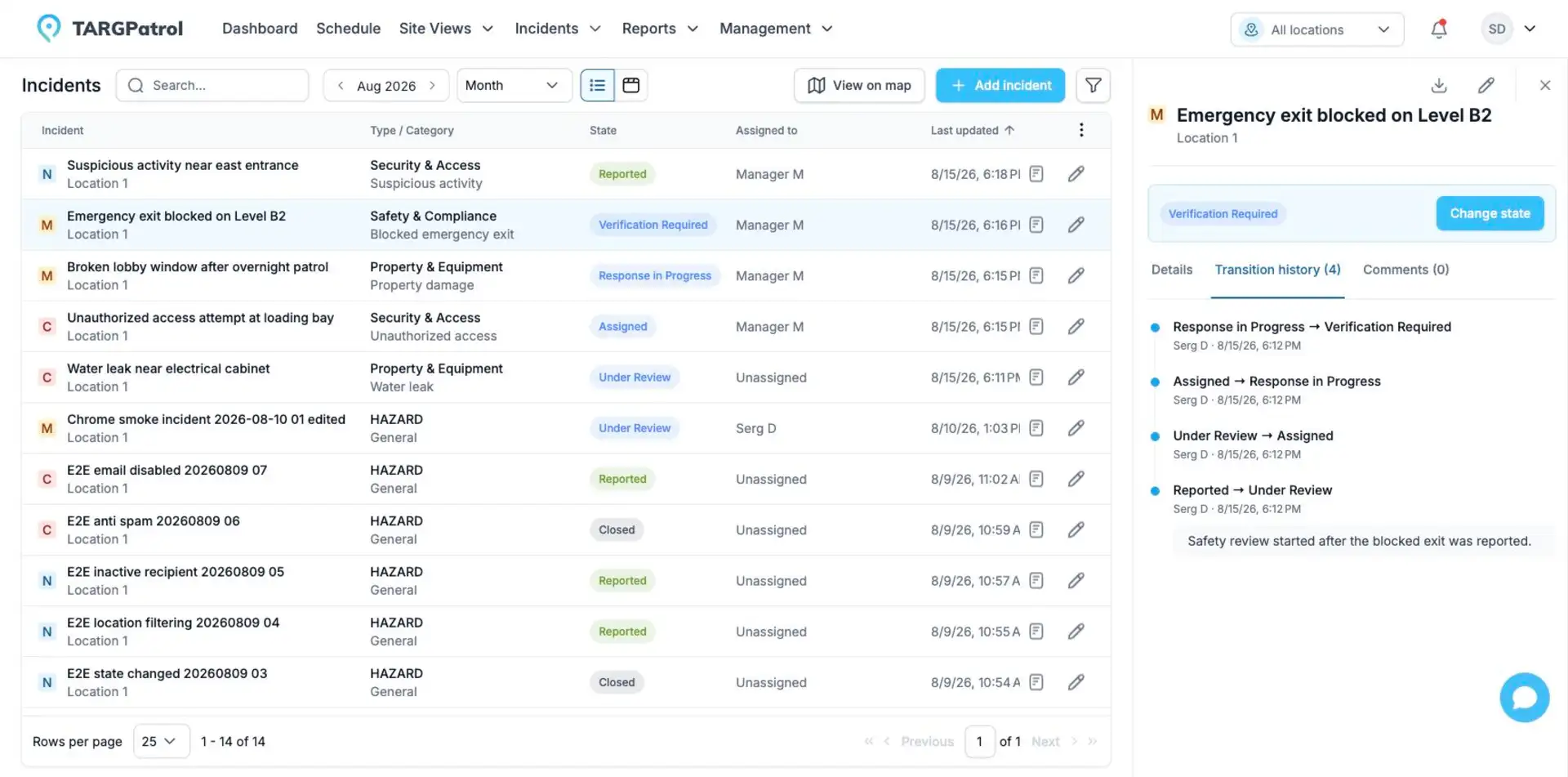
Transition history records each state change, its timing, and the workflow path followed.
See it in practice
A manager moves an Incident from New to In progress and adds the note “Contractor contacted.” Later, another manager resolves it with the note “Window replaced and area secured.”
Anyone reviewing the Incident can understand the sequence without searching through chat messages.
Good to know: use comments for general collaboration and mentions. Use a transition note when the information explains why the workflow state changed.
Change an Incident state
Open Incidents and select the Incident.
Find Change state in the details panel or edit page.
Select one of the available target states.
Enter a note if the transition allows or requires one.
Confirm the change.
The list only includes active transitions from the current state that your role can use. You must also have access to the Incident Location and the required Incident permission.
Transition notes
Hidden: no note field is displayed.
Optional: add context when it is useful.
Required: enter a note before confirming the transition.
Use notes for decisions, handovers, rejection reasons, or resolution details. A transition note belongs to the state-change history and is separate from general Incident comments.
Review Incident field changes
In the web app, open an Incident and select History. Choose Changes for creation and supported field edits, or Transitions for workflow movements and their notes.
Changes can include the name, description, priority, assignee, Type, Category, Location, Point, coordinates, occurrence time, state, tags and attached-file references. Attachment changes do not create a historical backup of the files. A state change may appear in Changes; Transitions provides its workflow context and transition note. Comments remain a separate collaboration area.
Each entry shows when the record was created or updated and who made the change when that information is available. Expand Changes to compare previous and new values. Added and removed tags are shown separately. Select Load more to see older entries.
For some older entries, the previous version is unavailable; the timeline then shows the retained values. Some complex or protected changes are indicated without revealing every underlying value. History is read-only: it does not restore an earlier version.
Record History is available on Free, Base and Enterprise, subject to your role and Location access. Access checks also protect historical values from other Locations. This is separate from the organization Audit logs feature, which requires Base or Enterprise.
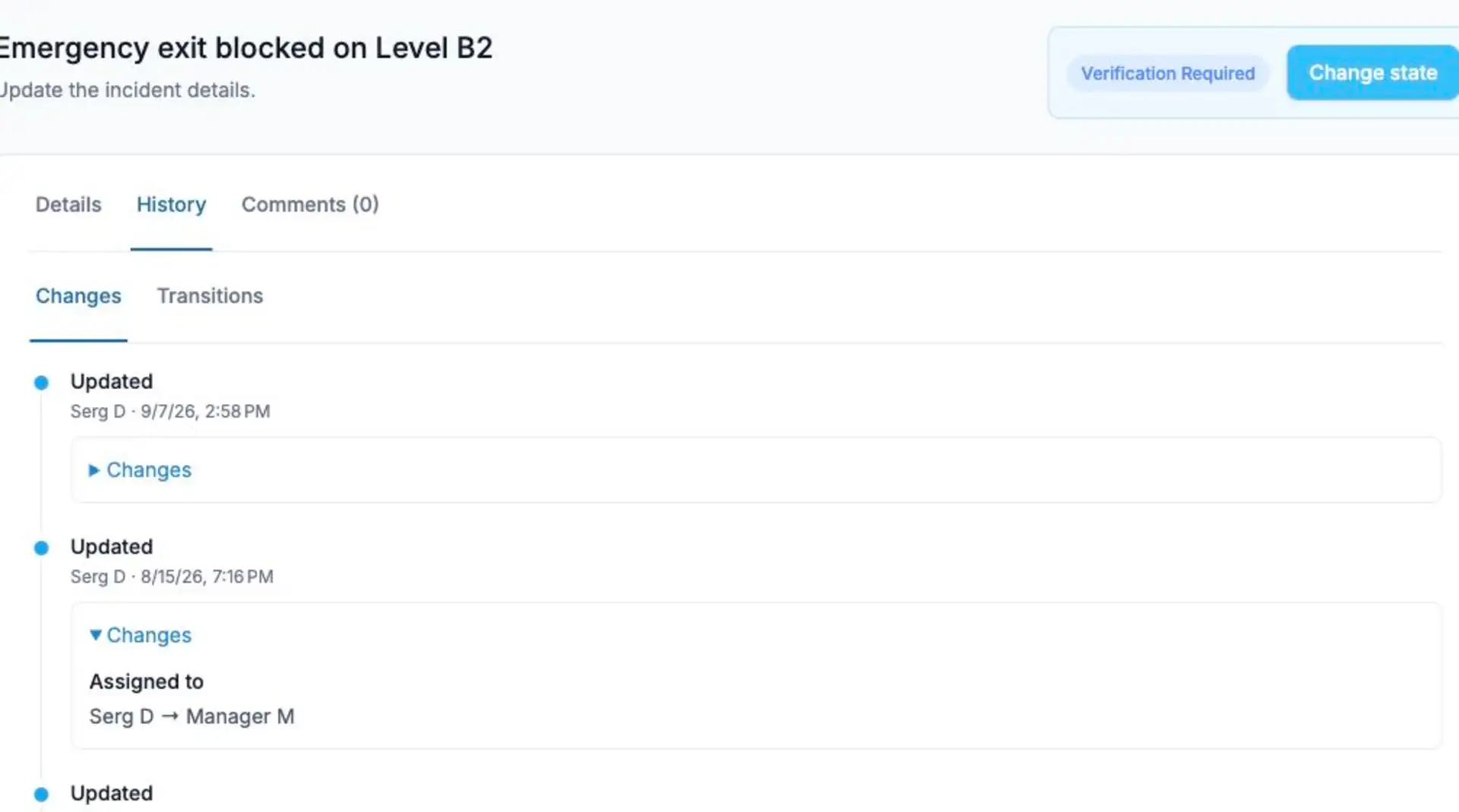
Real TARGPatrol web interface in English, using sample data. The History view shown is read-only.
Review transition history
Open the Incident, select History → Transitions and review the previous state, new state, user, time and transition note when present. Select Load more for older transitions. Use History → Changes to investigate other supported field edits.
Final states
A workflow can have several final states. Reaching a final state represents an outcome such as Resolved, Rejected, or Duplicate. The Incident remains available for review and reporting.
Archived states and transitions
Archiving a state or transition prevents it from being selected for new state changes. An Incident already in an archived non-final state remains there until an authorized user manually moves it through a valid transition to an active state.
Why an action may be unavailable
No active transition starts from the current state.
Your role is not allowed to use the transition.
You do not have access to the Incident Location.
The target state or transition has been archived.
A required transition note is empty.
Comments compared with transition history
Use Comments for ongoing collaboration and mentions. Use a transition note when the information explains a workflow decision. Both are visible from the Incident, but transition history cannot be replaced by editing a comment.
With the basics in place, your team can spend less time deciding how to record an event and more time resolving it.
Incident history and Audit logs
The Incident’s Changes and Transitions views are available on Free, Base and Enterprise, subject to normal permissions. Paid Audit logs provide a separate cross-record view of supported actions; Owners have organization-wide access, while Admin access is limited by Location scope. They do not replace the Incident’s own History.
Audit logs are available to organization Owners and Admins on Base and Enterprise, not Free.
Related guides
Configuring the Incident Workflow