

Users
In this guide, we will explain how to create and edit users, as well as discuss the roles they can have in TARGPatrol.
Creating a User
To create a new user in TARGPatrol, follow these steps:
Go to https://app.targpatrol.com/ and log in with your account. For more information on registration and login, refer to the previous lesson.
Navigate to the "Team" tab.
Click on the "Add User" button.
Enter the user’s information (name, role, email/phone, etc.) and assign the locations where they’re allowed to work. Users only see tasks from their assigned locations—if a location isn’t assigned, the user won’t see tasks from that location. You can add or change locations later at any time.
Click Save to apply changes. An invitation email is sent automatically (except for Guard users without an email). Guards without an email won’t receive a notification and can sign in on a shared device using their User ID and PIN.
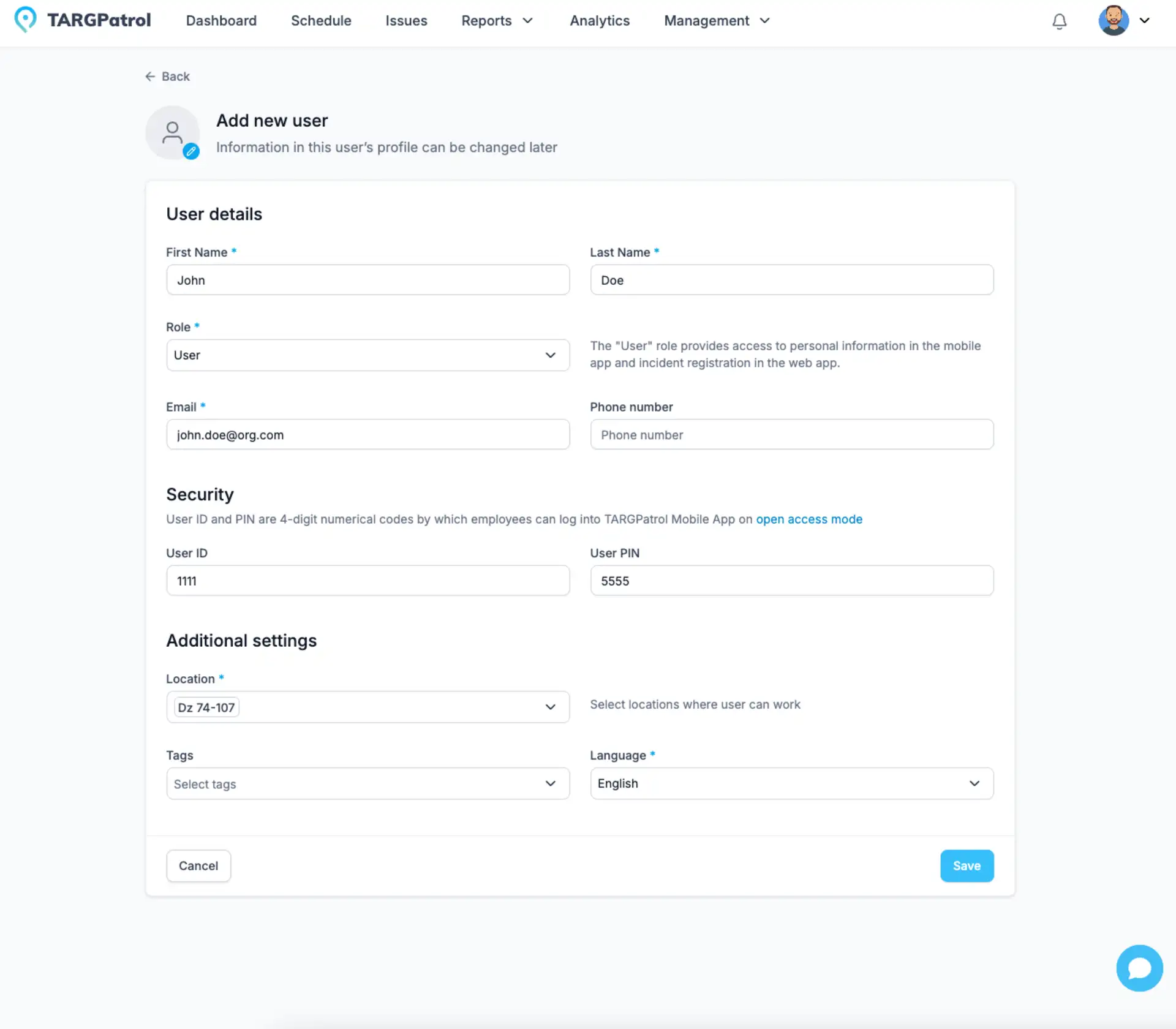
Pay attention to user roles:
Owner: organization-wide access, ownership and billing controls.
Administrator: manages permitted operations in assigned Locations, can create Locations and is automatically assigned to each Location they create. Billing remains Owner-only.
Manager: views permitted operational data and plans tasks within assigned Locations.
User: performs permitted tasks and reports Incidents within assigned Locations.
Guard: performs permitted work on a provisioned shared device using ID/PIN; Location assignments still apply.
Location access and users without assignments
Only the Owner has implicit access to all Locations. Admins, Managers, Users and Guards need assignments to the actual Location; a role or Incident recipient selection does not grant access by itself.
A non-Owner user can have no assigned Locations. Assign Locations in Team when the person is ready to work. With no assignments, the no-locations screen explains how to contact a manager, refresh access or switch organizations. An Admin can open Locations and create a Location, which is then assigned to that Admin automatically.
User profile fields
First Name and Last Name are required for every user. Enter both values when creating a user and keep them up to date so reports, schedules, and task history identify the correct person.
Use Locale for regional date, time, and number formats. Web and mobile choose their interface language differently, as explained below.
Locale in Team controls the user’s organization language and formatting in the web app, including web PDF exports. Changing the personal-account language does not override it. In the current mobile app, the device language controls the interface; the user’s Locale is used for regional formatting when its language matches. Language and Locale.
Email and phone can be updated from the user edit form according to the user role and account state. A Guard may still be created without an email. Changing a phone number does not unlink the account or send a new invitation.
Turn On GPS Tracking for a User
You can enable GPS tracking on the User Edit page. Simply open the user profile and switch on the GPS Tracking option. Once enabled, the mobile app will start collecting location data when the user is actively using the app.
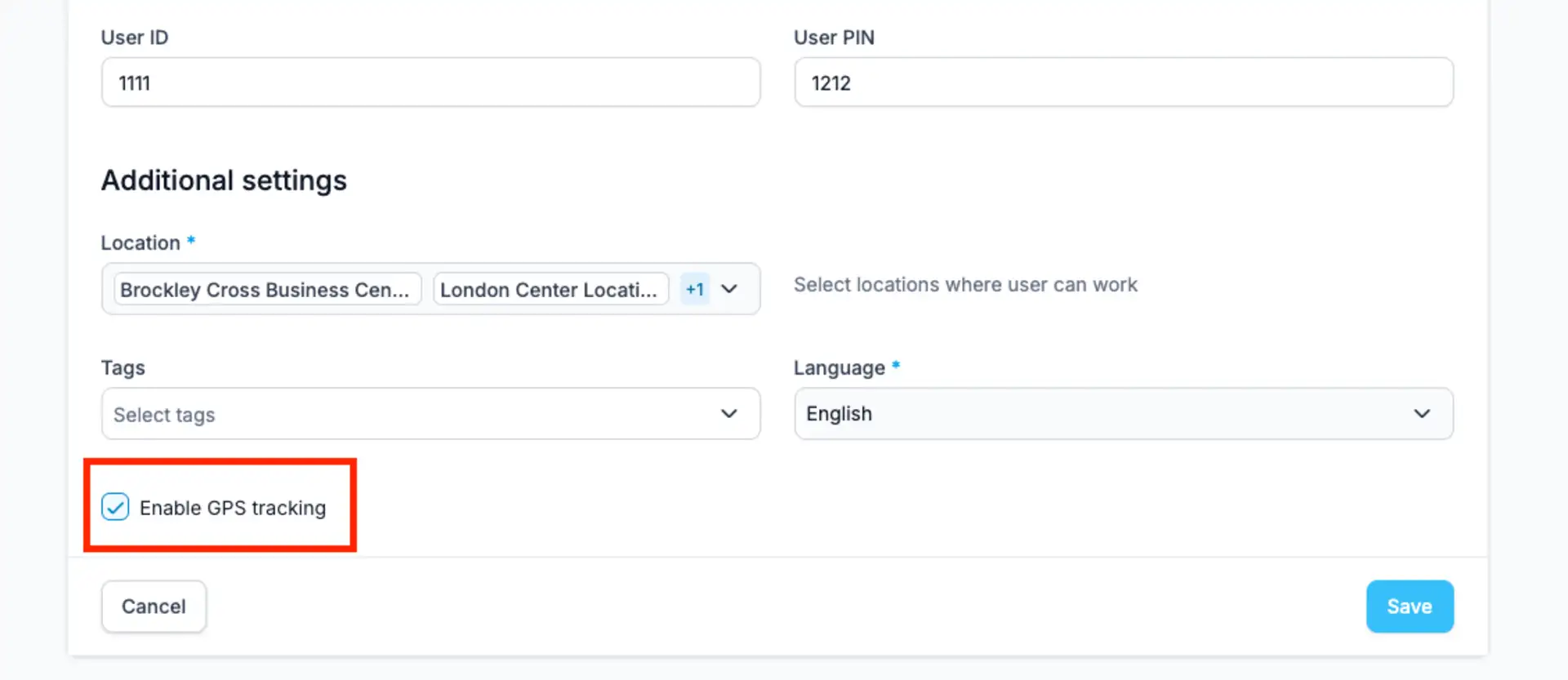
The app only records GPS coordinates while it is open and in use. It does not track location in the background, helping protect privacy and preserve battery life.
All collected data is automatically synced to the server. GPS tracking also works offline — if there is no internet connection, the data will be stored on the device and uploaded once the connection is restored.
You can see the user’s movement and routes on the Site Views → Map page. This allows you to understand where employees have been during their shift and review their activity on site.
GPS tracking helps you optimize routes, verify on-site presence, and improve operational visibility. It is especially valuable for security guards and patrol teams, as you can quickly see where an employee was last located — an important factor for both safety and accountability.
Switching between Guard and Administrator on shared devices
For teams using a shared mobile device, an Administrator can use the Switch User feature to log in as a Guard by entering the Guard’s ID and PIN. To enable this, the shared device must first be authorized by the Owner or Administrator, and both the Administrator and Guard must have their ID and PIN set up in advance. Once switched, the device opens the Guard interface, allowing the user to perform tasks and report incidents. The same steps can be used to switch back to the Administrator account or to another Guard, making it easy for multiple team members to use one device.
Editing and Archiving Users
To edit or archive a user in TARGPatrol, follow these steps:
Go to https://app.targpatrol.com/ and log in with your account.
Navigate to the "Team" tab.
Click on the pencil icon next to the user you want to edit.
Make the necessary changes.
If you need to disable a user, use the "Archive" function. After archiving, the user becomes inactive and cannot log into the system. Users can be unarchived at any time. Archived users do not count toward your billing, making it a convenient way to manage seasonal or temporary staff without increasing subscription costs.
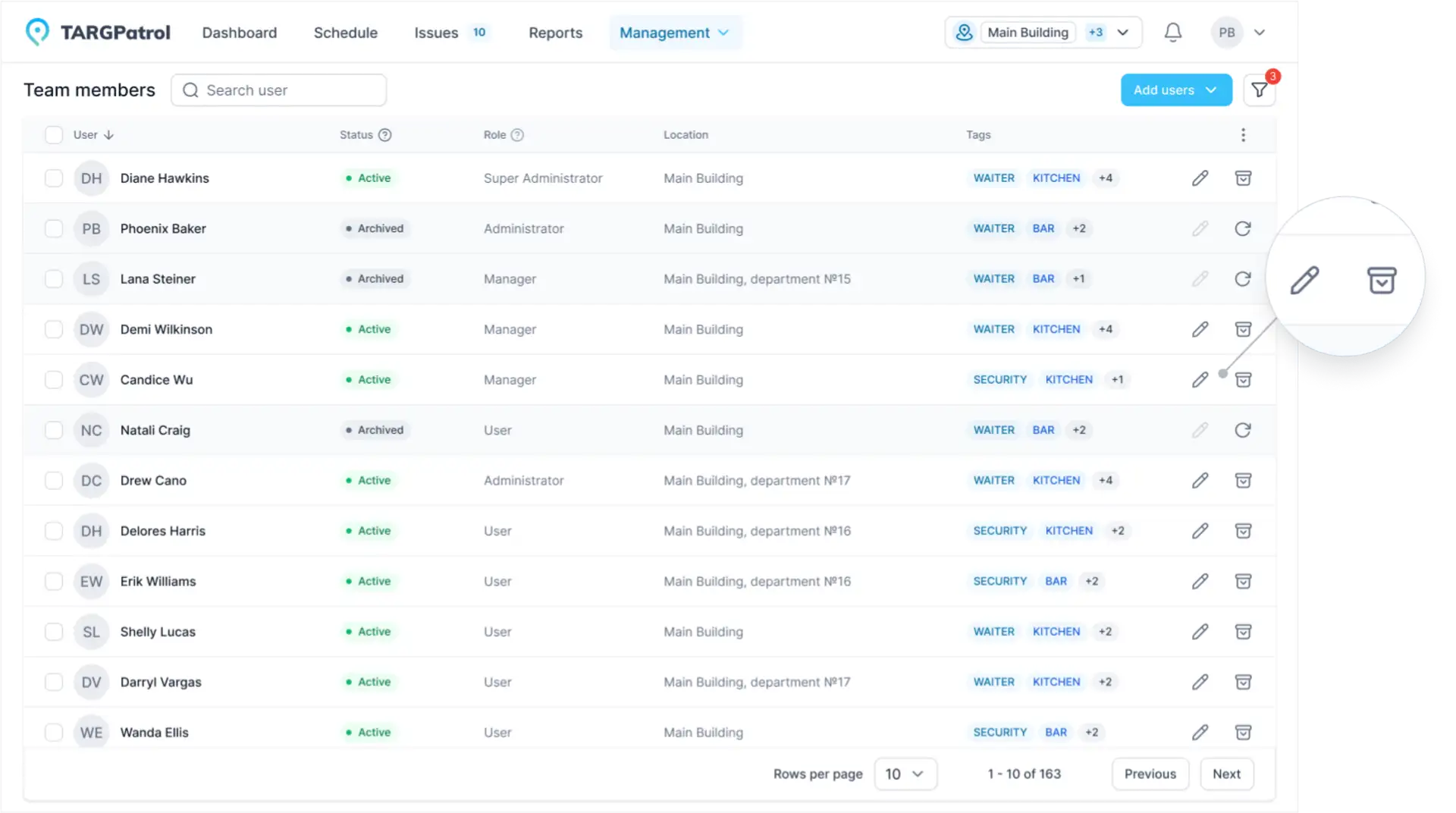
By following these steps, you can effectively manage users in TARGPatrol.
Tips for User Management in TARGPatrol
Managing users in TARGPatrol plays a crucial role in ensuring organizational efficiency. Here are some tips on how to effectively utilize user creation, editing, and role management features:
Clarity in Role Responsibilities: When creating a new user, carefully consider which role to assign. Ensure that each user has access only to necessary functions and data to prevent unauthorized access.
Regular Role Updates: As your organization evolves, there may be a need to adjust user roles. Continuously assess the relevance of roles and make changes as necessary.
User Training: Provide comprehensive training on TARGPatrol functionality and user roles to new users. This helps them integrate into the workflow faster and minimize errors.
Using PIN Code Functionality: If you need to grant access to functionality without creating a user account, utilize the "Guard" feature with a PIN code. This is particularly convenient for temporary employees or contractors.
Following these tips will enable you to efficiently organize and monitor user activities in TARGPatrol, ensuring data security and high organizational productivity.
Optional GPS tracking guide
For setup steps, recording behavior, privacy guidance, and map review, see How Optional GPS Tracking and Route History Work.
Review user changes
In the web app, open Management → Team, select a user to open their details and choose History.
The timeline can show changes to names, contact fields, employee number, role, status, assigned Locations, locale, tags, photo presence and the GPS-tracking setting, according to your permissions. PIN changes are indicated without showing previous or current PIN values. A GPS-tracking setting change is not the user’s route history.
Each entry shows when the record was created or updated and who made the change when that information is available. Expand Changes to compare previous and new values. Added and removed tags are shown separately. Select Load more to see older entries.
For some older entries, the previous version is unavailable; the timeline then shows the retained values. Some complex or protected changes are indicated without revealing every underlying value. History is read-only: it does not restore an earlier version.
Record History is available on Free, Base and Enterprise, subject to your role and Location access. Access checks also protect historical values from other Locations. This is separate from the organization Audit logs feature, which requires Base or Enterprise.
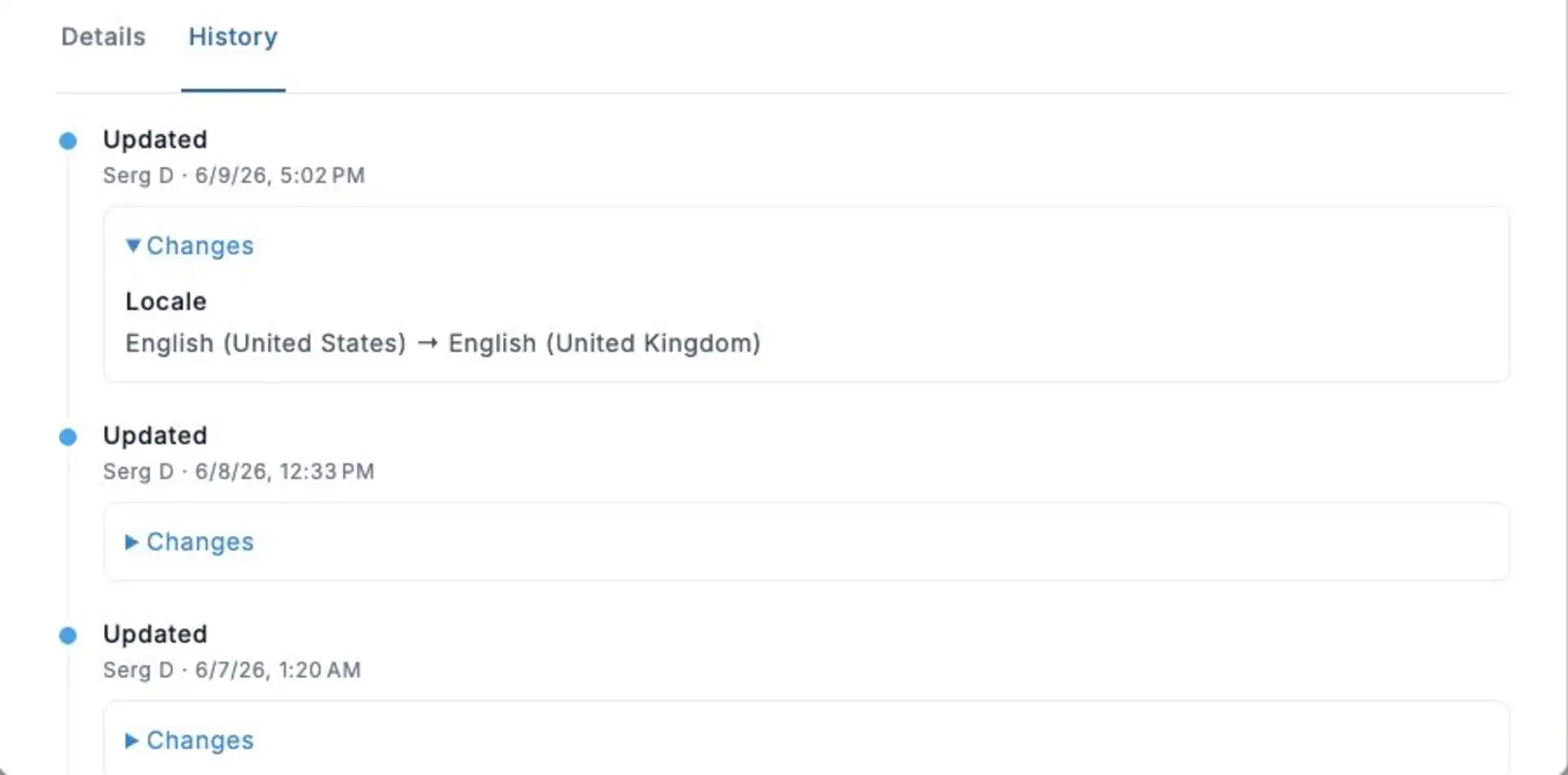
Real TARGPatrol web interface in English, using sample data. The History view shown is read-only.
Audit logs and user access
Owners can review supported user actions in the paid organization Audit logs. Admin access to that log is Location-scoped and does not include User or organization events. The user’s own History is a separate view governed by user-read and Location permissions; it does not require the paid Audit logs feature.
Audit logs are available to organization Owners and Admins on Base and Enterprise, not Free.
Related reporting
Review employee activity with By Users and User Timesheet reports.