

How Optional GPS Tracking and Route History Work
Optional GPS tracking adds route history for selected users alongside normal check-in records. An administrator enables it separately for each user. It is distinct from GPS Point proximity validation.
Requirements
Enable GPS tracking only for users who need route history.
The user must be signed in to the mobile app and have a current Location selected.
Location services must be enabled and TARGPatrol must have device location permission.
Enable GPS tracking for a user
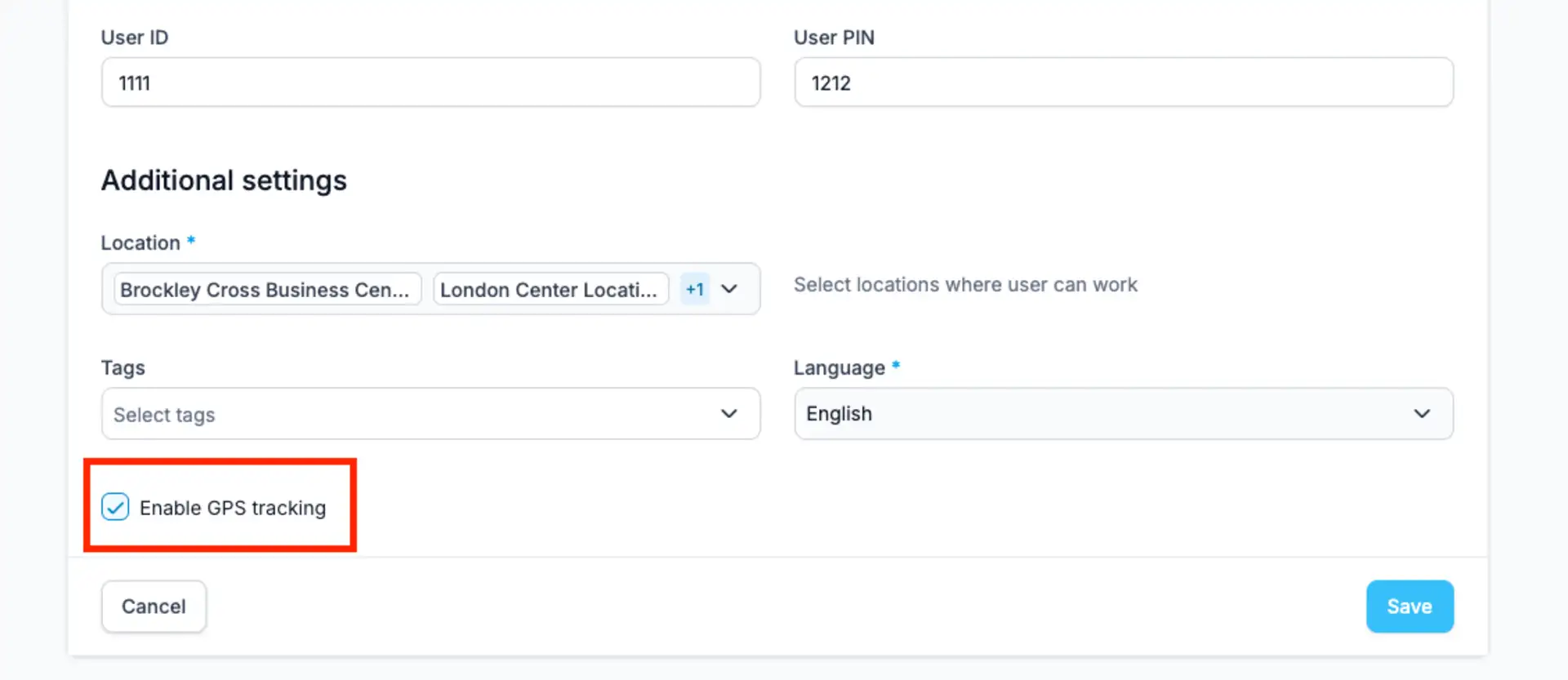
Open Users, edit the required user account, turn on “Enable GPS tracking,” and save the changes.
When coordinates are recorded
After it starts, the mobile app records an initial position and then periodically records additional coordinates while the app is open and in use. This is not continuous live or background tracking, and it does not record positions after the app is closed.
Without an internet connection, supported location records can be stored locally on the device and synchronized after connectivity returns.
Review route history on the map
Authorized managers open Site Views → Maps, select a Location and date, and then review the user history. The map can show saved positions, the resulting route, and the latest available position.
GPS Point validation and GPS tracking are different
A GPS Point validates proximity to saved coordinates only when a check-in is attempted. Optional GPS tracking periodically records location for a selected user while the app is in use. Learn more in How GPS Point Proximity Validation Works.
Privacy and permissions
Enable this feature only for users who need it for their work. Provide appropriate notice to personnel, manage device permissions, and follow applicable laws and internal policies.