Scheduled Report

Scheduled Reports allow you to automatically generate reports in TARGPatrol and send them to selected recipients by email. This is useful when managers, supervisors, or head office teams need regular reports without manually building and exporting them every time.

You can schedule reports such as task reports, user timesheets, point reports, location reports, issue reports, and other available report types.

How to open Scheduled Reports

To configure Scheduled Reports, you need to have Owner or Administrator permissions in your TARGPatrol organization.

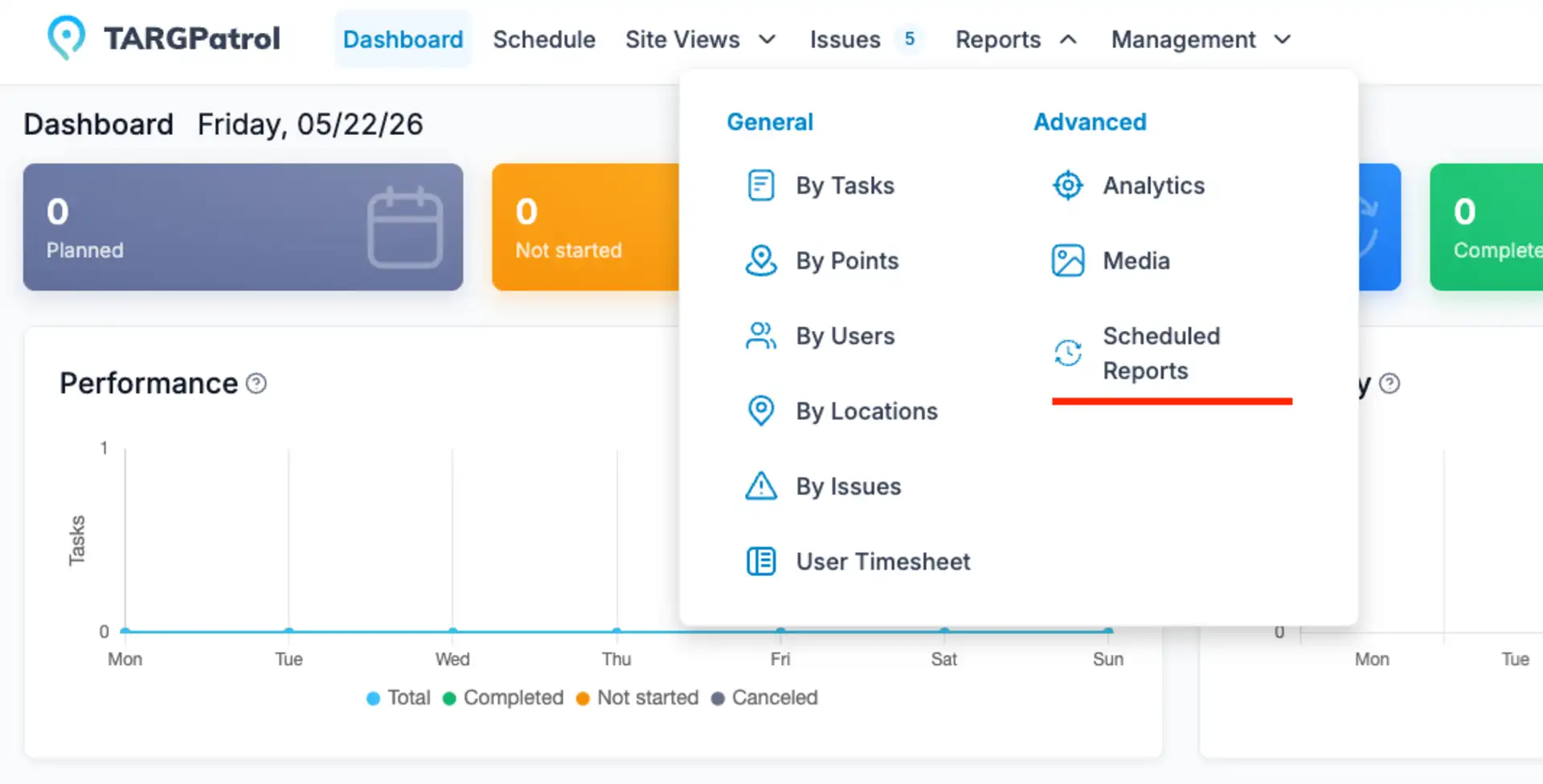
  1. Open the TARGPatrol Web App.

  2. In the top menu, go to Reports.

  3. Select Scheduled Reports.

Scheduled Reports menu

Here you will see the list of existing scheduled reports.

Creating a scheduled report

After clicking Add scheduled report, the Scheduled Report form will open.

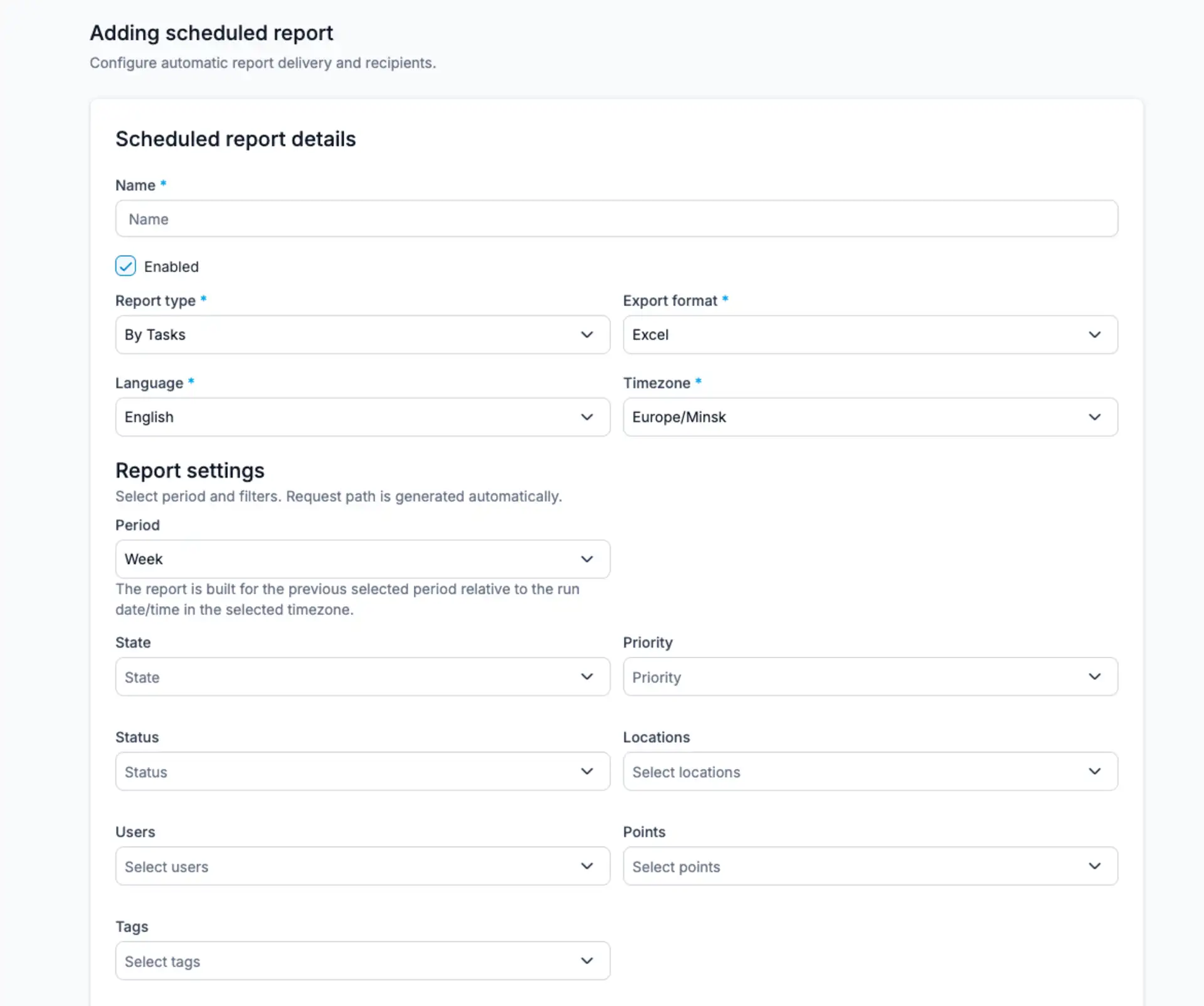
Scheduled report details

Fill in the main report settings:

Name Enter a clear name for the scheduled report. For example:

  • Daily User Timesheet

  • Weekly Cleaning Performance Report

  • Monthly Issues Summary

Enabled Keep this option enabled if you want the report to run automatically. You can disable it later without deleting the scheduled report.

Report type Select the report you want to generate automatically, for example:

  • By Tasks

  • By Points

  • By Users

  • By Locations

  • By Issues

  • User Timesheet

Export format Select the export format for the report, such as Excel or another available format.

Language Choose the language that should be used in the generated report.

Timezone Select the timezone that should be used for the report schedule and reporting period.


Report settings

In the Report settings section, select the reporting period and apply filters if needed.

Period Choose the period for the report, for example:

  • Day

  • Week

  • Month

The report is generated for the previous selected period relative to the scheduled run date and time.

For example, if you schedule a daily report at 08:00 and select Day, the report will be generated for the previous day.

If you select Week, the report will be generated for the previous week.

Scheduled Report Settings

Available filters

Depending on the selected report type, you can apply filters such as:

State Filter reports by task or record state.

Priority Filter by priority.

Status Filter by status.

Locations Select specific locations or branches.

Users Select specific users or employees.

Points Select specific QR, NFC, GPS, or Virtual Points.

Tags Filter data by tags.

Filters are optional. If no filters are selected, the report will include all available data based on the selected report type and period.


Schedule

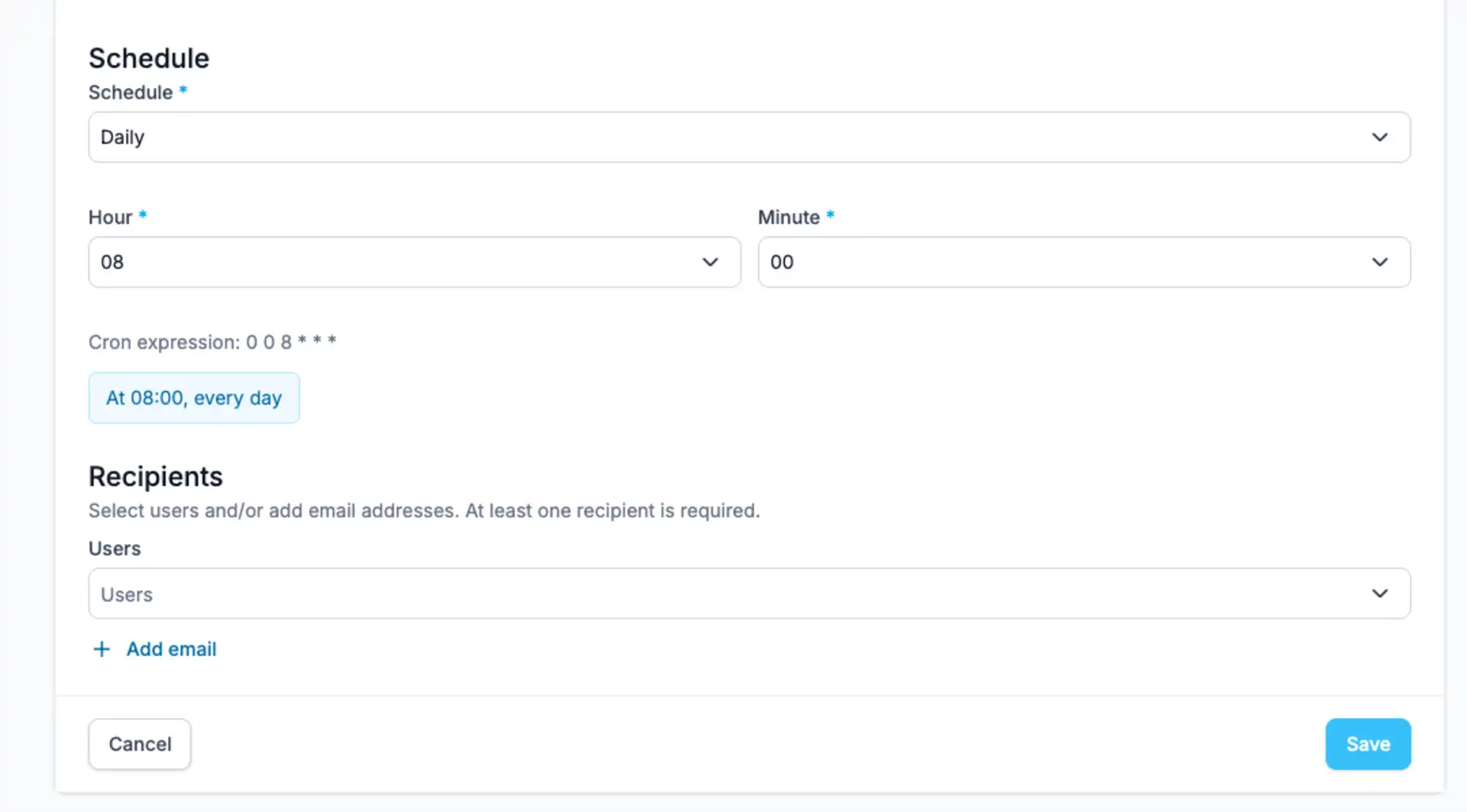
In the Schedule section, configure when the report should be generated.

You can select the schedule type, for example Daily, and then choose the exact time.

For example:

Daily at 08:00

The system will also show the generated cron expression, for example:

10 0 8 * * *

This helps confirm when the report will run automatically.

Scheduled Report Schedule Settings

Recipients

In the Recipients section, select who should receive the report.

You can add recipients in two ways:

Users Select existing TARGPatrol users from your organization.

Add email Manually add an email address.

At least one recipient is required before the scheduled report can be saved.


Save the scheduled report

After all required fields are completed, click Save.

The report will appear in the Scheduled Reports list.

From this list, you can:

  • View the report status

  • See the last run time

  • See the next scheduled run

  • Edit the scheduled report

  • Delete the scheduled report

  • Enable or disable the report


Example: Daily User Timesheet

A common setup is a daily timesheet report.

Example configuration:

  • Name: Daily User Timesheet

  • Report type: User Timesheet

  • Export format: Excel

  • Period: Day

  • Schedule: Daily at 08:00

  • Recipients: Manager or supervisor email

With this setup, TARGPatrol will automatically generate the previous day’s user timesheet and send it by email every morning.


Notes

Scheduled Reports are useful for regular management reporting, payroll preparation, compliance checks, cleaning reports, guard patrol summaries, and performance reviews.

Reports are generated automatically based on the selected timezone, period, filters, and schedule. Make sure the timezone is correct before saving the scheduled report.


Tasks & issues management

Media Gallery

Learn how to use TARGPatrol’s Media Gallery to support work order management with photo reports for audits, inspections, and incident tracking.

On-Demand Check-ins

On-Demand Check-ins allow users to scan a point and complete assigned actions or checklists without being assigned to a Scheduled Task. This mode is ideal for ad-hoc visits, unscheduled inspections, spot checks, or flexible patrol workflows.

Reports

Learn how to effectively work with Reports in TARGPatrol. Discover how to create reports in the task management software with useful tips and tricks.

Schedule Guide

Learn how to create a work schedule in TARGPatrol: adding and editing tasks. A guide to assigning and managing tasks for your team in the task tracker.

Tags

Learn how to use Tags in TARGPatrol to organize Points, Tasks, Users, and Locations. Improve filtering, reporting, and operational management with flexible tagging

Task Creation

Discover how to efficiently manage tasks in TARGPatrol. Learn to create and assign tasks to your team to ensure optimal productivity and smooth operations

Task Execution

An employee guide to task execution in TARGPatrol: how to start, conduct and complete tasks in the mobile app. Tips for efficient task execution.

Task Management

Learn to create repeatable tasks, copy existing ones, save favorites, handle deadline-driven tasks, and organize recurring work with task series.

User Calendar Feed

Synchronize assigned tasks with external calendars such as Google, Microsoft (Outlook), and Apple Calendar — keeping field teams aligned with their schedules.

Webhooks

Learn how to set up webhooks in TARGPatrol to streamline your workflows. A comprehensive guide to creating, testing, and reviewing webhook logs.