
Task Execution
Executing Tasks in TARGPatrol Mobile App
In this guide, we will explain how to execute tasks in TARGPatrol.
After tasks have been created in TARGPatrol, users can execute these tasks directly from their mobile devices.
TARGPatrol offers a mobile app for iOS enabling seamless task management on Apple devices.
There’s also an app available for Android , ensuring users on Android devices can efficiently manage and execute their tasks as well.
TARGPatrol mobile apps fully support offline mode, allowing users to start and perform tasks even without an internet connection. All task data—including check-ins, photos, videos, and form inputs—is securely stored on the device while offline. Once the device reconnects to the network or Wi-Fi, the app automatically syncs all collected information back to the server, ensuring nothing is lost and that records remain complete and up to date.
Task Execution via Mobile App
To execute tasks from a mobile device, follow these steps:
Open the TARGPatrol App: Launch the app on your mobile device and log in to your account.
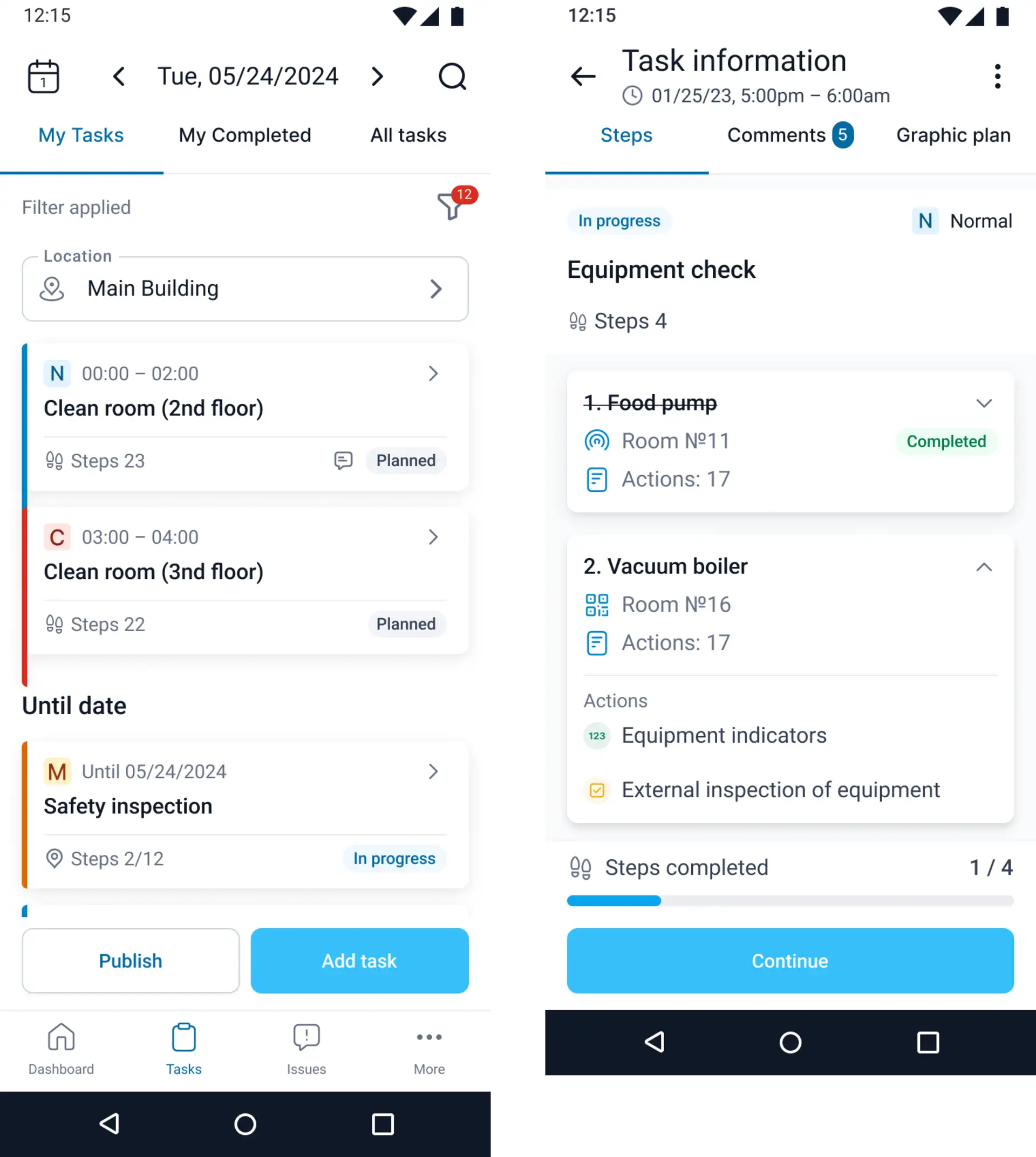
Navigate to "Tasks" -> "My Tasks": Tap on the "Tasks" icon to see the list of all assigned tasks.
Select a Task: Tap on the task you want to complete. This will open its detailed description.
Review Task Details: Check the task description, steps, deadlines, and actions required for completion. Tap "Start".
Perform the Steps: If the task consists of multiple steps, complete each step and action required at each step.
Add Comments and Files: If necessary, add comments or attach files to clarify task details or provide evidence of completion.
Complete the Task: Once all steps are completed, the task will be automatically marked as completed.
Tips for Task Execution
Attention to Detail: Carefully review the task description and all steps to ensure nothing is missed.
Meeting Deadlines: Pay attention to task deadlines and try to complete tasks on time.
Communication and Reporting: Use comments to clarify task details or report on its completion.
These simple steps and tips will help you effectively execute tasks in TARGPatrol, ensuring accuracy and timeliness in completing all operations.
Read more
For more detailed guidance on working with tasks in TARGPatrol, explore our Knowledge Base articles:
Schedule – Understand how to navigate, view, and manage the Schedule page effectively.
Task Creation – Learn how to create tasks step by step.
Task Management – Discover advanced tips for managing and optimizing your task workflows.