

Set up NFC checkpoints for security patrols
Start with one door on a patrol route. In TARGPatrol, link its NFC tag to a Point, add that Point to a task step and tell the guard what to check. Run one round on the phone the guard will actually use.
Register Account & Create Organization
If you are new to TARGPatrol, create an account and set up your organization. If you already have a site and a team, go straight to Points.
Create Locations & Points
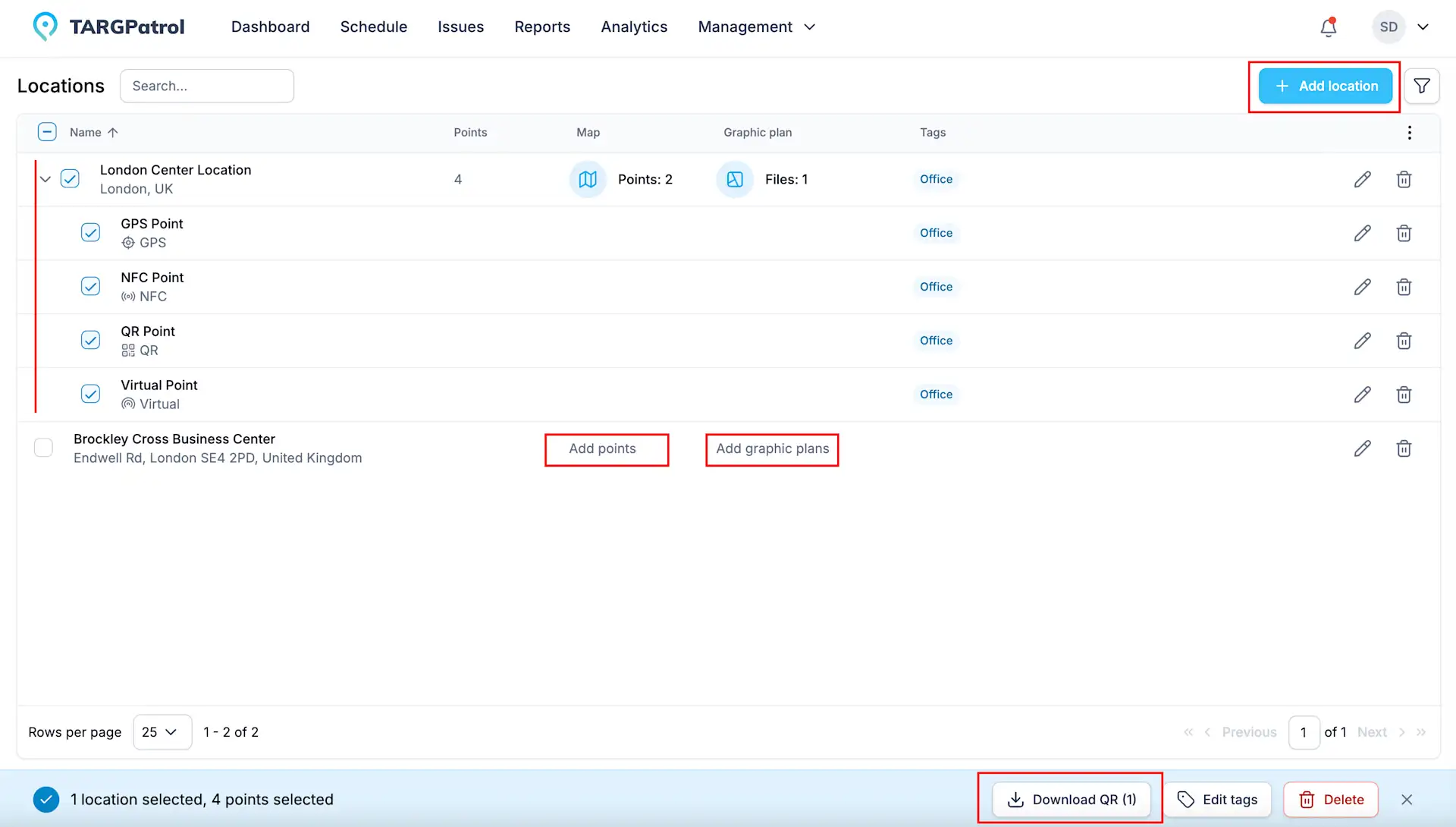
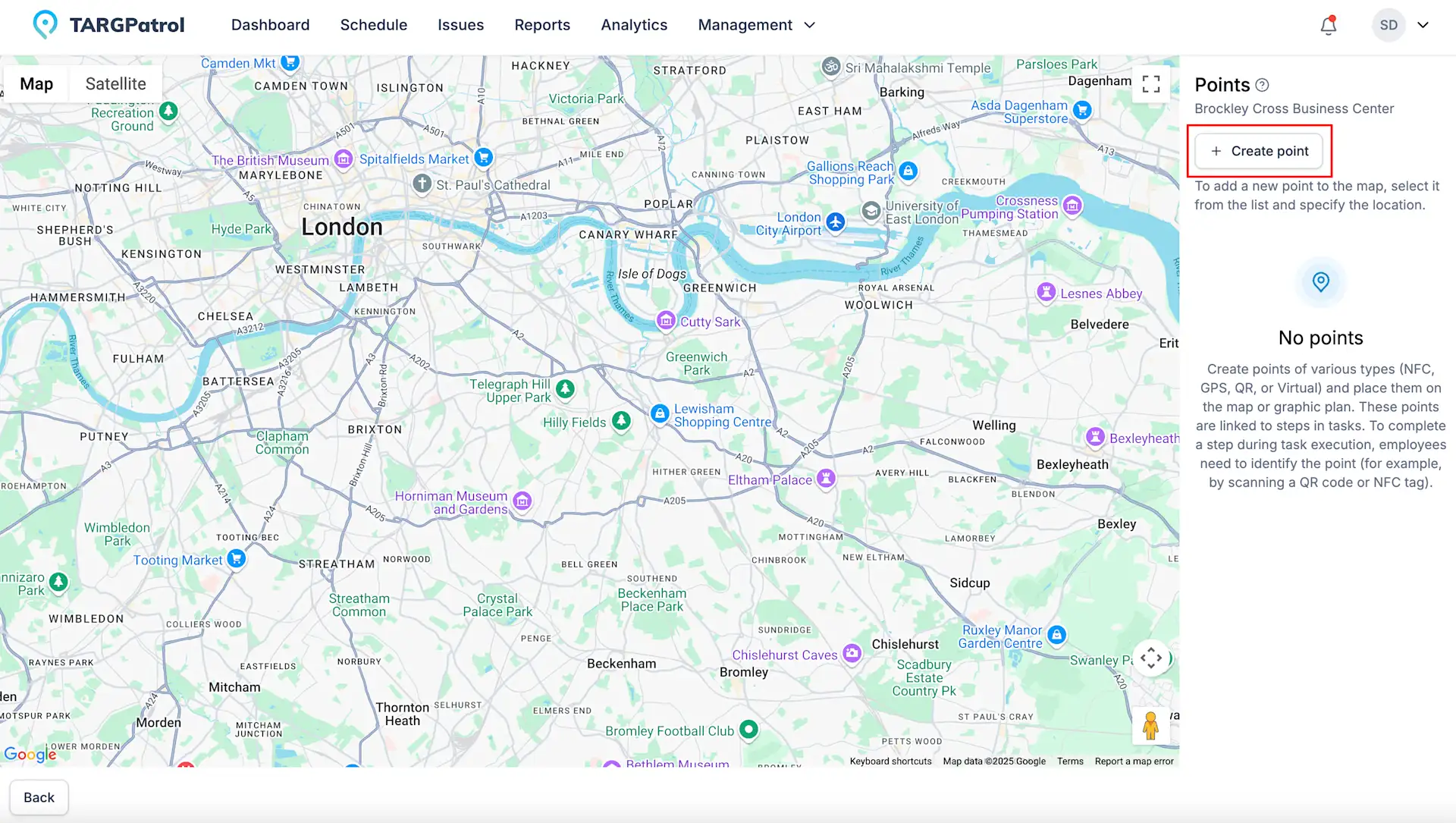
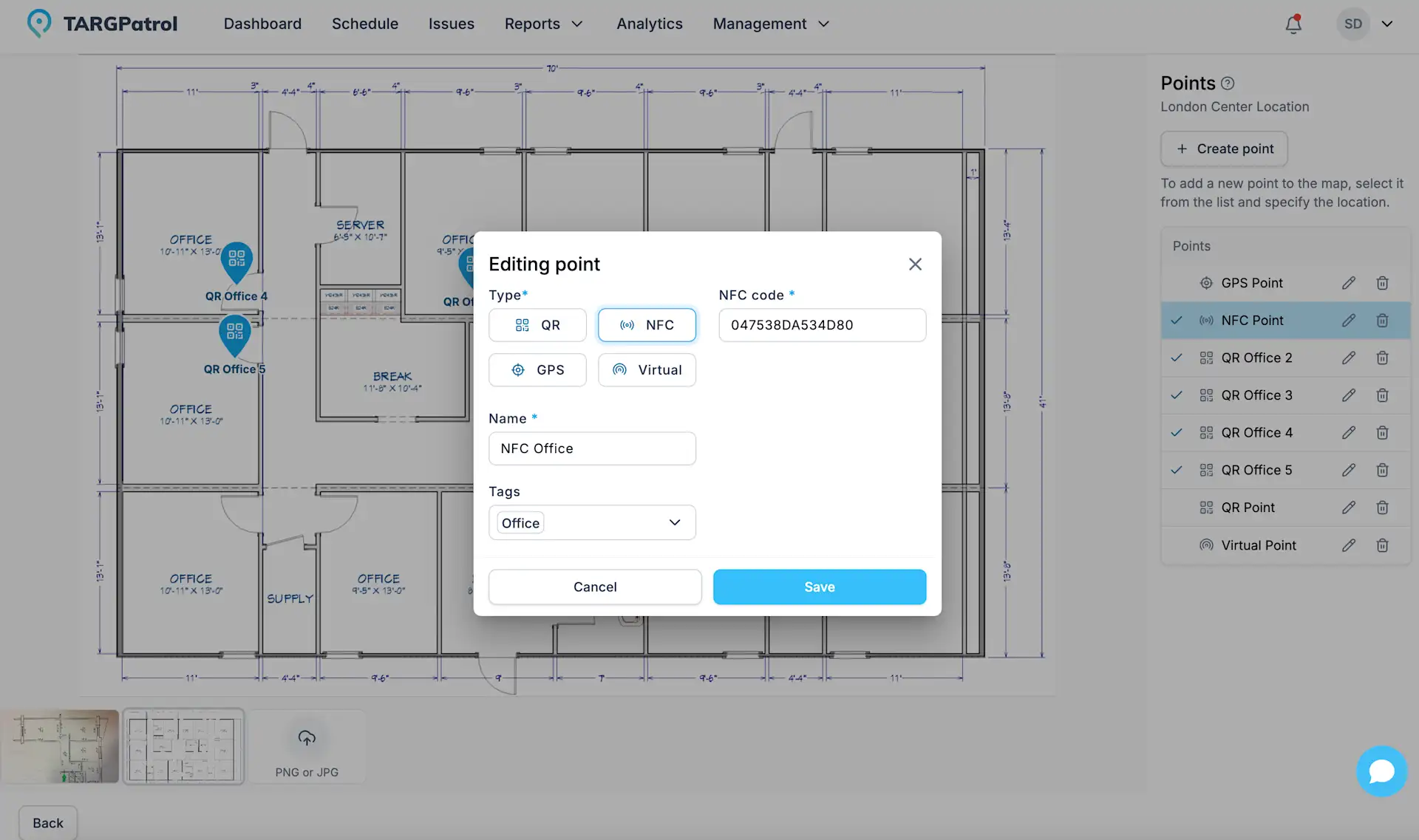
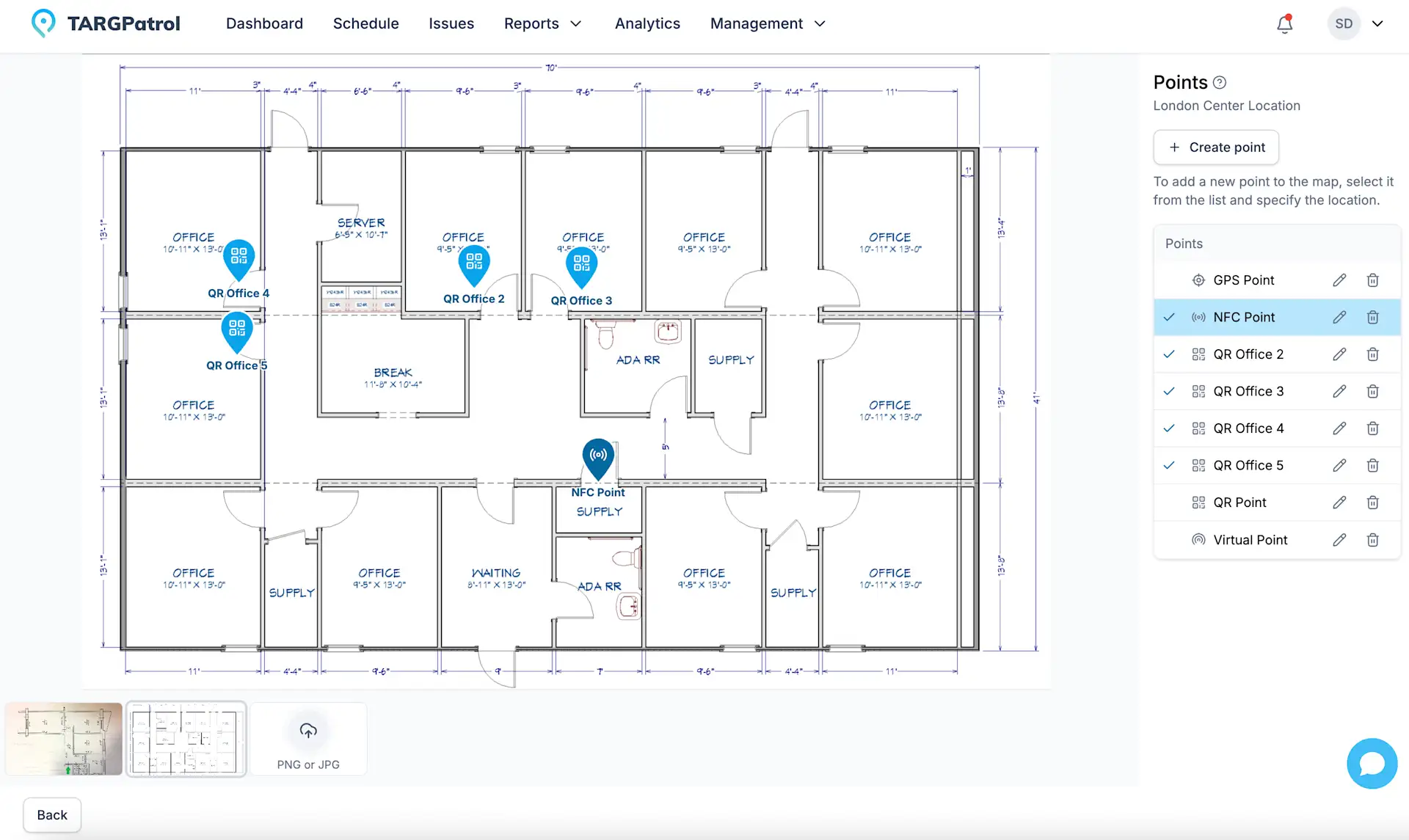
Open Locations and choose the site. Add a Point, select NFC as the type and give the Point the same name as the sign at the checkpoint.
In the mobile Point form, use Scan NFC and hold a compatible phone close to the tag. Check the detected identifier, then save. In the web form, you can enter the identifier as uppercase HEX pairs without spaces. Use the ID read from the tag, not a generated code or a fixed length.
Try a test check-in after mounting the tag. If it sits on metal or outdoors, use the NFC tag selection guide before ordering more.
Allow Check-Ins Without Scheduled Tasks
Use a scheduled task for work you want to assign and track against a plan. For a spot check without a task, enable check-ins for the Point, choose who can use it and configure the actions if you need a checklist. The employee opens Check-in in the mobile app and scans the tag. Without configured actions, the result is a visit record. See On-Demand Check-ins.
Add Users
Invite the people doing the work and give them access to the Location. Test with an employee account that has the same access as the team, not just an administrator account.
Add Tasks
Create a patrol task and add a step at the service entrance. Select its NFC Point, set a time and assign the guard. A checklist might ask whether the lock works and request a photo if it is damaged.
Use the task’s actions for an assigned check. The Point’s on-demand actions are configured separately. See how to add a checklist.
Execute Tasks
In the mobile app, open the assigned task and start it. Hold the phone near the tag when the task asks for the NFC Point, complete the checklist and attach any required photo. A read matches a tag identifier; on its own it does not prove who was there or that the checklist was completed.
Before going offline, sign in and sync the device and assigned task online. After reconnecting, check that the task result and photo uploads have reached the server. See Task Execution for the mobile steps.
Reports
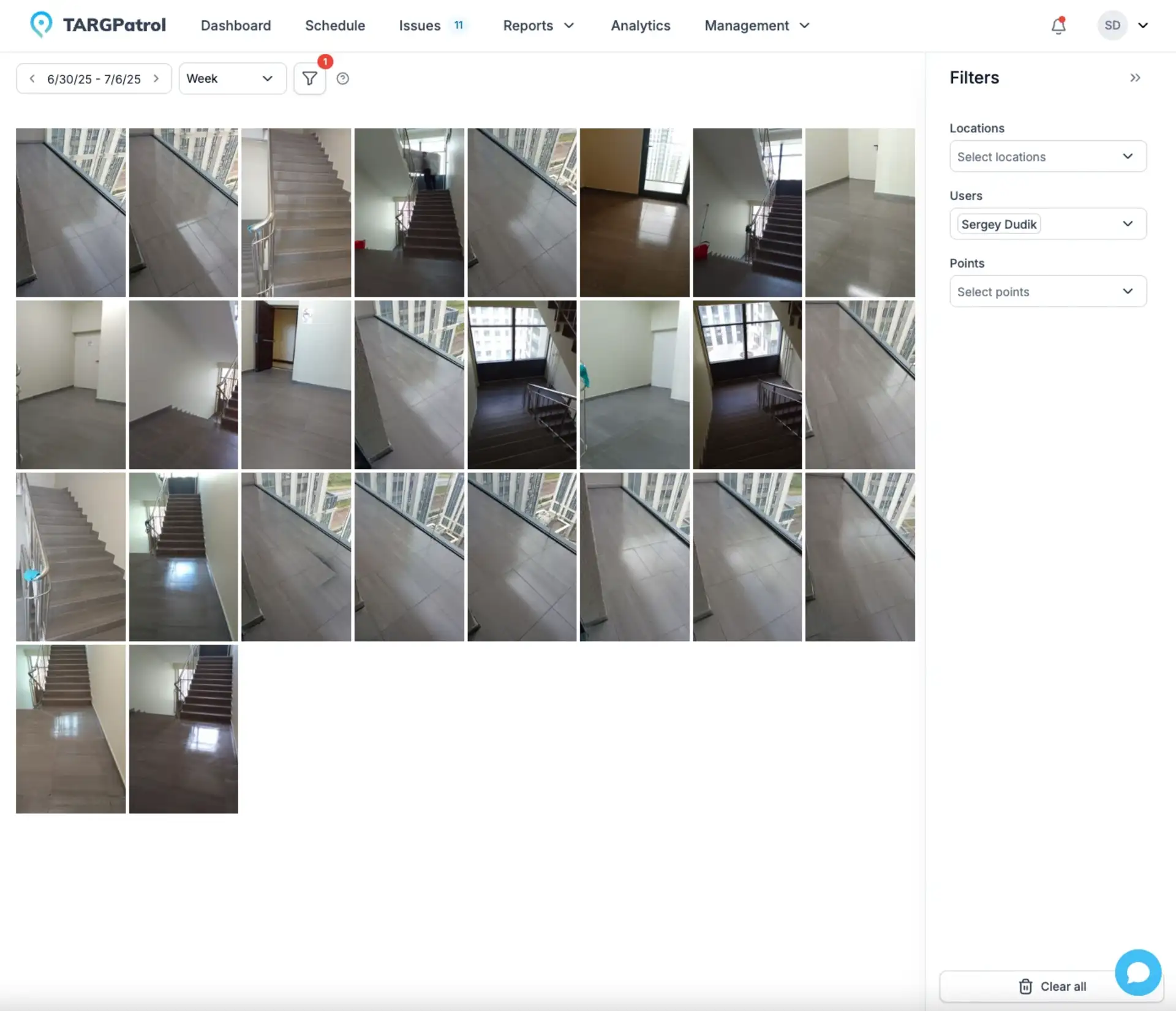
Open the completed patrol in Schedule to see the checkpoint, the time of the visit and the guard’s answers. Check the photo before reporting the round as complete.
Build a report for the period or site you need. NFC check-ins, photo evidence and basic reports are available on Free. Free media is kept for seven days; video and PDF/Excel report exports require a paid plan. Check Pricing before agreeing how long to retain evidence.
Read more
Use the tag selection guide to test the right hardware. For a worked example, see the workflow.