
Media Gallery
The Media Gallery is an essential tool for documenting and analyzing operational activities in TARGPatrol. It enables users to view, organize, and manage photos and videos captured during task execution, issue reporting, and comments. In this article, we will explore how to navigate and use the Media Gallery in TARGPatrol, as well as the features available for filtering and accessing media content efficiently.
Media Gallery in TARGPatrol
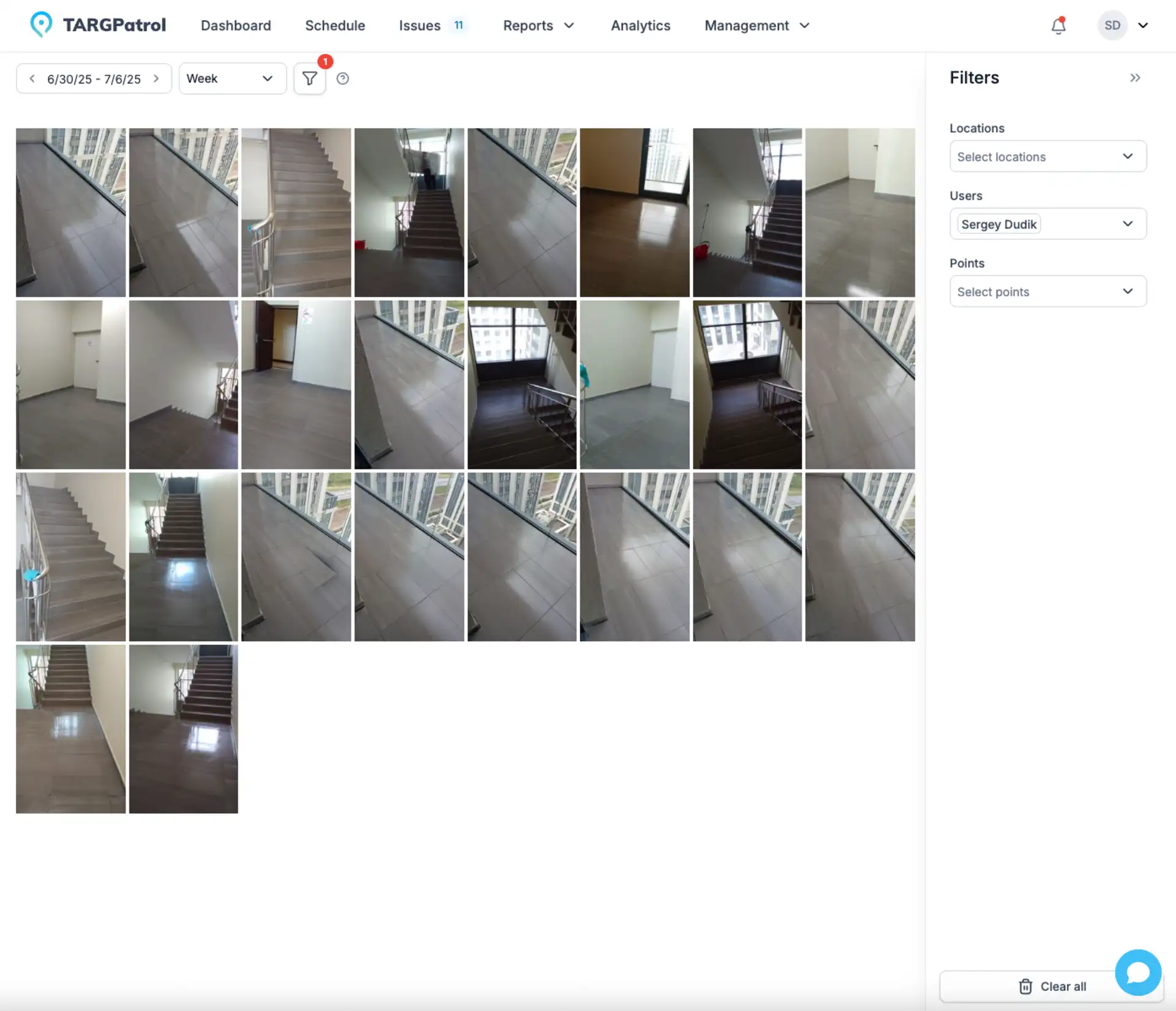
To view and manage photos and videos in TARGPatrol, follow these steps:
Log in to the TARGPatrol web application with your account.
Go to the Management menu -> Reports -> Media Gallery.
Use the time selector to choose the period for which you want to view media files.
Scroll down the page to automatically load and browse more photos and videos.
If needed, apply filters to narrow down media by user, location, or specific points of interest.
Click on any photo or video to open a detailed view and see additional information about the media file.
Media Gallery Report (PDF)
The Media Gallery Report allows you to export selected images into a structured PDF document for professional reporting and compliance purposes. Each photo is automatically organized in the report along with key contextual information such as date and time, user name, point/location, related task, and other relevant details.
All found image files within the selected filters will be exported to the PDF automatically. Video files are skipped and are not included in the report. Please note that there is a limit of 100 images per report to ensure optimal performance and file size.
This format is ideal for sharing with clients, management, or auditors, as it presents visual evidence in a clean, chronological, and easy-to-review layout.
You can also use the History sidebar to access previously generated reports and download them again at any time without rebuilding the report.
⚠️ This feature is available on paid plans only.
Export zip
For reporting or record-keeping purposes, selected media files can be exported and downloaded as a single archive (ZIP). This allows you to store, share, or transfer evidence in bulk without downloading each file individually. The exported archive preserves the original files for audit and documentation needs.
⚠️ This feature is available on paid plans only.
Media Retention on Free Plan
If you are using the FREE plan, please note that uploaded media files (photos and videos) are automatically stored for 7 days. After this period, media files are permanently deleted from the system to optimize storage resources.
If you require longer media retention, archive downloads, or extended reporting capabilities, upgrading to a paid plan is recommended.
Tips for Using Media Gallery
Use the Time Selector: Choose a specific time range to quickly find media captured during relevant periods of operations or inspections.
Scroll for More: The Media Gallery page is scrollable. As you scroll down, additional photos and videos will load automatically, allowing you to browse larger collections seamlessly.
Apply Filters: Use available filters to narrow down media by user, location, or point, making it easier to locate specific images or videos related to particular tasks or incidents.
View Details: Click on any photo or video to open a detailed view, where you can inspect media more closely and access related information.
The Media Gallery in TARGPatrol is a valuable tool for documenting, reviewing, and managing visual evidence across all operational activities. By following these tips, you can efficiently navigate and utilize the gallery, ensuring quick access to critical media for analysis, reporting, and incident resolution.