
Schedule Guide
In this guide, we will discuss schedules in TARGPatrol, their types, and common functionalities.
Common Functions
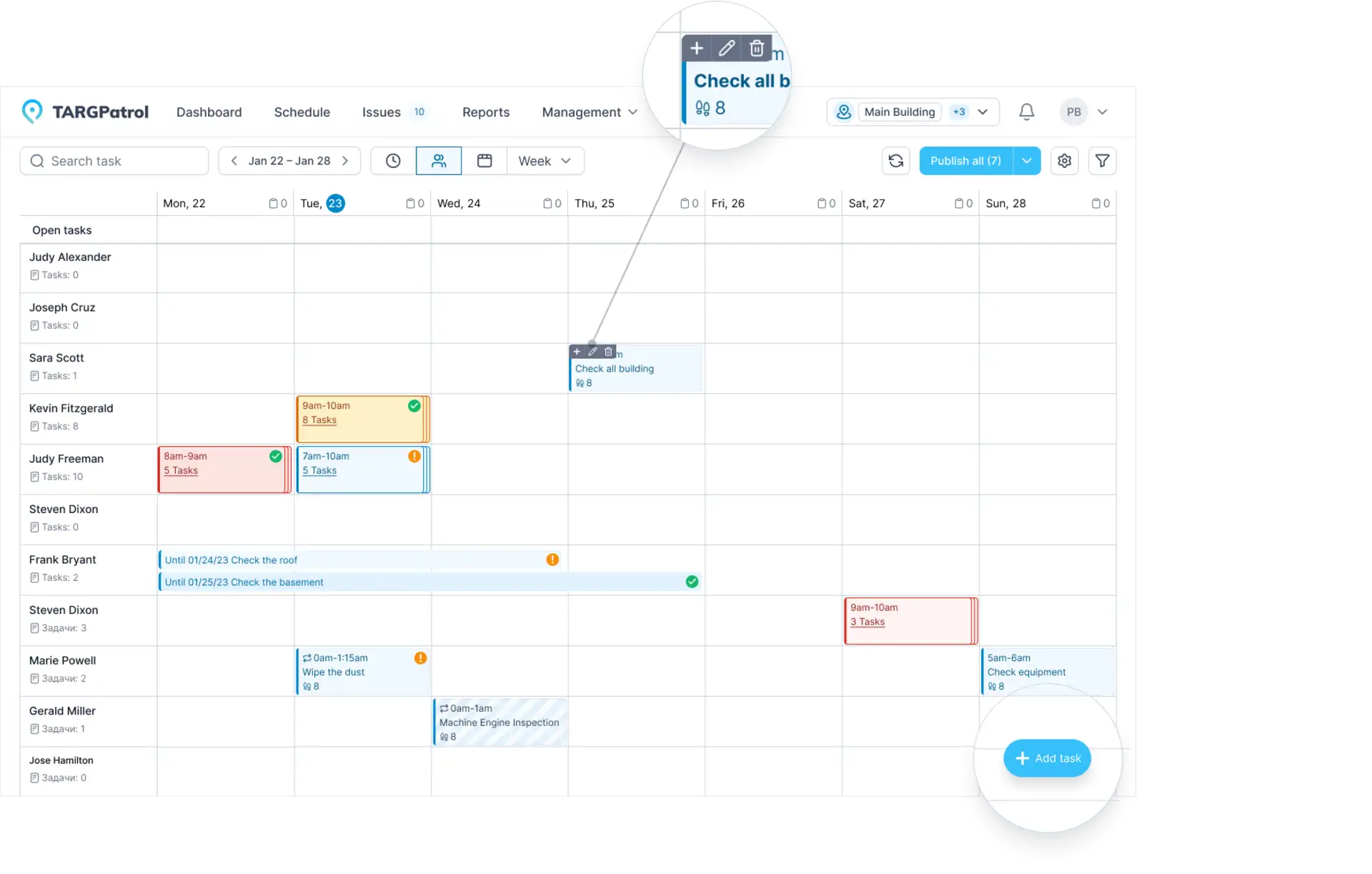
The "Schedule" page is designed for displaying existing tasks, creating and editing new tasks, assigning tasks to employees, publishing schedules, and other actions.
Adding a Task: To add a task, click on a cell in the schedule grid or click the "Add Task" button.
Editing a Task: To edit an existing task, select it and use the necessary buttons in the sidebar menu or when you hover over a task.
Publishing Schedule: To publish tasks, click the button in the top right corner of the page.
Task Filtering: Use the "Task Filters" functionality to filter tasks based on specific criteria.
Types of Schedules
In TARGPatrol, there are three types of schedules:
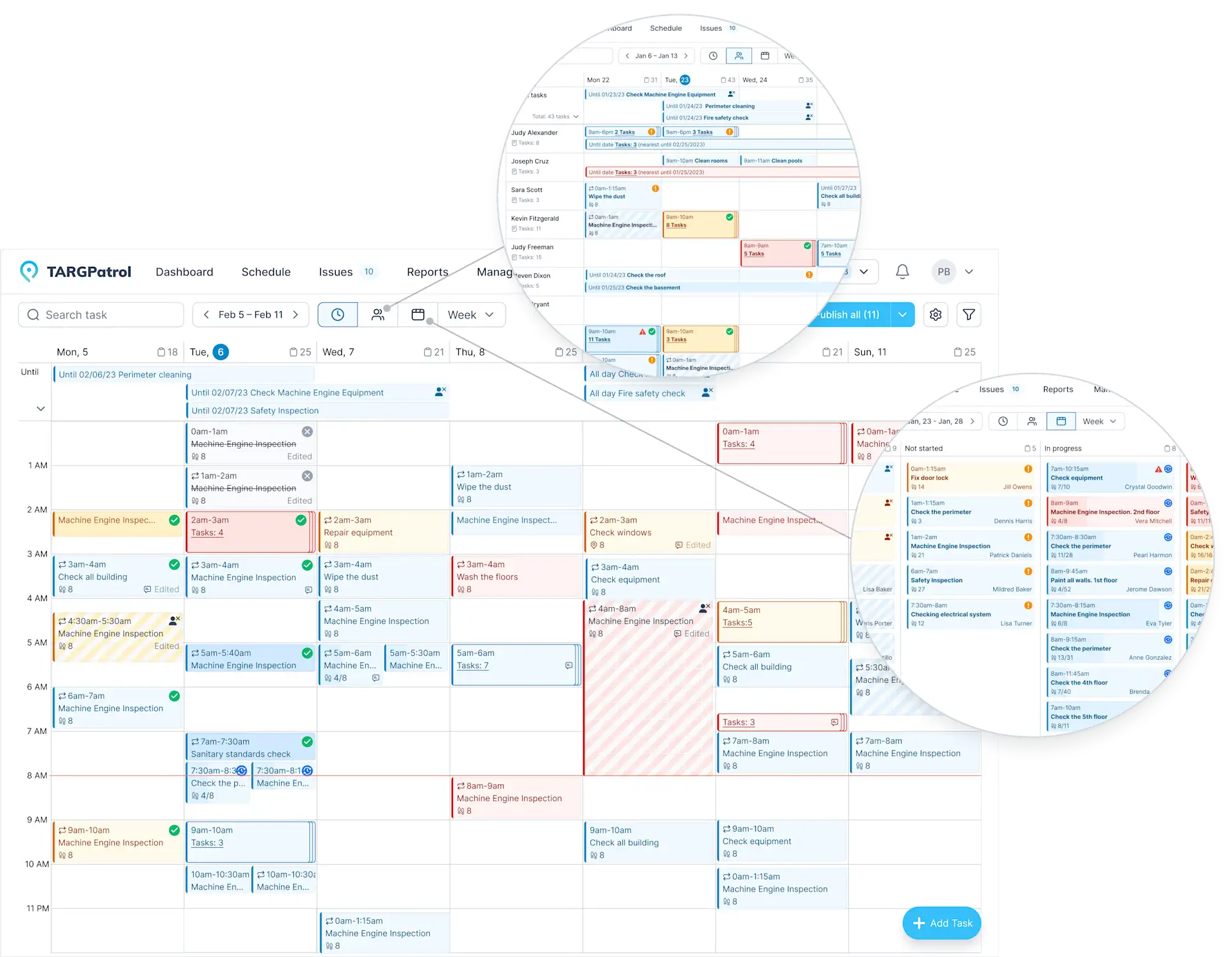
Time-based: Presents a classic calendar view with breakdowns by hours (vertically) and days (horizontally).
Employee-based: Displays schedules for employees, their tasks, and open tasks.
State-based: Helps track task states within a selected time interval.
Additionally, there are two time views available:
Day: Displays schedule for a single day.
Week: Displays schedule for a week.
Tips for Using Scheduling in TARGPatrol
Assign Tasks Appropriately: Ensure tasks are assigned to the right employees based on their skills and availability.
Utilize Filters for Convenience: Use task filtering to quickly find specific tasks and monitor their status.
Plan Tasks in Advance: Create tasks ahead of time to avoid rush and last-minute executions, reducing the likelihood of errors.
Choose the Right Schedule View: Depending on your needs, select the appropriate schedule view — by time, by employee, or by state — to efficiently organize your workflow.
Publish Schedule Timely: Ensure the schedule is published on time so employees can promptly review assigned tasks and prepare for execution.
Regularly Check and Update Schedule: Conduct regular schedule checks to ensure it remains current and make necessary adjustments.
Train Employees on Using the Schedule: Provide training sessions for employees on using different schedule views and functionalities in TARGPatrol.