
Reports

Reports play a crucial role in managing operational activities and ensuring process transparency. In TARGPatrol, the reporting system allows users to efficiently track, analyze, and improve task execution. In this article, we will discuss how to create and manage reports in TARGPatrol, as well as the types of reports available.

Creating a Report in TARGPatrol

To create a new report in TARGPatrol, follow these steps:

  1. Log in to the TARGPatrol web application with your account.

  2. Go to the Management menu -> "Reports".

  3. Choose the necessary report type (and the interval for which the report will be generated).

  4. Click the "Generate Report" button.

  5. If necessary, use filters to display only the data you are interested in.

  6. If you need to export the report to an Excel file, click the Export button.

Additionally, every generated report or exported file can be viewed in Notifications, so you can always return to previously generated reports or download the needed file.
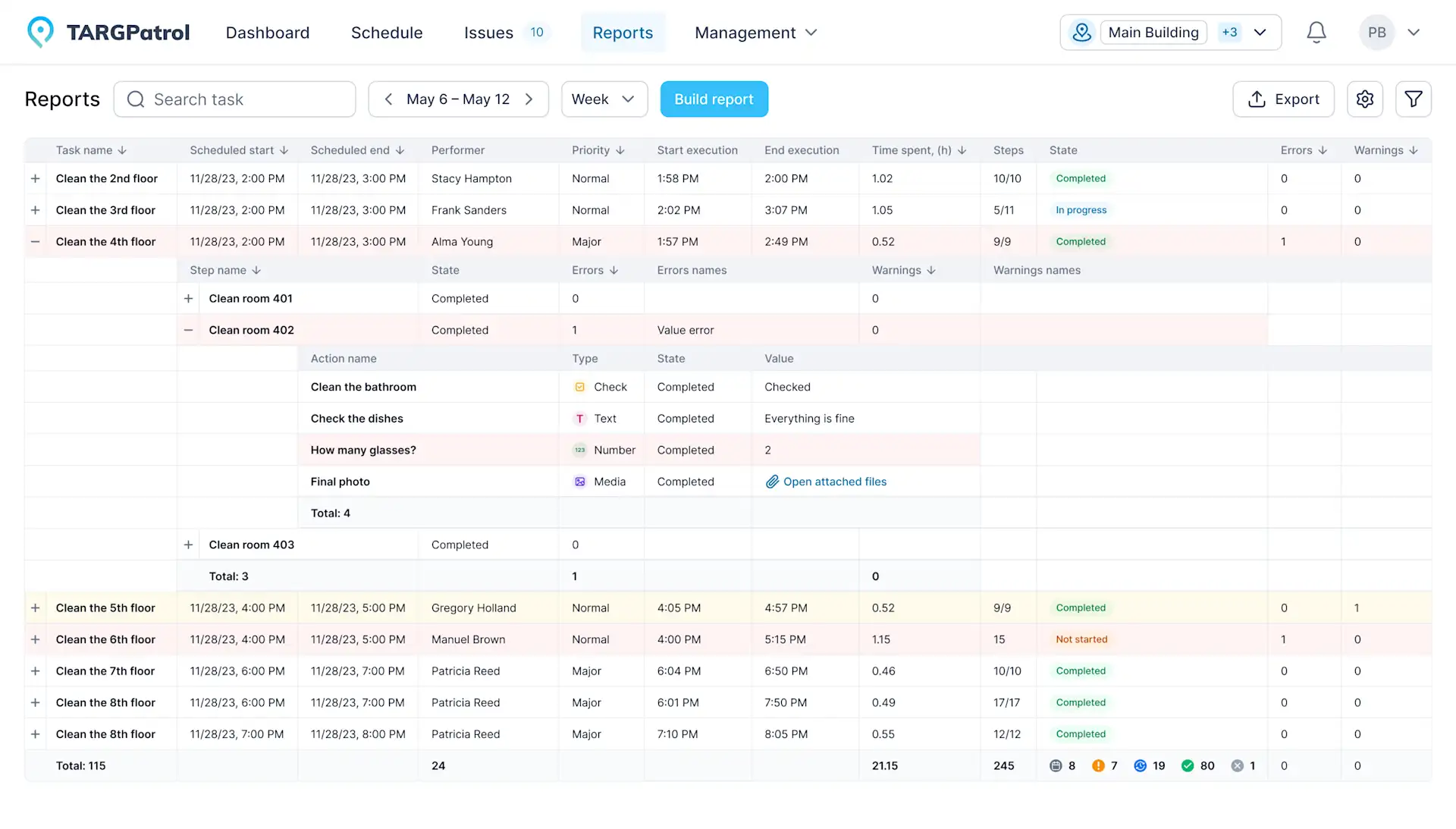
Reports

Tips for Using Reports

  • Regular Analysis: Conduct regular analysis of reports to identify problem areas and make informed decisions.

  • Feedback: Get feedback from employees on the content of reports and use this information to improve processes.

  • Custom Reports: Use customizable reports to create specific types of analysis that meet the needs of your organization.

  • Integration with Other Systems: Export data from reports and integrate it with other management systems for more comprehensive analysis.

Reports in TARGPatrol are a powerful tool for managing and optimizing operational activities. By following the provided recommendations and utilizing the reporting system's capabilities, you can improve your team's productivity, enhance process transparency, and make more informed decisions based on data.


Tasks & issues management

Issues

Master issue management in TARGPatrol with our guide: track, resolve, and analyze incidents to ensure a secure and efficient environment.

Media Gallery

Learn how to use TARGPatrol’s Media Gallery to support work order management with photo reports for audits, inspections, and incident tracking.

Notifications

Optimize your task management by configuring notifications in TARGPatrol. Receive alerts for tasks and essential employee actions in real time.

On-Demand Check-ins

On-Demand Check-ins allow users to scan a point and complete assigned actions or checklists without being assigned to a Scheduled Task. This mode is ideal for ad-hoc visits, unscheduled inspections, spot checks, or flexible patrol workflows.

Schedule Guide

Learn how to create a work schedule in TARGPatrol: adding and editing tasks. A guide to assigning and managing tasks for your team in the task tracker.

Task Creation

Discover how to efficiently manage tasks in TARGPatrol. Learn to create and assign tasks to your team to ensure optimal productivity and smooth operations

Task Execution

An employee guide to task execution in TARGPatrol: how to start, conduct and complete tasks in the mobile app. Tips for efficient task execution.

Task Management

Learn to create repeatable tasks, copy existing ones, save favorites, handle deadline-driven tasks, and organize recurring work with task series.

User Calendar Feed

Synchronize assigned tasks with external calendars such as Google, Microsoft (Outlook), and Apple Calendar — keeping field teams aligned with their schedules.

Webhooks

Learn how to set up webhooks in TARGPatrol to streamline your workflows. A comprehensive guide to creating, testing, and reviewing webhook logs.