
Issues
The Issues functionality plays a crucial role in ensuring safety and controlling operational activities. In TARGPatrol, the issue management system allows users to efficiently register, track, and analyze incidents. In this article, we will discuss how to create and manage issues in TARGPatrol and provide useful tips for their use.
Creating an Issue in TARGPatrol
There are two methods to create issues in TARGPatrol:
Through the web version
Through the mobile application
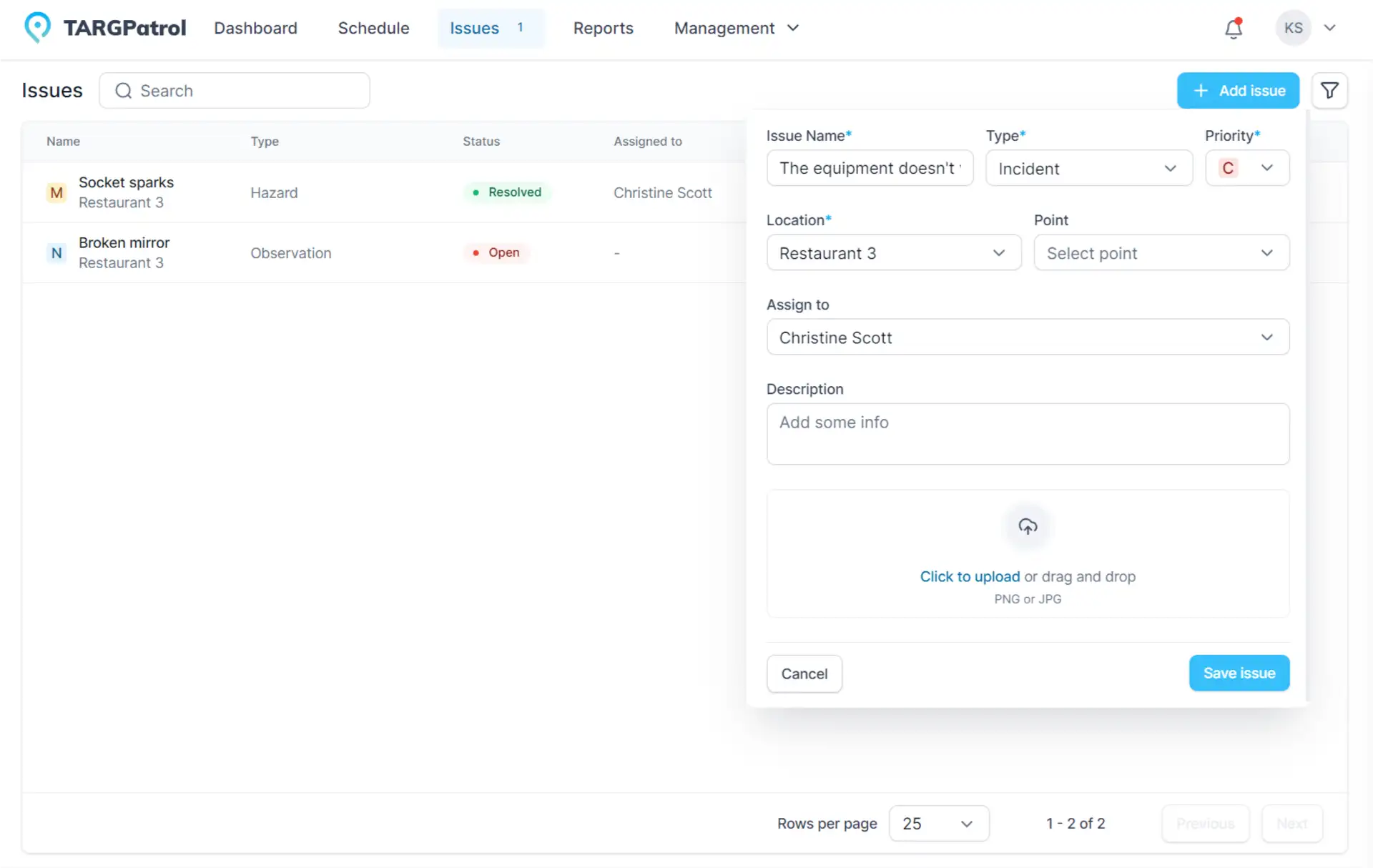
To create a new issue through the web version:
Go to the Issues tab.
Click the "Add Issue" button.
In the pop-up window, enter the issue details (name, type, priority, assignee, etc.) and click the "Save" button.
Once this action is completed, the issue will be created. The assignee and those responsible for the location where the violation occurred will be informed through notifications.
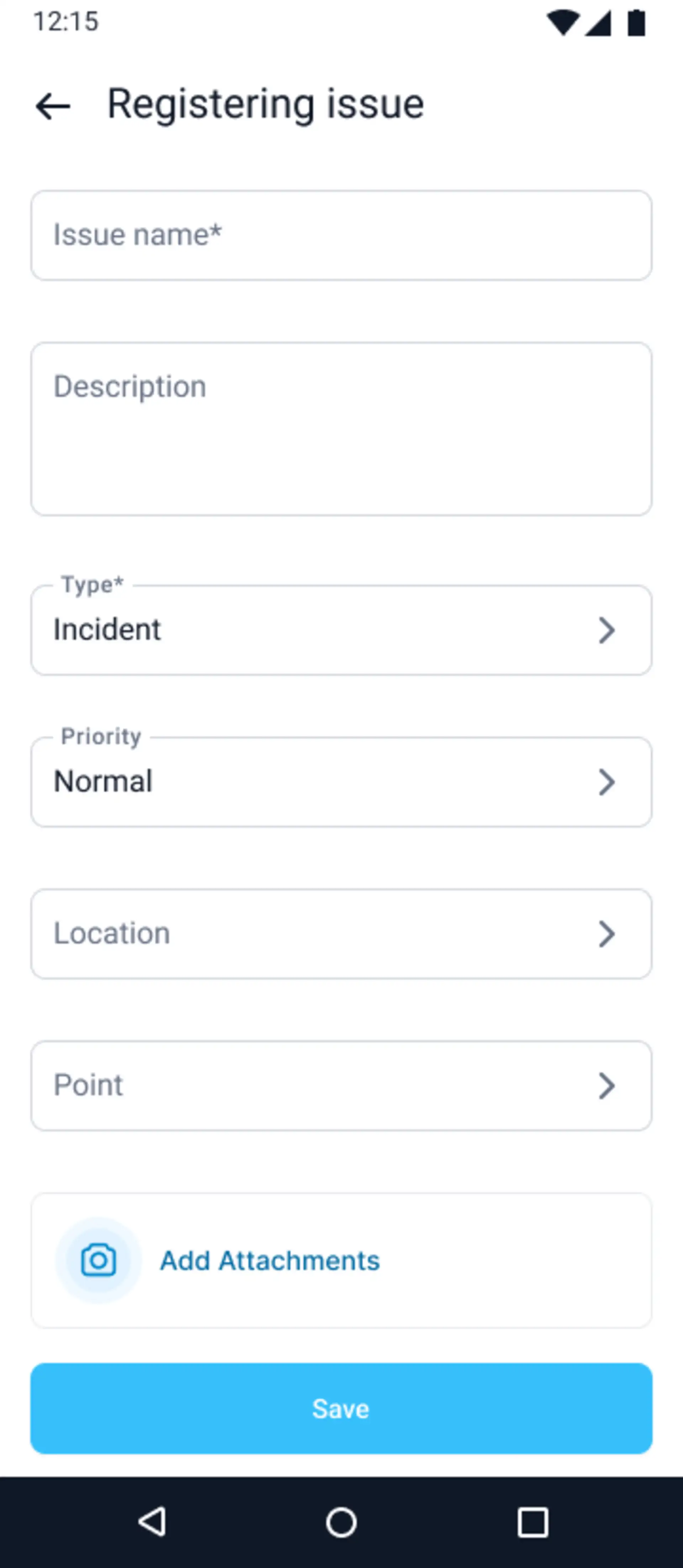
To create a new issue through the mobile application:
Go to the Issues menu.
Click the "Register Issue" button.
Enter the issue details (name, type, priority, assignee, etc.) and click the "Save" button.
Once this action is completed, the issue will be created. The assignee and those responsible for the location where the violation occurred will be informed through notifications.
Managing Issues
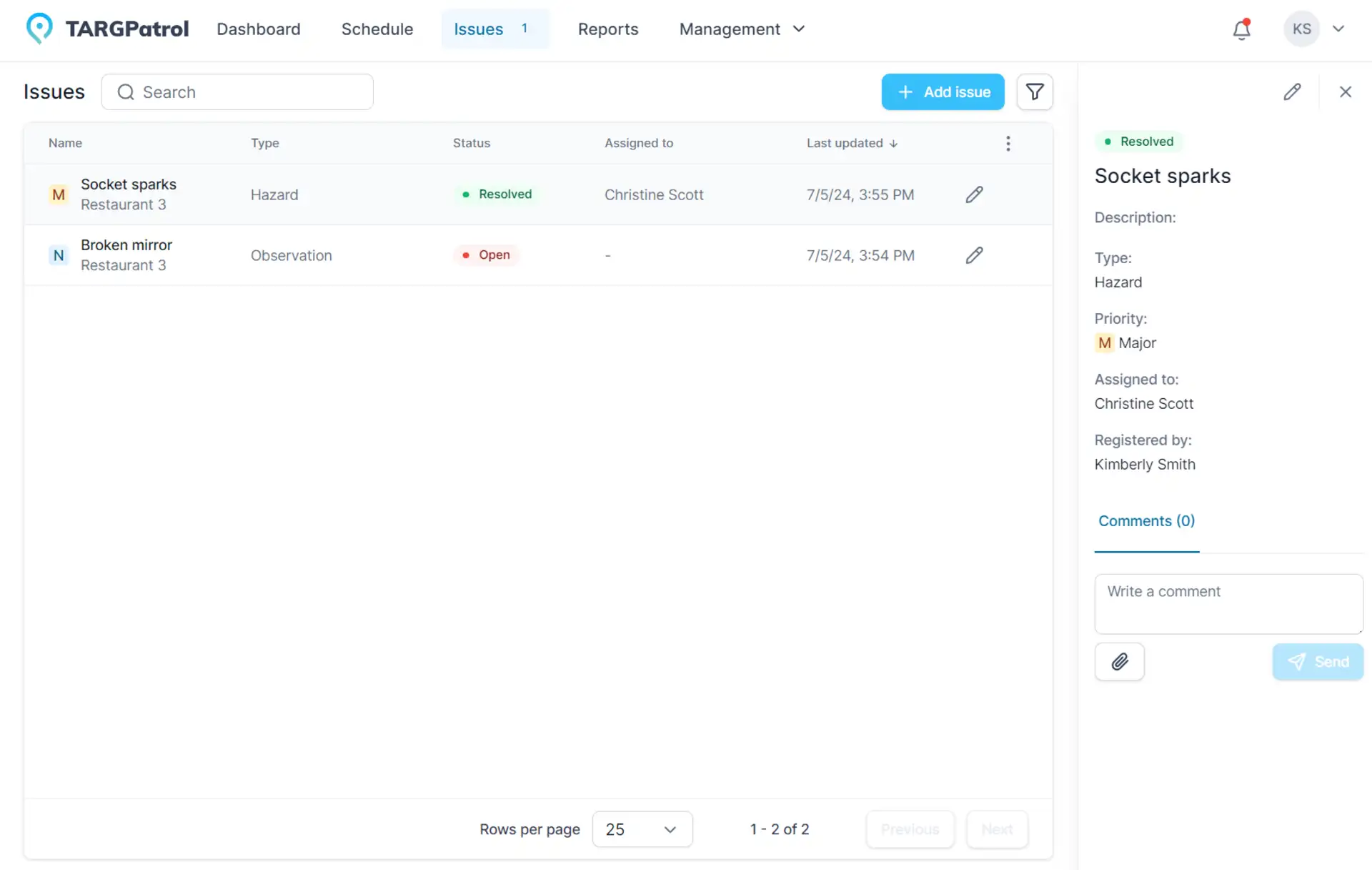
To view, edit, or close an existing issue:
Click on the issue itself.
In the side menu, you will see detailed information about the issue, attached files, and comments.
For detailed review/editing of the issue, click the pencil icon.
In the pop-up window, you can change any incident data, write comments, attach graphic files, and change its status (close the issue).
Working in the TARGPatrol mobile app follows a similar process.
Tips for Managing Issues
Regular Updates: Regularly update issue information to ensure data accuracy and timely response.
Employee Training: Train employees on proper issue reporting and registration for more effective incident management.
Data Analysis: Analyze issue data to identify trends and problem areas, which will help improve incident prevention measures.
Process Automation: Utilize automation capabilities for creating reports and notifications about issues to ensure prompt response and action.
Issues in TARGPatrol are an important tool for managing safety and controlling operational activities. By following these recommendations and utilizing the issue management system’s capabilities, you can enhance safety on site, improve incident response, and ensure more effective management of operational processes.